

QR Code UTM Tracking: How to Track Print, Events, and Offline Clicks in GA4
Learn how to generate and track QR codes with UTM parameters in Google Analytics 4. Step-by-step tutorial on vanity redirects, high-contrast sizing, and testing.
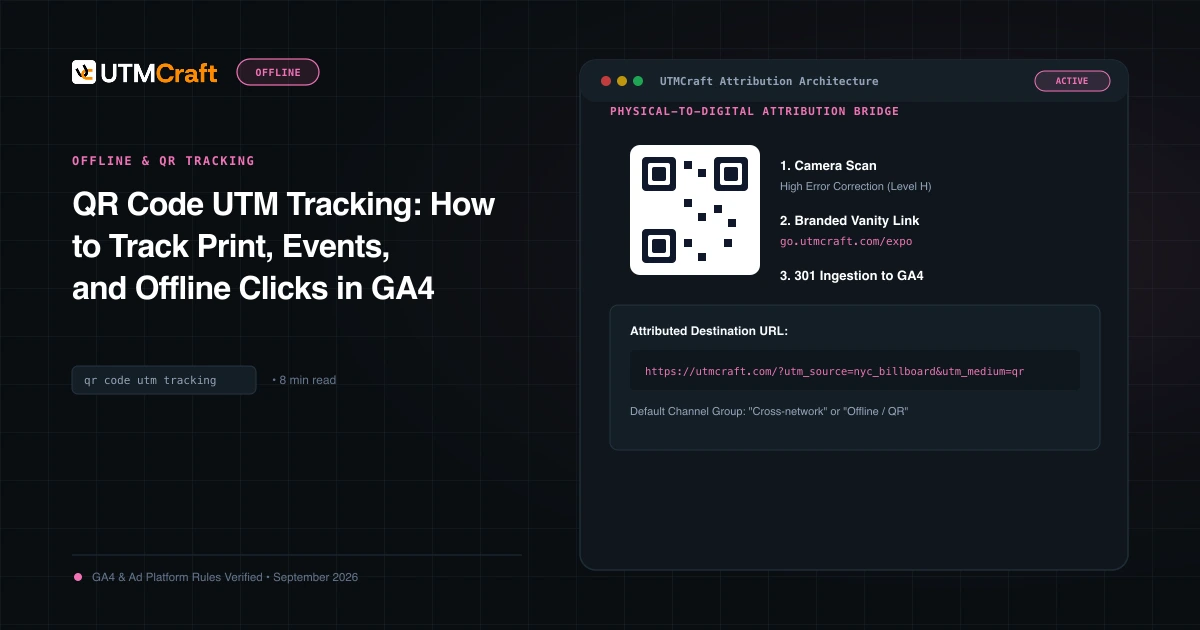
Table of Contents
Printing a QR code without UTM parameters is an irreversible tracking error. Once ink hits paper on thousands of flyers or product boxes, you cannot retrofit analytics. Here is how to create, test, and deploy tracking QR codes properly.
Why Every QR Code Must Carry UTM Parameters
When a customer scans a QR code, their phone camera decodes the text string and opens the default browser (Safari on iPhone, Chrome on Android). If the QR code contains only https://example.com/product, the browser sends an empty referrer header. In GA4, that scan is recorded as Direct. Adding ?utm_source=flyer&utm_medium=print&utm_campaign=spring2026 guarantees complete campaign attribution.
Step-by-Step: How to Generate a Tracking QR Code
- Open the UTMCraft Campaign URL Builder.
- Enter your destination landing page URL.
- Set
utm_sourceto the specific print vehicle (e.g.brochure_tradeshow). - Set
utm_medium=print(orevent). - Set
utm_campaignusing your standardized formula. - In the output drawer, click Generate QR Code.
- Download the QR code as high-resolution SVG for vector print artwork or high-DPI PNG.
Print Design Rules: Size, Quiet Zone, and Contrast
- Minimum Physical Size: Never print a QR code smaller than 0.8 x 0.8 inches (2 x 2 cm) for close-up scanning (business cards/brochures). For posters or billboards, scale up proportionally to scanning distance (ratio: 1:10).
- Quiet Zone: Maintain an empty white border around the QR matrix at least 4 modules wide.
- Contrast: Always use dark pixels on a solid light background. Never invert colors (light pixels on dark background confuse many older Android camera sensors).
Pre-Print Testing Protocol for Mobile Scanners
Before sending artwork to the commercial printer:
- Print a 100% scale proof on your office printer.
- Test scanning with both an iPhone (Apple Camera app) and an Android device.
- Verify the browser lands on the target page and the UTM parameters remain intact in the address bar.
Sources & Authoritative References
Related Measurement Guides
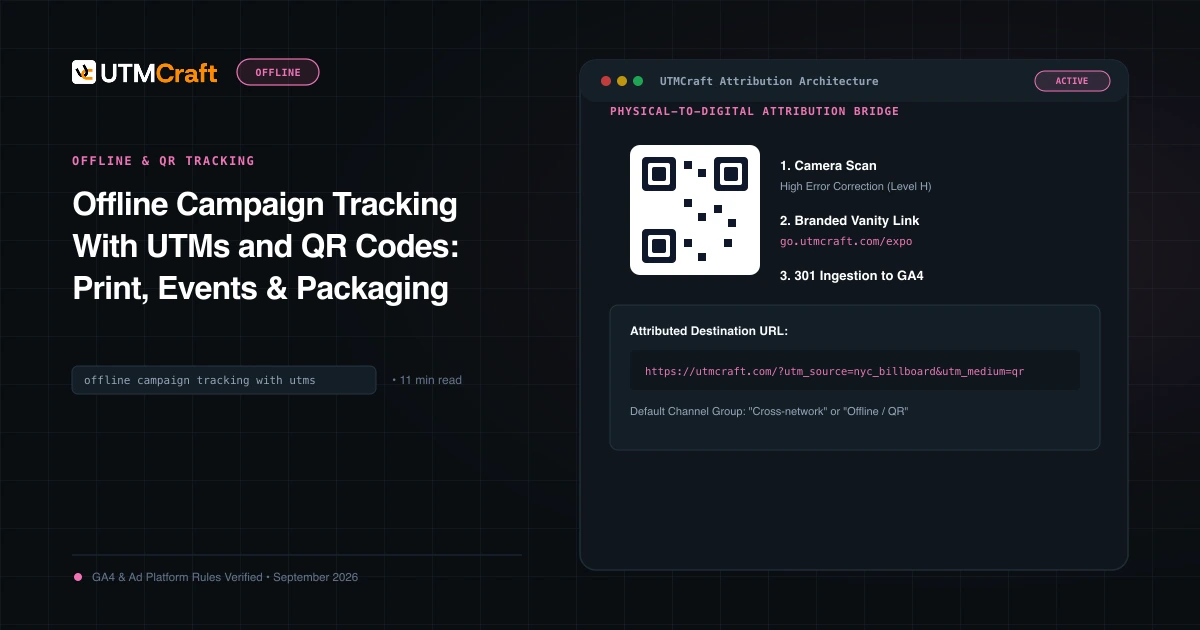
Offline Campaign Tracking With UTMs and QR Codes: Print, Events & Packaging
Learn how to connect offline marketing to Google Analytics 4. Track direct mail, billboards, conference booths, retail packaging, and QR codes with precision.
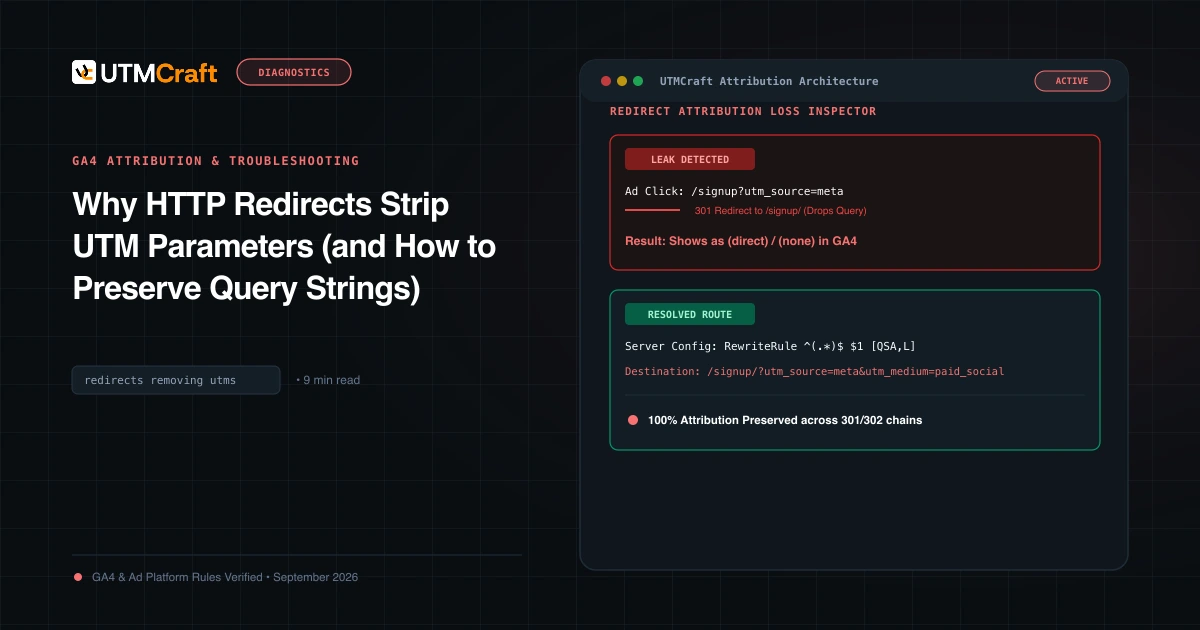
Why HTTP Redirects Strip UTM Parameters (and How to Preserve Query Strings)
Learn why HTTP 301 and 302 redirects drop UTM parameters, converting paid campaigns into Direct traffic, and how to configure servers to preserve query strings.
Pre-Launch UTM QA Checklist: 16 Steps to Prevent Broken Campaign Attribution
Prevent broken tracking before you launch. A comprehensive 16-step quality assurance checklist for validating UTM links, redirects, casing, and GA4 DebugView.