

How to Store UTM Parameters in CRM Hidden Fields (Salesforce, HubSpot & Forms)
Complete guide on capturing UTM parameters in hidden form fields and syncing attribution into Salesforce, HubSpot, and Zoho CRM without losing data.
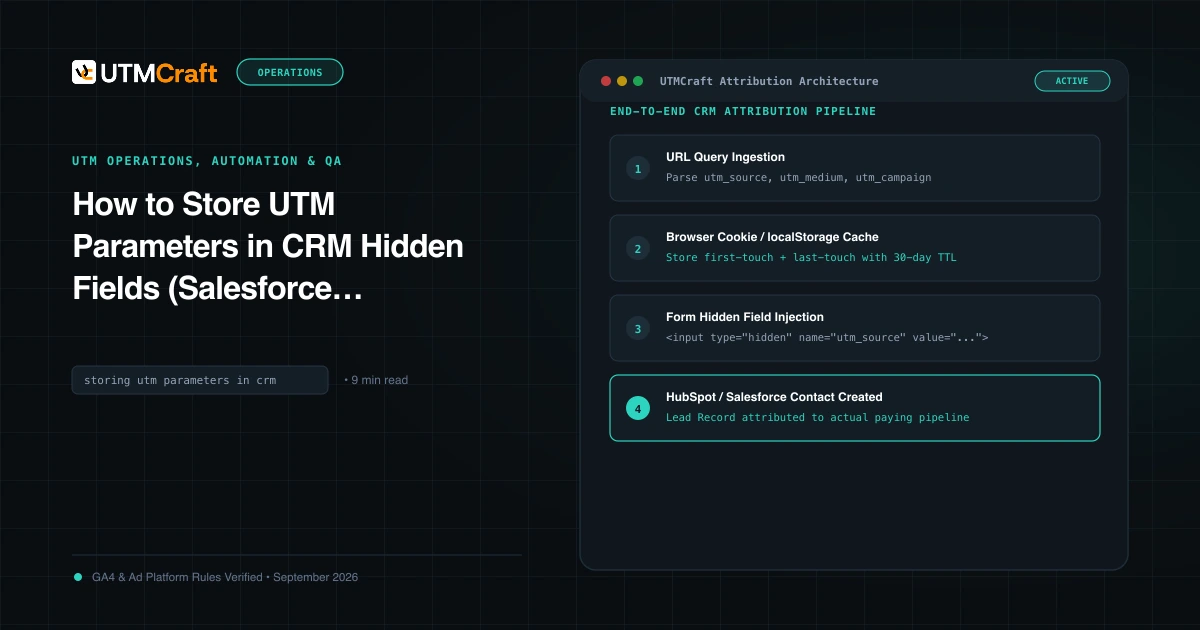
Table of Contents
If your web forms only collect Name, Email, and Company, your sales team is operating in the dark. By adding hidden input fields and a simple cookie persistence script, you can automatically capture utm_source, utm_campaign, and gclid on every lead submission without adding friction to the user experience.
Why Web Forms Need Hidden Attribution Fields
Google Analytics 4 tracks aggregate session counts, but it cannot legally tell your sales reps which specific marketing touchpoint convinced a specific company to request a demo. Capturing UTM parameters directly into your CRM Contact record connects individual ad clicks to pipeline value, deal size, and closed-won revenue.
Setting Up Custom Properties in HubSpot and Salesforce
Before modifying web forms, create matching custom contact fields in your CRM:
utm_source(Single-line text)utm_medium(Single-line text)utm_campaign(Single-line text)utm_content(Single-line text)utm_term(Single-line text)gclid(Single-line text)
HTML Form Markup for Hidden Parameters
Add hidden inputs inside your HTML <form> element:
<form id="lead-form" action="/submit" method="POST">
  <!-- Visible Form Fields -->
  <input type="text" name="first_name" placeholder="First Name" required>
  <input type="email" name="email" placeholder="Work Email" required>

  <!-- Hidden UTM Attribution Fields -->
  <input type="hidden" name="utm_source" id="utm_source">
  <input type="hidden" name="utm_medium" id="utm_medium">
  <input type="hidden" name="utm_campaign" id="utm_campaign">
  <input type="hidden" name="utm_term" id="utm_term">
  <input type="hidden" name="utm_content" id="utm_content">
  <input type="hidden" name="gclid" id="gclid">

  <button type="submit">Request Demo</button>
</form>The JavaScript Autofill Script (Handles Direct & Multi-Page Navigation)
Deploy this script on every page of your website to save query parameters into cookies on the first landing page, and inject them into hidden form inputs on any subsequent page:
(function() {
  const fields = ['utm_source', 'utm_medium', 'utm_campaign', 'utm_term', 'utm_content', 'gclid'];
  const urlParams = new URLSearchParams(window.location.search);

  // 1. Read from URL and write to 30-day first-party cookie
  fields.forEach(f => {
    const val = urlParams.get(f);
    if (val) {
      document.cookie = f + '=' + encodeURIComponent(val) + '; max-age=2592000; path=/; SameSite=Lax';
    }
  });

  // 2. Read cookie helper
  function getCookie(name) {
    const match = document.cookie.match(new RegExp('(^| )' + name + '=([^;]+)'));
    return match ? decodeURIComponent(match[2]) : '';
  }

  // 3. Inject into hidden inputs upon page load
  window.addEventListener('DOMContentLoaded', function() {
    fields.forEach(f => {
      const input = document.getElementById(f) || document.querySelector('input[name="' + f + '"]');
      if (input) {
        input.value = urlParams.get(f) || getCookie(f) || '';
      }
    });
  });
})();Testing Form Submission & CRM Ingestion
- Open an Incognito browser window.
- Paste your test URL:
https://example.com/?utm_source=qa_test&utm_medium=paid_social&utm_campaign=demo_audit. - Click through to your contact or pricing form page.
- Right-click the form, click Inspect, and verify that the
<input type="hidden">elements contain the expected values in theirvalueattributes. - Submit a test lead and verify that the contact record inside HubSpot or Salesforce displays the parameters accurately.
Sources & Authoritative References
- Pass UTM parameters in HubSpot forms (HubSpot Knowledge Base)
Related Measurement Guides
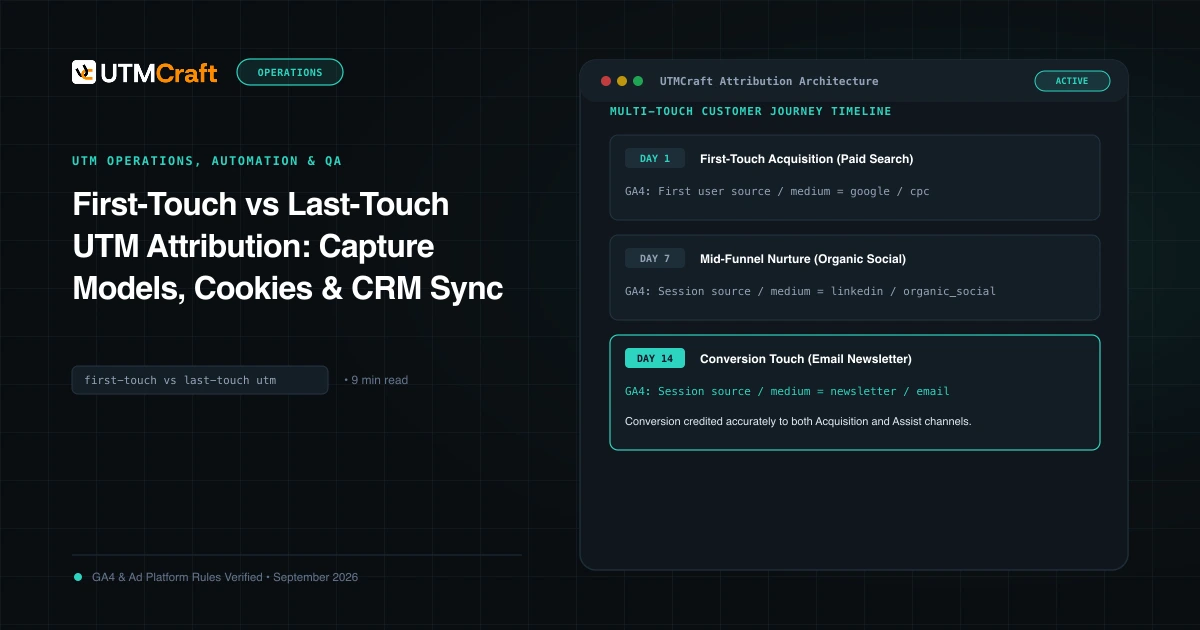
First-Touch vs Last-Touch UTM Attribution: Capture Models, Cookies & CRM Sync
Learn the architectural differences between first-touch and last-touch UTM attribution. How to capture both models in cookies, localStorage, and your CRM.
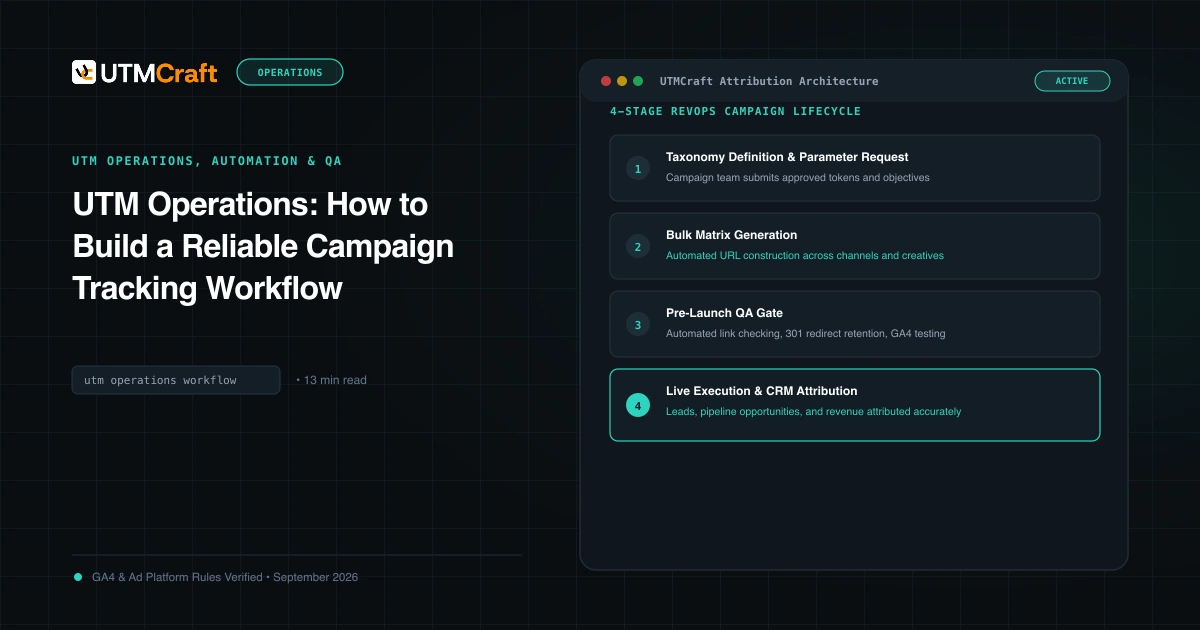
UTM Operations: How to Build a Reliable Campaign Tracking Workflow
Learn how to operationalize UTM tracking across marketing, RevOps, and engineering. Build automated generation, hidden form capture, and CRM attribution pipelines.
Pre-Launch UTM QA Checklist: 16 Steps to Prevent Broken Campaign Attribution
Prevent broken tracking before you launch. A comprehensive 16-step quality assurance checklist for validating UTM links, redirects, casing, and GA4 DebugView.