Table of Contents
- Why UTM values disappear before the form is submitted
- How the capture approach works
- Add the hidden fields to your form
- The JavaScript snippet
- Google Tag Manager setup
- Hidden fields in HubSpot, Gravity Forms, Typeform and Tally
- Consent and privacy considerations
- How to test the setup
- Limitations to know about
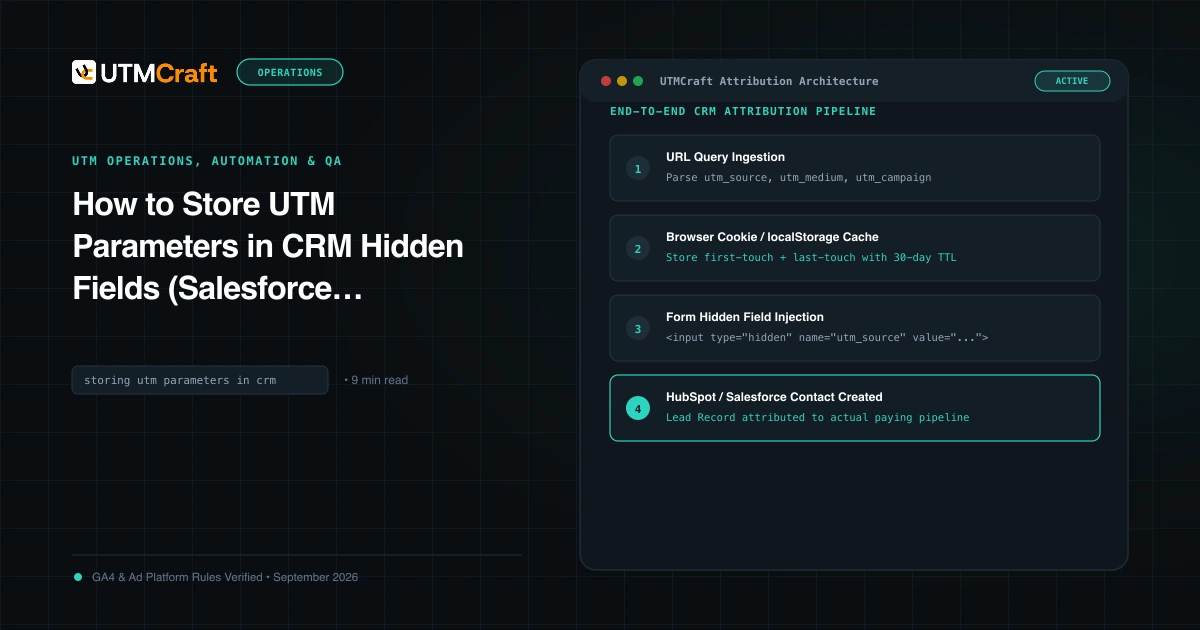
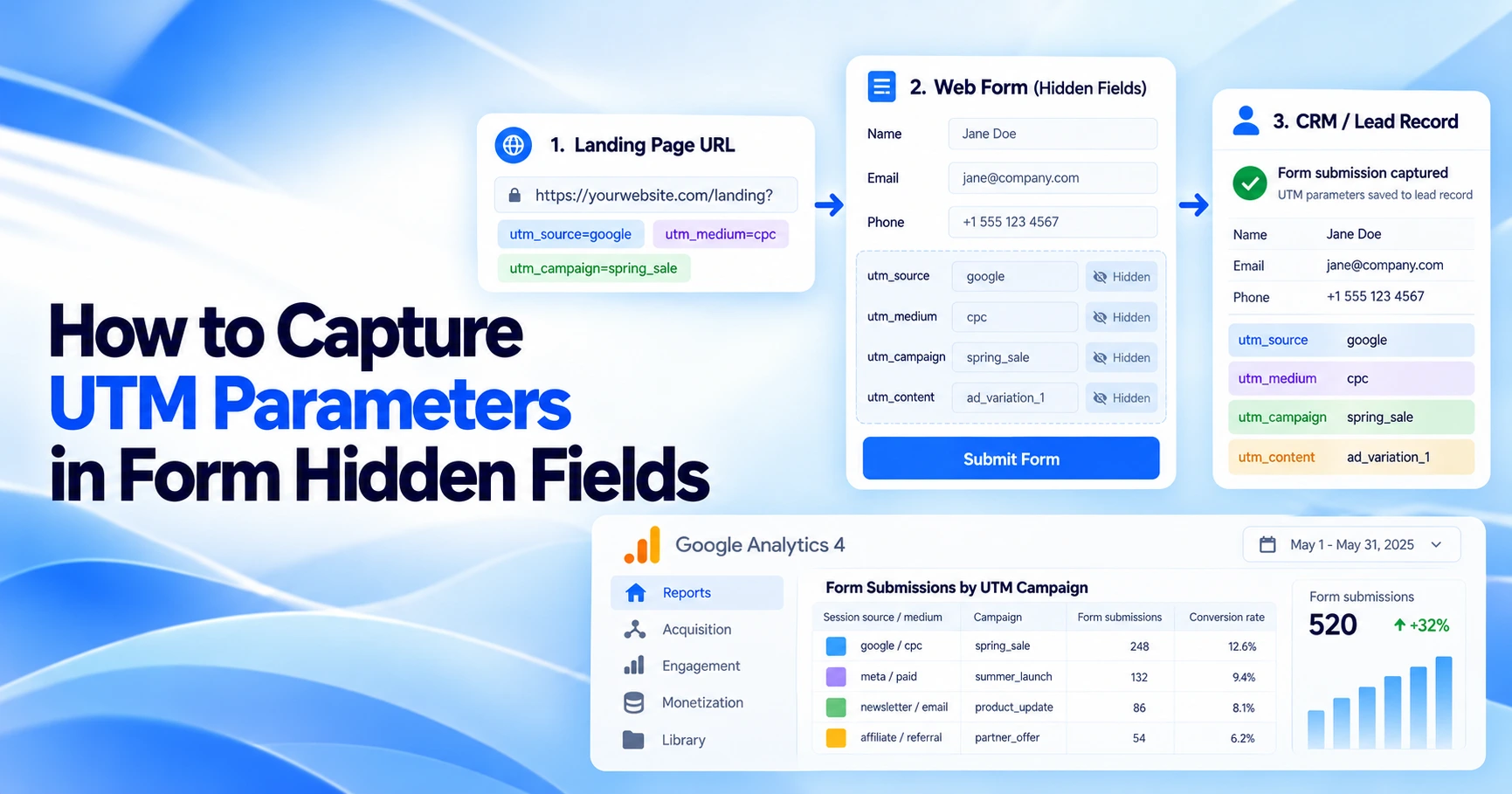
To capture UTM parameters in form fields, read the campaign parameters from the URL when someone lands on your site, save them in a first-party cookie, and copy the saved values into hidden inputs when the form is submitted. Reading the URL only at submit time fails whenever the visitor clicks to another page first, because the parameters are no longer in the address bar.
This guide gives you a short, dependency-free JavaScript snippet that stores both a first-touch and a last-touch record, a Google Tag Manager variant, notes for common form tools, and the QA steps and limitations to check before you rely on the data in your CRM.
Why UTM values disappear before the form is submitted
UTM parameters live only in the URL of the page the visitor arrives on. A typical lead path looks like this:
- A visitor clicks
https://example.com/pricing/?utm_source=linkedin&utm_medium=paid_social&utm_campaign=q4_demo. - They read the pricing page, then click your navigation link to
/contact/. - The contact page URL has no query string, so any script that reads
utm_sourcefrom the current URL finds nothing.
GA4 still attributes the session correctly, because it handles campaign data itself. Your form, however, submits empty hidden fields, and the lead arrives in your CRM with no source. That is why you need to persist the values yourself between the landing page and the form.
How the capture approach works
The pattern has three steps:
- Read on every page view. If the URL contains any of
utm_source,utm_medium,utm_campaign,utm_term,utm_content,utm_id(and optionallygclid), treat that page view as a new campaign touch. - Persist the touch. Save it in a first-party cookie with a sensible expiry. Keep two records: the first touch, written once and never overwritten, and the last touch, replaced whenever a new tagged visit arrives.
- Populate the form. On page load and again at submit time, copy the stored values into hidden inputs on any form on the page.
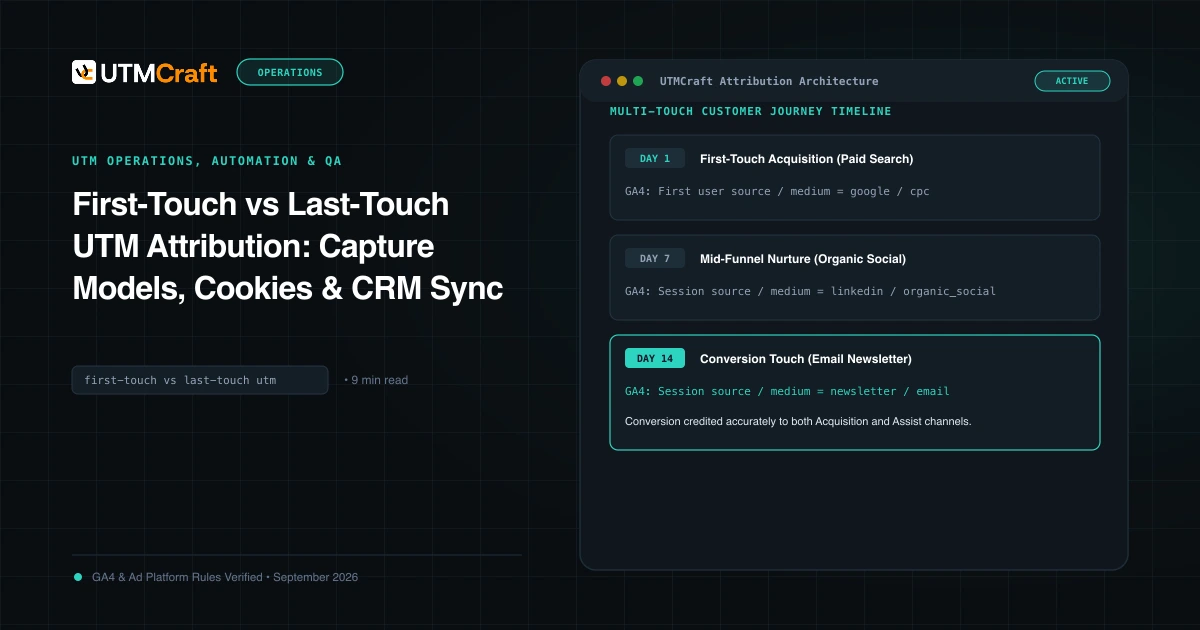
Which record you report on is a modeling decision. The trade-offs are covered in first-touch vs last-touch UTM attribution; in practice, storing both costs almost nothing and lets sales and marketing answer different questions.
| Record | Written when | Answers |
|---|---|---|
First touch (utm_first cookie) | Only if no first-touch cookie exists yet | Which campaign first brought this person to the site? |
Last touch (utm_last cookie) | On every page view that carries campaign parameters | Which campaign brought them back before they converted? |
Two design choices matter. First, the last-touch record is replaced, not merged: if the new visit has no utm_content, the old utm_content is dropped rather than mixed into a different campaign. Second, untagged visits (direct, organic, or internal navigation) do not touch either record, so the values survive the visitor browsing around.
Add the hidden fields to your form
Add one hidden input per value you want to keep. The snippet below matches inputs by name: utm_source for last touch and first_utm_source for first touch, and so on. Skip any you do not need.
<form action="/submit" method="post">
  <input type="email" name="email" required>

  <!-- Last touch -->
  <input type="hidden" name="utm_source">
  <input type="hidden" name="utm_medium">
  <input type="hidden" name="utm_campaign">
  <input type="hidden" name="utm_term">
  <input type="hidden" name="utm_content">
  <input type="hidden" name="utm_id">
  <input type="hidden" name="gclid">

  <!-- First touch -->
  <input type="hidden" name="first_utm_source">
  <input type="hidden" name="first_utm_medium">
  <input type="hidden" name="first_utm_campaign">

  <button type="submit">Request a demo</button>
</form>
Each hidden input also needs a destination. In your CRM or form backend, create matching text fields before you launch; storing UTM parameters in your CRM covers the field setup on the CRM side.
The JavaScript snippet
Load this on every page of the site, not just the page with the form, because the visitor can land anywhere. It has no dependencies.
(function () {
  var KEYS = ['utm_source', 'utm_medium', 'utm_campaign', 'utm_term', 'utm_content', 'utm_id', 'gclid'];
  var DAYS = 90; // cookie lifetime; browsers may shorten it (see Limitations)

  function readTouch(name) {
    var match = document.cookie.match('(?:^|; )' + name + '=([^;]*)');
    try { return match ? JSON.parse(decodeURIComponent(match[1])) : null; } catch (e) { return null; }
  }

  function saveTouch(name, data) {
    document.cookie = name + '=' + encodeURIComponent(JSON.stringify(data)) +
      '; max-age=' + DAYS * 86400 + '; path=/; SameSite=Lax' +
      (location.protocol === 'https:' ? '; Secure' : '');
  }

  // 1. On every page view: if the URL carries campaign parameters, store them.
  var params = new URLSearchParams(location.search);
  var touch = {};
  KEYS.forEach(function (key) {
    var value = params.get(key);
    if (value) touch[key] = value.slice(0, 100);
  });
  if (Object.keys(touch).length) {
    if (!readTouch('utm_first')) saveTouch('utm_first', touch); // first touch: never overwritten
    saveTouch('utm_last', touch);                               // last touch: replaced each time
  }

  // 2. Copy stored values into hidden inputs named e.g. "utm_source" / "first_utm_source",
  //    or inside a wrapper with that CSS class. Sets .value only, never HTML.
  function fillForm(form) {
    var sets = { '': readTouch('utm_last') || {}, 'first_': readTouch('utm_first') || {} };
    Object.keys(sets).forEach(function (prefix) {
      KEYS.forEach(function (key) {
        var name = prefix + key;
        var value = sets[prefix][key];
        if (!value) return;
        form.querySelectorAll('input[name="' + name + '"], .' + name + ' input').forEach(function (input) {
          input.value = value;
        });
      });
    });
  }

  function fillAll() { Array.prototype.forEach.call(document.forms, fillForm); }
  if (document.readyState === 'loading') document.addEventListener('DOMContentLoaded', fillAll);
  else fillAll();
  // Fill again at submit time, which also covers forms added after page load.
  document.addEventListener('submit', function (e) { fillForm(e.target); }, true);
})();
What it does, and why:
- Reads only the parameters you list.
URLSearchParamsdecodes the values, so+and%20become spaces and%26becomes&. Empty parameters such asutm_term=are ignored. - Stores each touch as one cookie. The value is JSON passed through
encodeURIComponent(), which MDN recommends so the cookie value contains no commas, semicolons or whitespace. Values are capped at 100 characters to keep the cookie small. - Sets
path=/,SameSite=Lax, andSecureon HTTPS, so every page on the site can read the cookie. - Writes values with
input.valueonly. Campaign parameters are attacker-controllable text, so the snippet never inserts them as HTML. A value like<img src=x onerror=…>ends up as plain text in the field. - Fills at submit time as well as on load, which covers forms that are rendered after the page loads, such as popups or multi-step forms.
Adjusting it for your site
- Lifetime:
DAYS = 90is a starting point. Match it to your typical time from first visit to form fill, and remember that browsers may delete it sooner (see limitations). - Subdomains: if visitors land on
www.example.combut the form lives onapp.example.com, add'; domain=example.com'to the cookie string. Per MDN, without adomainattribute a cookie is not available on subdomains. - Form builders that generate their own input names: the snippet also fills an input inside an element whose CSS class matches the field name, for example a wrapper with the class
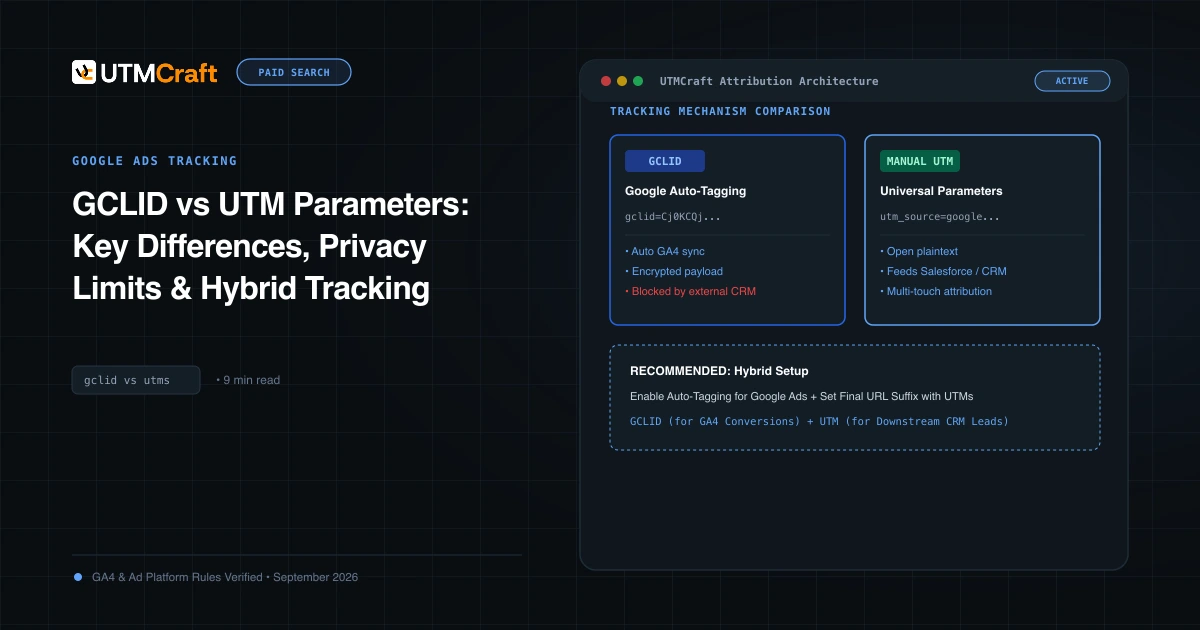
utm_source. That helps with tools that name inputsinput_7or similar. - gclid: if you send Google Ads click IDs to a CRM for offline conversion imports, keep
gclidin the list; otherwise remove it. A visit with only agclidcounts as a new last touch. See GCLID vs UTM parameters for how the two differ. - Cookie or localStorage? Both are script-writable storage and both are subject to Safari's seven-day rule described below. A cookie is the simpler choice when you need the value across subdomains.
Internal links matter too: if your own site links to pages with UTM parameters attached, every internal click overwrites the last-touch record. Keep UTMs off internal links.
Google Tag Manager setup
If you manage site scripts in Google Tag Manager, you can deploy the same code without touching templates:
- Go to Tags > New > Tag Configuration and choose Custom HTML.
- Paste the snippet wrapped in
<script>and</script>tags. Google's documentation says to always place JavaScript in a Custom HTML tag inside script tags. - Set the trigger to Initialization - All Pages, one of the built-in triggers every web container includes, or to a Page View trigger that fires on all pages.
- If your site uses a consent management platform with consent mode, open Advanced Settings > Consent Settings and use Require additional consent for tag to fire with the consent type your consent banner maps to this purpose. Google's documentation says the tag then fires only if all specified consent types are granted.
- Preview the container, then publish.
The snippet works the same when Tag Manager injects it after the page has loaded: it fills any forms already on the page immediately and fills again at submit time. Tag Manager minifies Custom HTML code, which can switch single quotes to double quotes; the snippet does not depend on quote style.
The stored records can also be read inside Tag Manager with a 1st-Party Cookie variable named utm_last or utm_first, which is handy if you want to send the stored campaign with another tag. The variable returns the whole stored record as one encoded text value, not individual fields, so you would still need to decode it before using single values.
Hidden fields in HubSpot, Gravity Forms, Typeform and Tally
Most form tools have their own hidden field feature. Use it to create the field and give it a name the snippet can match, then test a real submission, because some tools render forms in an iframe or manage field values with their own JavaScript.
HubSpot forms
In HubSpot, edit the form, hover over a field, open its settings and toggle Hidden field on; HubSpot notes that a required field cannot be hidden. HubSpot also auto-populates form fields, including hidden fields, from a query string that uses the property's internal name, but its documentation says this only works on HubSpot-hosted pages or external pages with the HubSpot tracking code, and not on standalone form pages. Query-string population only helps on the page the visitor lands on, so for multi-page journeys you still need a persistence step. Sources: hidden form fields and auto-populating fields with a query string.
Gravity Forms
Gravity Forms has a Hidden field in its Standard Fields. Its dynamic population feature (the Allow field to be populated dynamically checkbox on the field's Advanced tab) can fill a field from a query string parameter, but again only on the page that has the parameter. Gravity Forms names inputs by field ID, so to use the snippet, add a Custom CSS Class such as utm_source under the field's Appearance tab; Gravity Forms applies that class to the element surrounding the field, which the snippet's class matching picks up. Developers can alternatively populate values server-side with the gform_field_value_{parameter_name} filter. See Hidden field, dynamic population and custom CSS classes.
Typeform embeds
A typeform embedded on your site runs in its own frame, so the snippet cannot fill it directly. Typeform's embed library instead accepts hidden field values through the data-tf-hidden attribute (for example data-tf-hidden="utm_source=linkedin,utm_medium=paid_social"), and data-tf-transitive-search-params forwards named query parameters from the host page to the form. The transitive option only sees parameters in the current page URL, so on a second page you would set data-tf-hidden from the stored cookie values before the embed loads. The typeform itself needs hidden fields with matching names. See Typeform's embed configuration options.
How to track UTMs in a Tally form
Tally stores UTM values through its free Hidden fields block. In the form editor, type /hidden to add a Hidden fields block and create one field per parameter, named exactly utm_source, utm_medium, utm_campaign, utm_term and utm_content. Any matching parameter in the form URL is then saved with the submission and shown in the Submissions tab, for example https://tally.so/r/yourFormId?utm_source=newsletter&utm_medium=email&utm_campaign=spring_launch.
When the form is embedded on your own site, Tally forwards the host page's query parameters to the form by default for popups and full-page embeds; for standard embeds this only happens when you use Tally's HTML snippet or JavaScript embed rather than a bare iframe. Either way the values are saved only if a hidden field with the same name exists. Like Typeform, a Tally embed only sees the parameters on the page where it loads, so if visitors browse before reaching the form, add the values stored by the snippet above to the form URL in the embed code before Tally's embed script runs. Submit a test entry from a tagged URL and confirm the hidden values appear in Submissions before launch. See Tally's hidden fields and embed documentation.
Consent and privacy considerations
This is not legal advice, but a few points apply to almost every setup:
- The snippet sets cookies. Treat them like your other measurement or marketing cookies in your cookie policy and consent banner. If your banner blocks non-essential cookies until consent, gate this script the same way, for example with the Tag Manager consent setting above.
- Attaching campaign data to a named lead is not anonymous statistics. In the UK, the ICO's guidance says the statistical-purposes exception to consent is about how a service is used, not who uses it, and does not cover tracking or profiling individual visitors. Storing UTMs against a contact record is closer to the second case, so check how your privacy team classifies it.
- Keep personal data out of UTMs. Never put email addresses or names into campaign parameters; once captured, they would flow straight into your CRM fields.
- Without consent, the form still works. The hidden fields simply submit empty, which is better than guessing.
How to test the setup
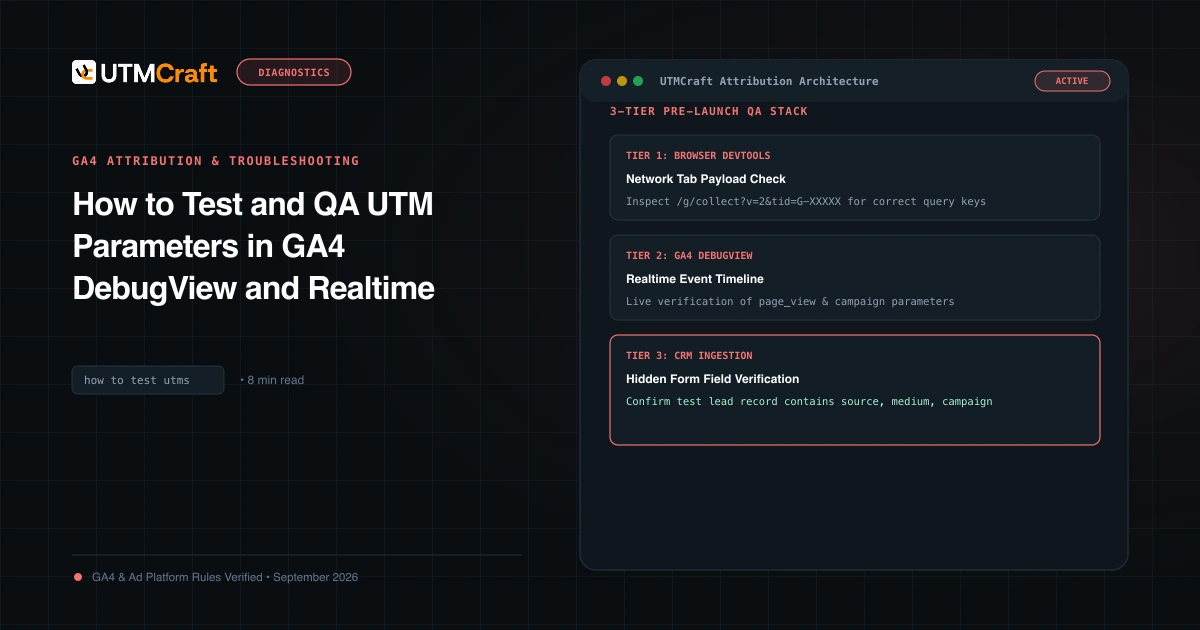
Before relying on the data, run this QA pass in a private window (so no old cookies interfere):
- Open a landing page with a full set of test parameters, for example
?utm_source=qa_test&utm_medium=email&utm_campaign=form_capture_qa&utm_content=link_a. - In DevTools, open Application > Cookies and confirm
utm_firstandutm_lastexist with the expected expiry. - Click through to another page using the site navigation, then open the form page.
- Inspect the hidden inputs, submit the form, and check the values in the form tool's submission log and in the CRM record, not just in the browser.
- Repeat with a second campaign URL in the same window. First-touch fields should still show
qa_test; last-touch fields should show the new campaign. - Open the form page with no parameters in a fresh private window and confirm the fields submit empty without errors.
- Test on Safari and on any embedded or popup form you use.
Use your normal UTM testing workflow for the GA4 side, and the UTM checker to confirm your test URLs are well formed.
What we tested. We ran the snippet above in headless Chromium (version 149) against a local test page with 27 automated checks, all passing: values kept after navigating to a page without parameters, empty fields when there were no parameters, first touch not overwritten, last touch replaced, values with spaces, +, &, semicolons, accented characters and percent-encoding, an HTML/script payload stored only as inert text, forms added after load, class-wrapped inputs, a corrupted cookie, and the script injected after page load as a tag manager would. We did not test it in Safari, Firefox, inside Google Tag Manager itself, or in HubSpot, Gravity Forms or Typeform.
Limitations to know about
- Safari limits script-set storage. WebKit's tracking prevention documentation says Safari deletes cookies created in JavaScript and other script-writable storage, including localStorage, after seven days without user interaction with the website. It also caps JavaScript-set cookies on a landing page to 24 hours when it detects link decoration; WebKit's ITP 2.2 announcement describes this as applying when a domain classified with cross-site tracking capabilities navigated the user to a URL with a query string or fragment. A long first-touch window is therefore not reliable for Safari visitors. Cookies your own server sets in the HTTP response are not covered by these JavaScript-cookie rules (WebKit separately caps server-set cookies to seven days when it detects third-party CNAME or IP address cloaking), which is why some teams move capture server-side.
- Blockers and disabled scripts. If the script does not run, because of a blocked tag manager, a privacy extension or a script error elsewhere, the fields submit empty.
- Cross-domain journeys. Cookies belong to one site. If the visitor lands on one domain and converts on another (for example a separate booking domain), the second site cannot read the first site's cookie; you would need to pass the values in the link between them.
- Iframes and embedded forms. A script on your page cannot reach into a form hosted on another origin inside an iframe; the browser's same-origin policy gives very limited access to cross-origin frames. Use the form tool's own method of passing hidden values instead.
- Redirects that drop parameters. If a redirect strips the query string before your page loads, there is nothing to capture; see why redirects strip UTM parameters.
- It is not GA4 attribution. Values in your CRM come from your own rules, so they will not match GA4 reports exactly.
For the broader setup, read UTM Operations: How to Build a Reliable Campaign Tracking Workflow. Browse the UTM Operations, Automation & QA guides to choose another troubleshooting task.
References
- Tracking Prevention in WebKit (WebKit)
- Intelligent Tracking Prevention 2.2 (WebKit)
- Document: cookie property (MDN Web Docs)
- Same-origin policy (MDN Web Docs)
- Custom tags (Google Tag Manager Help)
- Page view triggers (Google Tag Manager Help)
- Consent configuration (Google Tag Manager Help)
- User-defined variable types for web (Google Tag Manager Help)
- Set property values with hidden form fields (HubSpot Knowledge Base)
- Auto-populate form fields with a query string (HubSpot Knowledge Base)
- Hidden field (Gravity Forms)
- Using dynamic population (Gravity Forms)
- CSS ready classes (Gravity Forms)
- gform_field_value_$parameter_name (Gravity Forms)
- Embed configuration (Typeform)
- What are the exceptions? (Information Commissioner's Office)