Listen to this article
Audio summary · 1 min 40 sec
Table of Contents
- What GA4 cost data import does
- Requirements and the 2026 changes
- How UTM matching works
- Prepare a small, currency-ready CSV
- Create and map the GA4 import source
- Validate the join, not just the upload
- Native connectors and Google Sheets: choose deliberately
- Troubleshoot missing cost or unmatched campaigns
- Common GA4 cost import questions
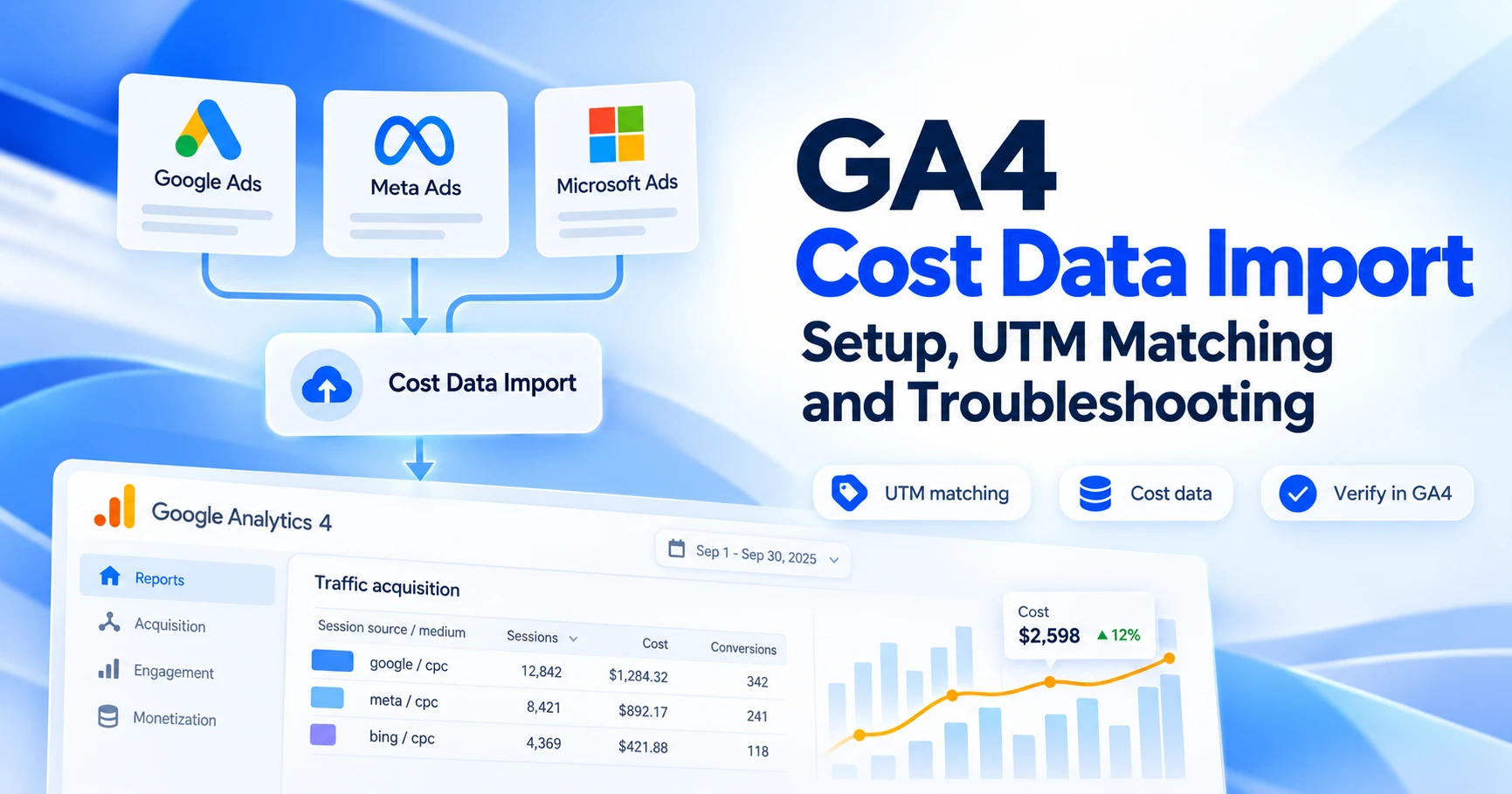
To import advertising costs into GA4, create a Campaign data import source, map daily advertising data to the campaign labels your website actually collected, then check whether the imported rows joined. An accepted file is only the first check: spend can appear even when GA4 cannot associate it with your campaign traffic.
This guide uses a small, fictional LinkedIn campaign to show the CSV workflow. It also explains when a native connector is more suitable. The examples are instructional, not results from a live advertising account. Google documentation was reviewed on October 9, 2026.
What GA4 cost data import does
Google now calls this feature Campaign data import; “cost data import” remains a useful search term. You supply advertising cost, clicks or impressions and identifiers that connect those daily totals to campaign activity in GA4. Google’s current campaign import documentation
Data Import can enrich reporting using data collected earlier. Its query-time model is different from adding information to an event at collection time. It cannot recreate website sessions or purchases that your tag never collected. For historical work, test a small period and inspect the resulting joins before committing a full backfill. Google’s Data Import overview
The practical outcome is a campaign comparison that can include spend alongside measured website outcomes. It does not force GA4 to agree with an advertising platform’s conversion attribution, and it does not import an ad platform’s view-through conversions as website events.
| Your situation | Recommended starting point | Check before proceeding |
|---|---|---|
| Google Ads with an existing GA4 link | Review the product link and auto-tagging first | Do not create an overlapping manual spend feed without a reconciliation plan. |
| A supported third-party native connector | Consider the connector for recurring imports | Compare its source/medium settings with your historical UTMs. |
| Another platform or inconsistent historical labels | Use a small CSV import first | Control the daily aggregation, join fields and currency explicitly. |
Linked advertising products and manual tagging populate different traffic-source fields. Review Google’s tagging and integration guidance before treating a UTM import as a replacement for a product link.
Requirements and the 2026 changes
You need an Editor or higher role for the GA4 property. Have the correct property open, a daily campaign export, and a record of the UTM values used during the export period. The import wizard supports source-specific connections, including file and Sheets workflows. Import-source setup and permissions
Two recent changes matter: Google’s release notes record the currency update on July 28, 2026 and the campaign import validation report on August 10, 2026. Older tutorials may omit these. Analytics release notes
Currency is part of the setup. When importing cost, supply the three-letter ISO 4217 currency code through a mapped field or the supported fixed-currency configuration. A number such as 85.50 needs a currency context; $85.50 is not a clean numeric cost value. Check the currency reference and your property currency before comparing totals.
Gather exports at the campaign and date level, with the identifiers and metrics you need. Each platform’s export interface differs; do not assume every report has the same columns. Google’s platform export instructions provide starting points. Preserve the original export separately from your cleaned import file.
How UTM matching works
The import schema requires source, medium and date, plus at least one supported metric. Campaign ID and campaign name are optional but highly recommended. Matching is case-sensitive. The schema supports cost, clicks and impressions; utm_content and utm_term are not cost-import join fields. Required and optional schema fields
| Website value | Import mapping | Fictional example |
|---|---|---|
utm_source | Campaign source | linkedin |
utm_medium | Campaign medium | paid_social |
utm_id | Campaign ID, if used | li-1042 |
utm_campaign | Campaign name, if used | autumn-demo |
| Date of campaign activity | Date | 2026-10-01 |
For this example, an ad would use the following destination:
https://example.com/demo?utm_source=linkedin&utm_medium=paid_social&utm_id=li-1042&utm_campaign=autumn-demoUse the values visitors received, not a platform’s display labels. If GA4 collected linkedin / paid_social, importing LinkedIn / social creates a different key. If a campaign was renamed, retain the name used by each day’s landing URLs when that name is part of your mapping. Do not rewrite old website labels simply because the ad account now uses a cleaner name.
A stable ID makes campaign management easier, but adding utm_id today does not populate it on earlier visits. Inspect historical dimensions first. If old traffic has no ID, consider a compatible mapping rather than inventing IDs for it. Google’s import-source guidance explains how the selected schema dimensions control the join.
UTMCraft’s campaign name and ID guide explains the labeling choices; the naming conventions guide helps keep future campaigns consistent. Use the UTM builder to prepare labels, then verify collection separately.
Prepare a small, currency-ready CSV
Start with two dates from one campaign, rather than months of spend. The downloadable file below is a fictional template: replace every value and inspect the mapping before uploading it.
date,source,medium,campaign_id,campaign_name,cost,currency,clicks,impressions
2026-10-01,linkedin,paid_social,li-1042,autumn-demo,85.50,USD,114,6200
2026-10-02,linkedin,paid_social,li-1042,autumn-demo,92.75,USD,121,6600
Download the fictional cost-import CSV · Download the printable import QA checklist
- Keep headers in the first row. These header names are your labels; the GA4 wizard maps them to its schema.
- Aggregate before importing. If an ad-level export contains several rows for one daily campaign key, sum the relevant metrics into one row. Do not upload several copies of a campaign’s full daily cost.
- Use unambiguous dates.
YYYY-MM-DDavoids regional date confusion. Google supports other formats, but a date such as03/04/2026is harder to review safely. Supported input formats - Keep identifiers as text. Check for lost leading zeros, spreadsheet scientific notation, whitespace and altered casing.
- Review the reporting day. Compare the ad account’s time zone with the GA4 property’s reporting time zone. If they differ, document the limitation; renaming the date column does not realign underlying activity.
- Reconcile raw totals. Record the source export’s spend, currency, clicks and impressions for the selected dates before any transformation.
For each chosen join key, use one daily row. Google documents replacement behavior when another upload supplies metrics for the same key, so do not assume a later file is automatically added to an earlier total. Keep a versioned record of corrections and the intended resulting totals. Upload and matching behavior
Create and map the GA4 import source
- Open the intended GA4 property. Go to Admin → Data collection and modification → Data import.
- Select Create import source, give it a meaningful name, and choose Campaign data.
- Choose the file connection offered by the wizard and select your prepared CSV. Follow any connection or upload prompts shown in your property.
- Map
date,sourceandmedium. For this example, also mapcampaign_idandcampaign_name. - Map
cost,clicksandimpressions. Mapcurrencyfor the sample. If you use a fixed-currency option instead, confirm every row genuinely uses that currency. - Review the selected fields and preview. Finish the import-source setup and inspect the import result.
The connection-specific screens can vary. Use Google’s current wizard instructions alongside the interface rather than looking for an older tutorial’s button names.
Do not call the setup complete when the file is merely accepted. Record the import source, file version, date range, currency configuration and mapped join fields. Then move to validation.
Validate the join, not just the upload
The Campaign data import validation report is under Reports → Data Import. If it is absent from the navigation, an Editor can add it. The report’s default view focuses on paid manual campaigns and excludes Google/search medium combinations; review that filter before using its coverage to judge all your campaigns. Validation report setup and filtering
| Check | What it answers | What it does not establish |
|---|---|---|
| % imported | Were rows accepted from the supplied file? | Whether those rows matched collected traffic. |
| Match rate | Did imported rows join to Analytics data within its documented scope? | That every website campaign has a spend row. |
| Validation report coverage | How many Analytics-data rows in this report have joined campaign data? | A percentage of total spend, visitors or sessions. |
Match rate and report coverage have different denominators. Match rate considers the most recent two years of imported data. Coverage is based on rows with collected Analytics data in the report, so dimensions and filters matter. The status labels distinguish Joined, No campaign data and No Analytics data. Read a low figure as a reason to inspect rows, not an automatic instruction to change every campaign.
- Restrict the report to the pilot dates and campaign.
- Find joined rows and compare their daily metrics with the retained export.
- For No campaign data, inspect whether a spend row exists and whether its key matches.
- For No Analytics data, inspect tagging, collection and the selected mapping before changing the cost file.
- Check currency and totals separately from join status. A joined row can still contain a mistaken amount.
Allow the documented processing window before concluding the import failed; Google notes that campaign import data can take up to 24 hours to appear in reports. Avoid repeated uploads while investigating a reporting delay.
Native connectors and Google Sheets: choose deliberately
Google documents direct campaign imports for Meta, Pinterest, Reddit, Snapchat and TikTok. For example, the Meta integration uses configured source and medium values and attempts to bring in historical data. Check for overlapping manual imports before enabling it. Its source/medium configuration also needs to match your existing labels; do not expect a connector to repair inconsistent historical tagging.
Keep platform URL setup separate from importing metrics. The Pinterest tracking guide and TikTok tracking guide explain those destination-side checks.
The Google Sheets Campaign Data Import add-on currently describes Meta and TikTok. It prepares campaign data in Sheets; you still need a configured GA4 import. A successful scheduled platform pull is not evidence that GA4 accepted and joined the data.
Documentation caveat: Google’s add-on FAQ still describes converting cost to the property currency before upload, while the newer campaign schema documents currency-aware imports. Its general Sheets connection instructions also include Google Ads-specific permission language. We cannot verify those requirements for every GA4-only Sheets workflow. Follow the live wizard, use the current currency schema and verify amounts; do not convert costs twice. The file workflow above avoids depending on those unclear connector requirements.
Troubleshoot missing cost or unmatched campaigns
| Symptom | Check first | Practical fix |
|---|---|---|
| File rejected or rows skipped | Headers, mapping, date and numeric formatting; required currency for cost | Correct the pilot file and inspect the import’s error details before retrying. |
| Cost exists, but campaign traffic does not join | Source/medium casing, whitespace and mapped ID/name | Compare against the website’s collected values for the same date. |
| One renamed campaign breaks | Campaign name in the historical URL versus current export | Use a date-aware name lookup when name is part of the key. |
| Imported rows show No Analytics data | Website events and UTM preservation | Test collection; an import cannot create missing sessions. |
| Coverage is unexpectedly low | Date range, paid-manual filter and report dimensions | Inspect the unmatched rows before broadening the import. |
| Spend appears inflated or too small | Duplicate feed coverage, aggregation and currency conversion | Reconcile one campaign-day with the original export and document the correction. |
| Fresh data is missing | Import status and processing time | Wait for processing, then investigate status instead of repeatedly uploading. |
When the website side is failing, follow the UTM testing workflow and the redirect troubleshooting guide. The UTM checker can inspect URL structure; it cannot prove that an event reached your GA4 property.
Common GA4 cost import questions
Is utm_id mandatory?
Not universally. The current campaign schema makes campaign ID optional but recommends it. Use it consistently for new campaigns and inspect historical availability before mapping it into an old-data import.
Can I import ad-level costs using utm_content?
The documented campaign import schema does not support that join field. Retain creative-level detail in your source reporting or another analysis system instead of promising ad-level cost matching through this feature.
Will importing cost fix ROAS?
It supplies a cost input. A useful return-on-ad-spend comparison also needs correctly collected revenue, compatible currency and a clearly defined attribution scope. Neither an accepted file nor a high match rate proves those conditions.
Should I upload the whole account immediately?
Prove the process with one campaign and a few dates first. Expand only after the mapped labels, join status and totals reconcile. Keep the printable checklist with your original export so another reviewer can repeat the checks.
For the broader setup, read UTM Operations: How to Build a Reliable Campaign Tracking Workflow. Browse the UTM Operations, Automation & QA guides to choose another troubleshooting task.
References: Import campaign data: schema, matching and currency; Connect an import source: permissions and wizard; Prepare data for import: formatting; Gather campaign data from advertising platforms; Understand import sources; Campaign data import validation report; Connect Meta to Google Analytics; Google Sheets Campaign Data Import add-on; About Data Import; Analytics release notes; Traffic-source dimensions and tagging; Currency reference.