Table of Contents
A campaign report deserves a basic question before you trust its results: did these events come from websites you intended to measure? GA4’s hostname Include filters give teams a way to define approved domains. Here is what Google confirmed, how to test the setup, and where this feature fits into campaign QA.
What Changed in September 2026
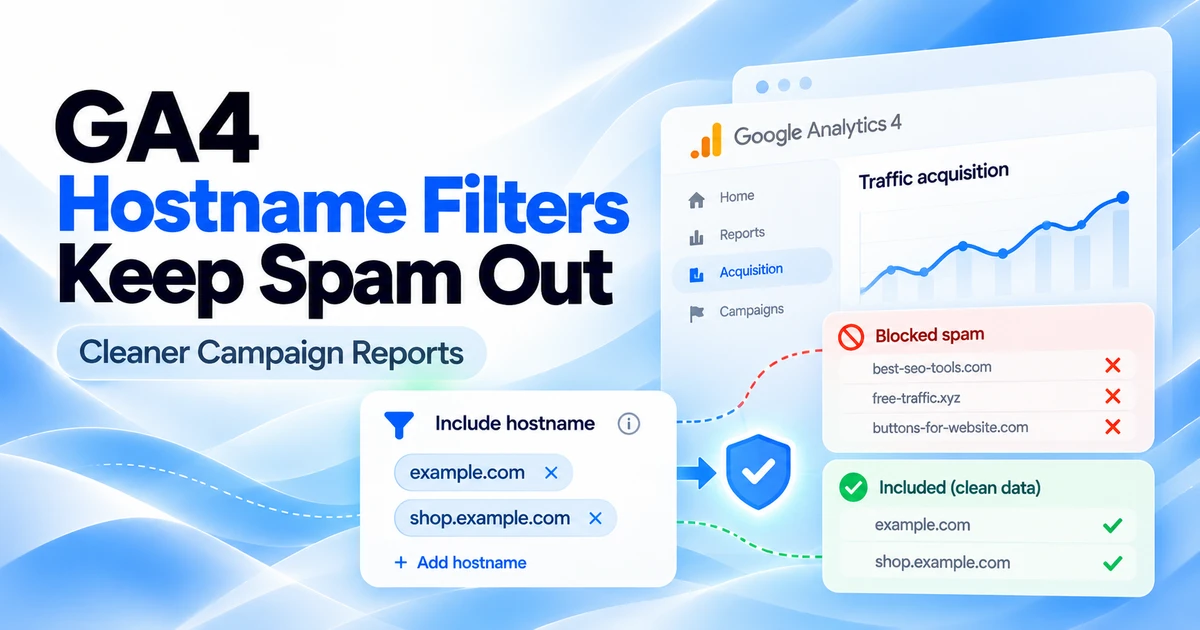
Google’s September 21 release notes announce hostname Include filters. Previously, hostname filtering was limited to exclusion. The new option allows approved hostnames rather than requiring teams to keep adding unwanted ones to an exclusion list.
Google identifies two exceptions: Measurement Protocol events are outside this Include-filter check, while events without a hostname are blocked. An approved-domain list therefore has a defined scope; it is not a guarantee that every event remaining in your property represents a real customer.
Hostname Is Different From Campaign Source
Consider this illustrative newsletter link:
https://shop.example.com/offer?utm_source=newsletter&utm_medium=email&utm_campaign=autumn_launchThe destination hostname is shop.example.com. The campaign source you chose is newsletter. Those values answer separate questions: where the visitor lands, and which campaign source you want to record.
When planning an approved-domain list, use the destination websites your property measures. Putting newsletter providers, advertising platforms, or partner websites into that list merely because they send visitors would confuse the two roles. Review the actual journey from the first landing page through the final conversion.
Build Your Approved-Domain List
Start with an inventory owned by your marketing and analytics teams. For an example business, the review might look like this:
| Example hostname | Question to resolve |
|---|---|
www.example.com | Is this the main production website? |
shop.example.com | Does the same property measure checkout here? |
offers.example.com | Are paid campaign landing pages hosted here? |
preview.example.com | Should preview activity belong in this property? |
This is a planning example, not a list to copy. Ask the owner of each hostname to confirm its purpose. A seasonal landing page can be easy to miss if the inventory only covers the main website. Record who will update the list when a new domain launches.
Create and Test the Filter
Google’s setup guide requires property-level Editor access or above:
- Open Admin, then Data collection and modification → Data filters.
- Create a Web hostname traffic filter, give it a name, and choose Include only.
- Select a match type and enter the hostname. Options are exactly matches, begins with, ends with, and contains.
- Choose Testing and save. Allow 24–36 hours before validating.
- In a Free form exploration, use Test data filter name and Event name as rows, with Event count as the value. Filter by your filter’s name; add Hostname to inspect the matching domains.
- After validation, change the filter to Active and save. Google says activation can also take 24–36 hours.
For your acceptance check, visit a real campaign landing page and complete the intended journey. Repeat on every approved destination. Compare the observed hostnames with your inventory and investigate mismatches before activation. Do not assume that a broad contains condition expresses the boundary your team intended.
Exceptions and Data-Loss Risks
Google’s data-filter documentation explains that collection filtering changes incoming data permanently. Removed data is unavailable in Analytics and BigQuery. Existing historical records are not repaired. Use report filters when you need a reversible way to narrow a report.
Google also says active Include-only filters are combined as a union before active Exclude filters run. For example, two exact Include filters can admit two approved hostnames, but a later matching Exclude filter can still remove events. Review the complete active filter set.
Keep the Measurement Protocol exception in your server-event review. Separately, test any browser implementation that might send events without a hostname. A drop in event volume after activation warrants an implementation check before the marketing team interprets it as lower demand.
A Campaign Launch Checklist
- Record every destination hostname used by the campaign, including separate landing-page and checkout hosts.
- Assign an owner to approve inventory changes before new landing pages go live.
- Run a tagged-link journey on each destination and check the events produced.
- Record filter activation dates alongside campaign launches, so reporting changes have context.
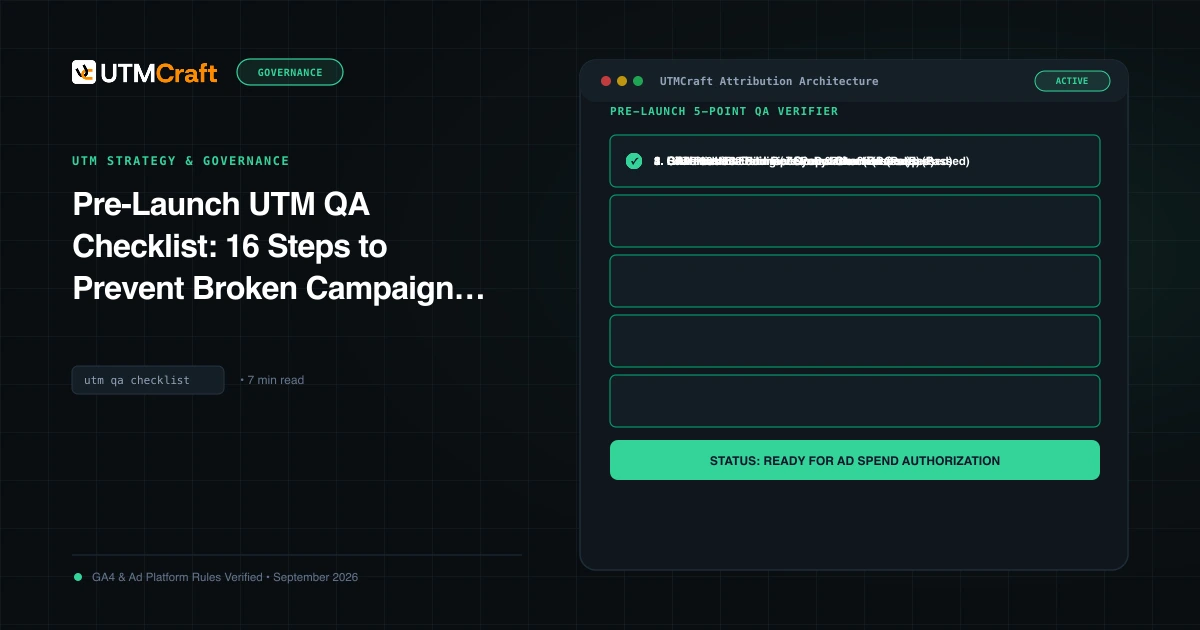
- Keep checking UTM naming and redirects through the pre-launch UTM QA checklist.
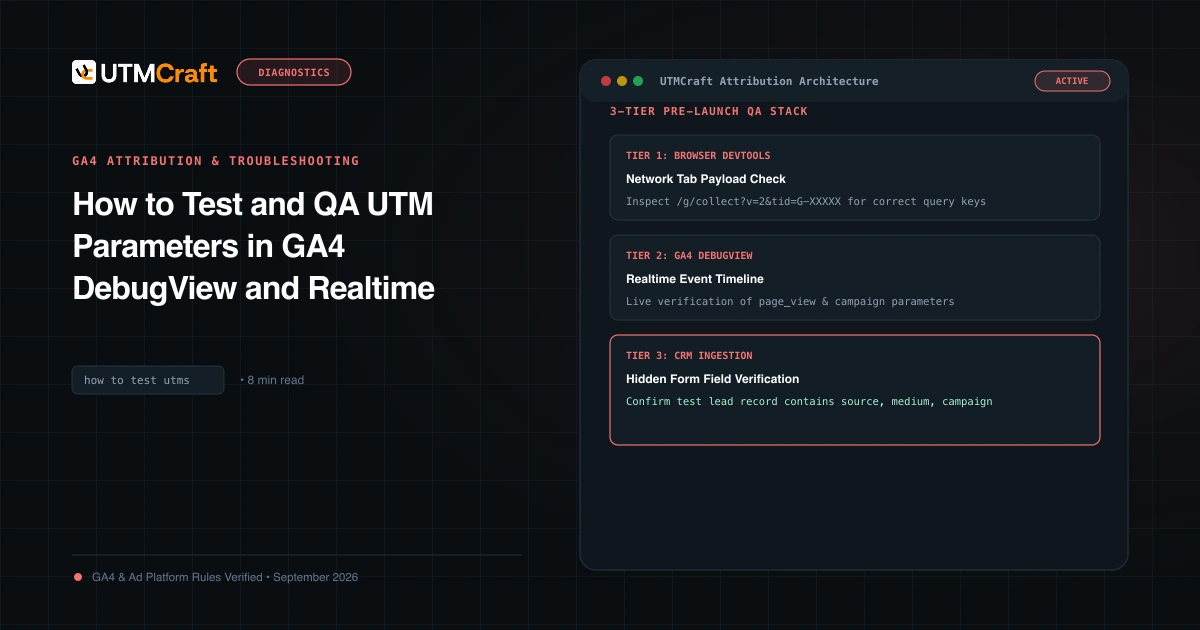
Hostname review belongs beside link review. If your newsletter points to an unintended landing page, consistent UTM values alone will not catch that operational mistake. Use the GA4 UTM testing guide to extend the check through the campaign journey.
Common Questions
Should advertising and email platforms go on my list?
Base the inventory on the websites where your measured journey takes place. In the example above, the newsletter is a campaign source and the shop is the destination.
Does this fix incorrect campaign tags?
Treat hostname inventory and campaign naming as separate QA tasks. Continue reviewing the source, medium, campaign, and destination together.
What should I do before launching on a new subdomain?
Have the analytics owner review the active filter configuration, then test the new landing-page and conversion journey before sending campaign traffic.
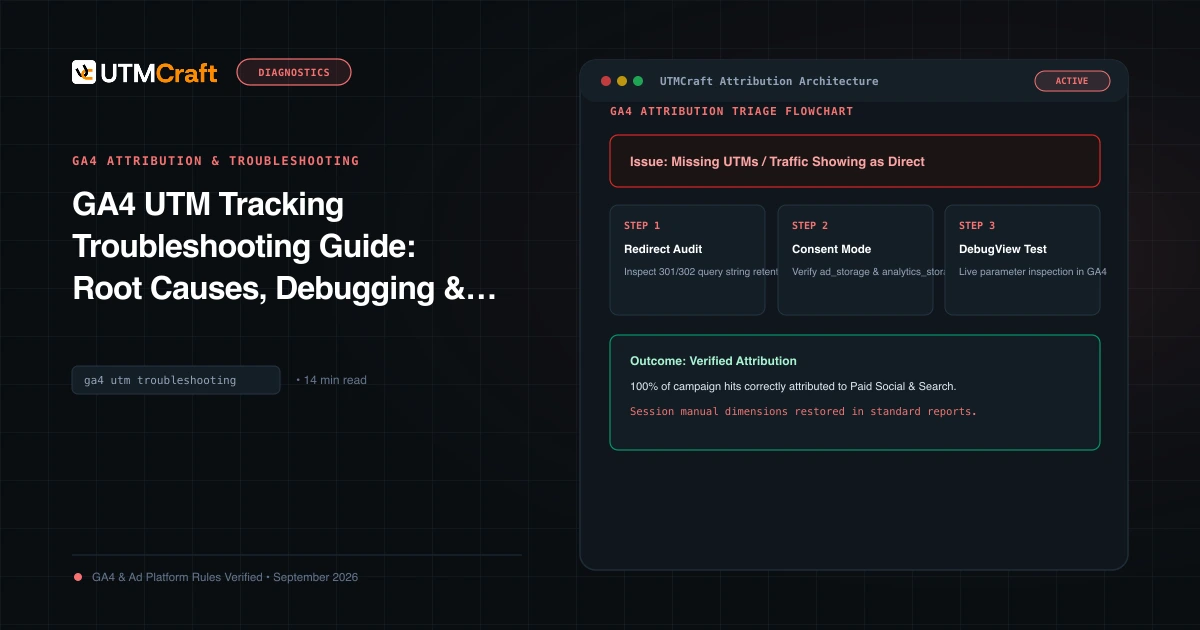
For the broader setup, read GA4 UTM Tracking Troubleshooting Guide: Root Causes, Debugging & Solutions. Browse the GA4 Attribution & Troubleshooting guides to choose another troubleshooting task.
References
- September 21, 2026: Hostname filters (Google Analytics Help)
- Filter web hostname traffic in Google Analytics (Google Analytics Help)
- Data filters: permanent effects and processing order (Google Analytics Help)