

Why UTMs Don't Appear in GA4: 9 Causes and Step-by-Step Fixes
UTM parameters missing in Google Analytics 4? Diagnose the 9 most common reasons campaign data fails to appear in GA4 reports and fix them immediately.
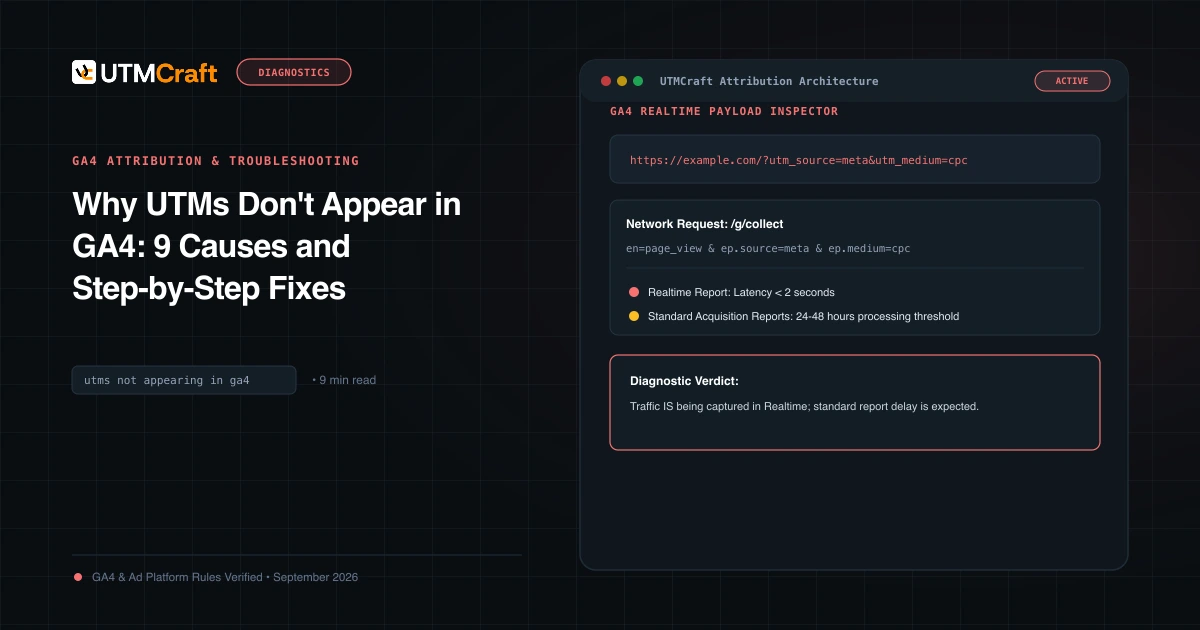
Table of Contents
You configured UTM parameters, launched your ads, but your GA4 acquisition reports show zero campaign visits. Before panicking or rewriting your entire campaign setup, review these 9 root causes and their verified technical solutions.
Quick Diagnostic Checklist: 9 Most Common Causes
- Standard Report Latency: GA4 standard reports have a 24-48 hour processing delay. Check Realtime or DebugView instead.
- Server Redirect Drops: Your web server redirects HTTP to HTTPS, non-www to www, or adds a trailing slash, stripping the query string.
- Hash Symbol (#) Before Query String (?): Placing an anchor hash before UTMs hides them from the server and analytics library.
- Single Page App (SPA) Router Overwrites: React/Vue routers wipe
window.location.searchbefore the GA4 config tag fires. - Ad Blockers & Privacy Extensions: Testing with Brave or uBlock Origin blocks the
google-analytics.com/g/collectendpoint. - Consent Management (CMP) Blocking: Your cookie banner blocks the Google tag until the visitor accepts analytics consent.
- Cross-Domain Link Loss: Traffic traversing multiple subdomains or domains without GA4 linker parameter (
_gl). - Missing utm_source: Passing
utm_campaignandutm_mediumwithoututm_sourcecauses GA4 to discard manual campaign attribution. - Internal Traffic Filter Enabled: Your IP address is filtered out under GA4 Internal Traffic filters.
Cause 1: GA4 Data Processing Latency (24-48 Hours)
Unlike Universal Analytics, which updated standard reports within a few hours, GA4 can take up to 24 to 48 hours to process data into standard acquisition dashboards (e.g. Traffic acquisition). If you launched your campaign this morning, it is normal not to see it in standard reports yet.
Check Realtime > Event count by Event name > page_view > source or open Explore > Free form Exploration. Explorations often reflect fresher data than standard reports.
Cause 2: Server 301/302 Redirect Stripping Parameters
Test your live link in browser terminal with curl:
curl -ILs "https://example.com/promo?utm_source=meta" | grep -iE "HTTP|location"If the Location: header shows https://example.com/promo/ without ?utm_source=meta, your server rewrite configuration is deleting query parameters!
Cause 3: Single Page Application (SPA) Route Wiping
In modern Next.js, React, or Angular apps, client-side routers often execute a "clean URL" rewrite upon mount, stripping query strings to keep the address bar clean. If this router clean-up runs before gtag('config') reads window.location.search, GA4 captures a blank query string!
Cause 4: Case Sensitivity & Hidden Filtering
If you filtered your report for facebook, but your colleague tagged the campaign with utm_source=Facebook, GA4's case-sensitive filtering will hide the row entirely. Always search using regular expression filters ((?i)facebook) or use UTMCraft to enforce lowercase universally.
Step-by-Step Repair Protocol
- Verify link syntax using UTM Checker.
- Fix server redirect rules to include query string preservation.
- Test in a clean Incognito session with an ad blocker disabled.
Sources & Authoritative References
- Data Processing Latency in GA4 (Google Analytics Help)
Related Measurement Guides
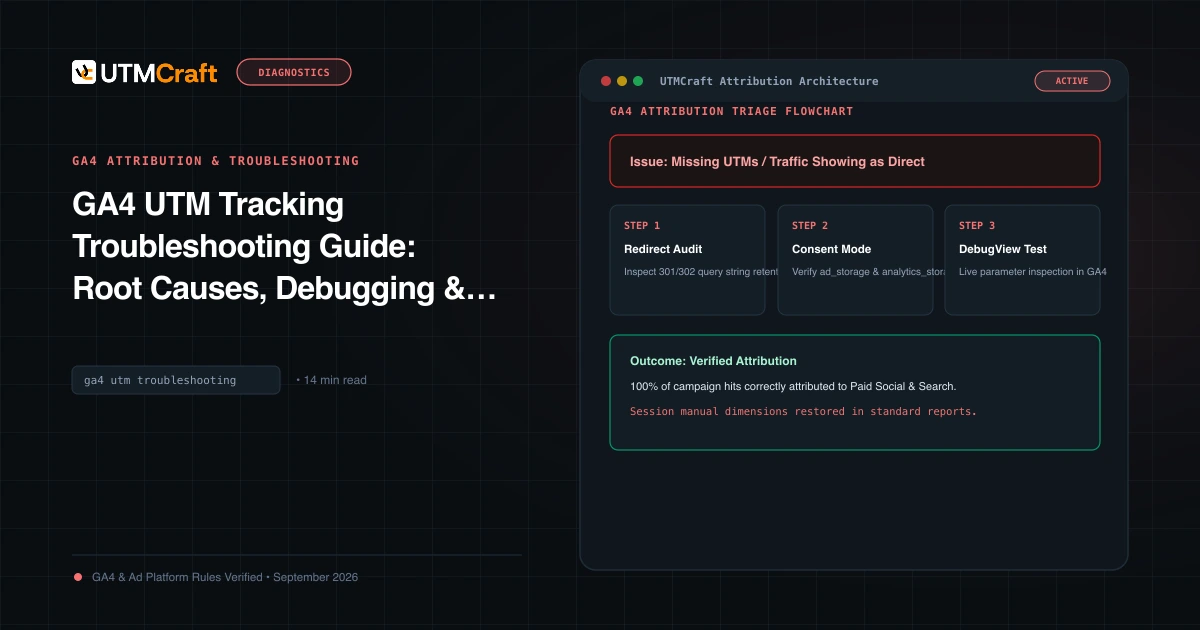
GA4 UTM Tracking Troubleshooting Guide: Root Causes, Debugging & Solutions
Diagnose and fix broken UTM tracking in Google Analytics 4. Comprehensive root cause analysis for Unassigned traffic, Direct spikes, (not set), and stripped query strings.
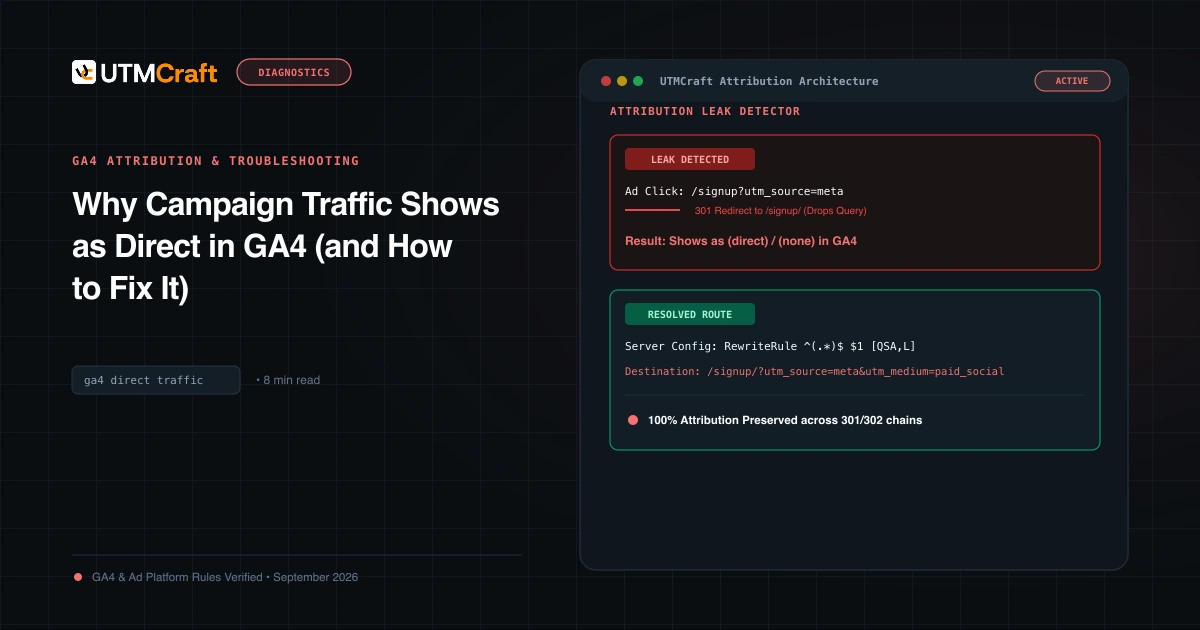
Why Campaign Traffic Shows as Direct in GA4 (and How to Fix It)
Why is your paid traffic showing as Direct in GA4? Learn the 7 primary causes of false direct traffic, redirect parameter loss, and how to recover attribution.
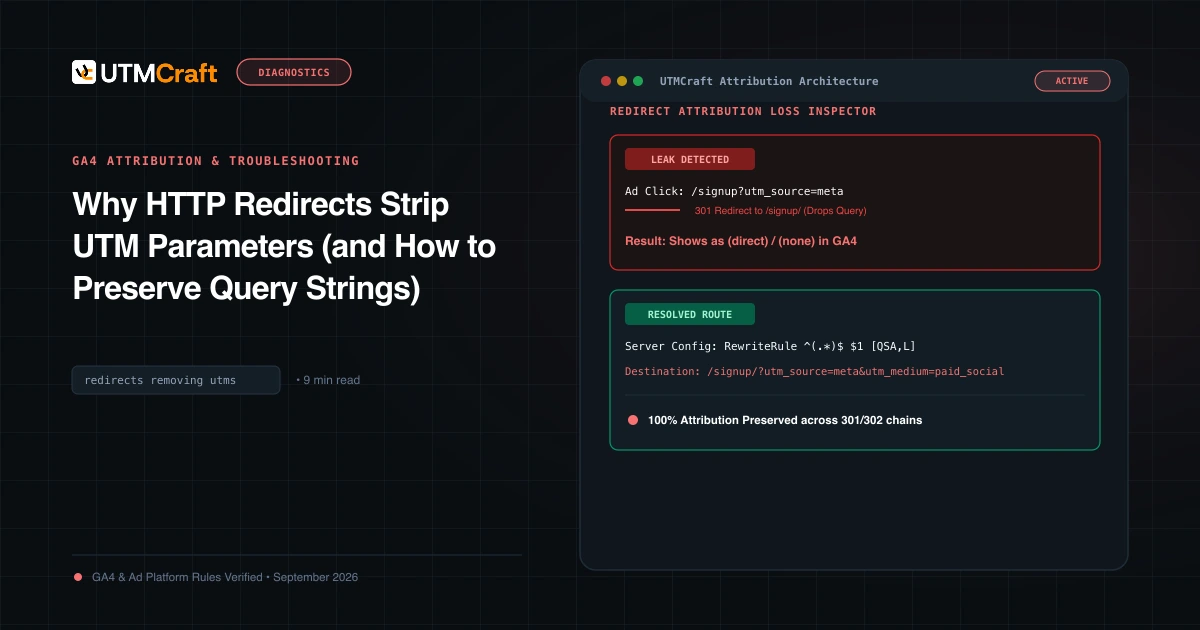
Why HTTP Redirects Strip UTM Parameters (and How to Preserve Query Strings)
Learn why HTTP 301 and 302 redirects drop UTM parameters, converting paid campaigns into Direct traffic, and how to configure servers to preserve query strings.