

How to Fix "Unassigned" Traffic in GA4: Complete Diagnosis Guide
Why does GA4 show Unassigned traffic? Discover the exact channel grouping regex rules, common medium mistakes, and how to fix Unassigned traffic permanently.
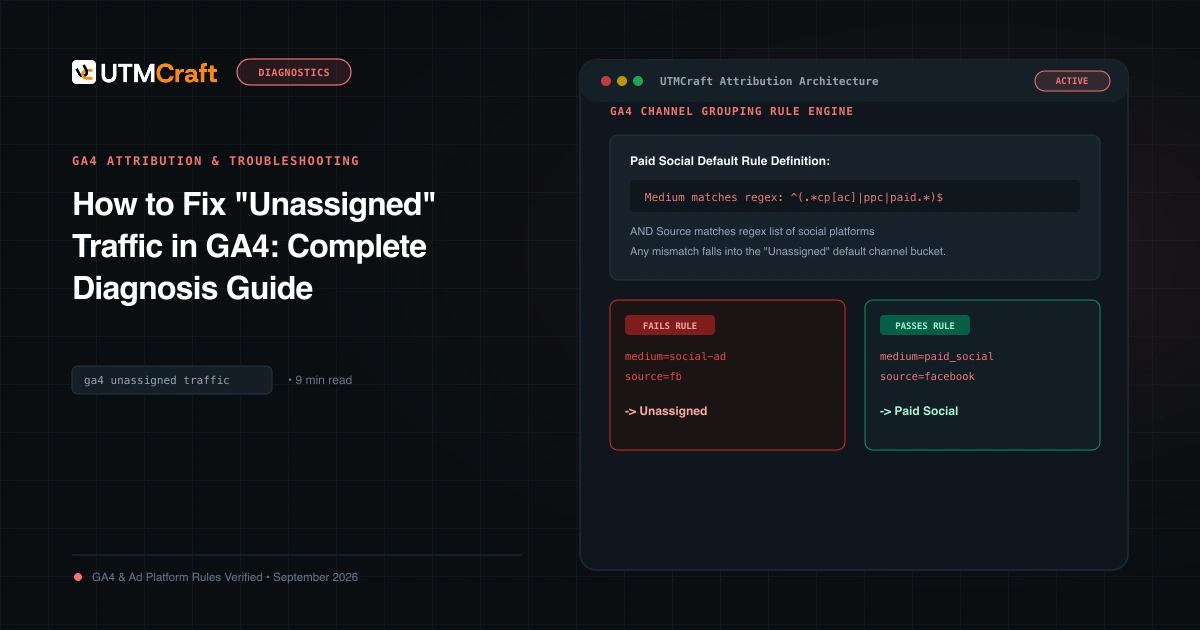
Table of Contents
"Unassigned" is one of the most frustrating dimensions in Google Analytics 4. Seeing 15% or 30% of your total traffic labeled as Unassigned in your Traffic acquisition report undermines executive confidence in your numbers. Here is exactly why it happens and how to resolve it.
Why GA4 Creates the "Unassigned" Channel Group
GA4 evaluates incoming sessions against a rigid, sequential set of channel grouping definitions. If a session has tracking parameters, but the combination of source and medium fails to meet the criteria for Paid Search, Paid Social, Organic Social, Email, Affiliates, Display, or Referral, GA4 assigns it to Unassigned.
How to Audit What Lies Inside Your Unassigned Bucket
To see the exact parameters causing Unassigned traffic:
- Navigate to Reports > Acquisition > Traffic acquisition.
- Click the
+icon next to Session default channel group to add a secondary dimension. - Select Session source / medium.
- Filter the search bar for
Unassigned.
You will immediately see the rogue source/medium pairs that GA4 cannot categorize.
The 5 Most Common UTM Mistakes That Cause Unassigned
- Non-Standard Social Mediums: Using
utm_source=facebook&utm_medium=fb_adorutm_medium=promotedinstead ofpaid_social. - Custom Email Mediums: Using
utm_medium=klaviyo_floworutm_medium=blastinstead ofemail. - Missing utm_source: Providing
utm_medium=cpcwithoututm_source. - Typos and Case Errors:
utm_medium=CPCorutm_medium=PaidSocial(in some older GA4 rule iterations, uppercase strings failed regex). - Event-Level Hits Without Session Context: Measurement Protocol server hits lacking session association.
How to Fix Unassigned Traffic: Present and Future
Require your media team to generate URLs using UTMCraft Bulk Matrix with pre-validated GA4 medium values.
In GA4 Admin, go to Data display > Channel groups > Create new channel group. Copy the default channel group, then add custom rules to map your legacy non-standard mediums (e.g. fb_ad, klaviyo_flow) into Paid Social and Email. This immediately cleans up your historical reporting dashboards without modifying raw underlying data.
Sources & Authoritative References
- GA4 Default Channel Grouping Rules (Google Analytics Help)
Related Measurement Guides
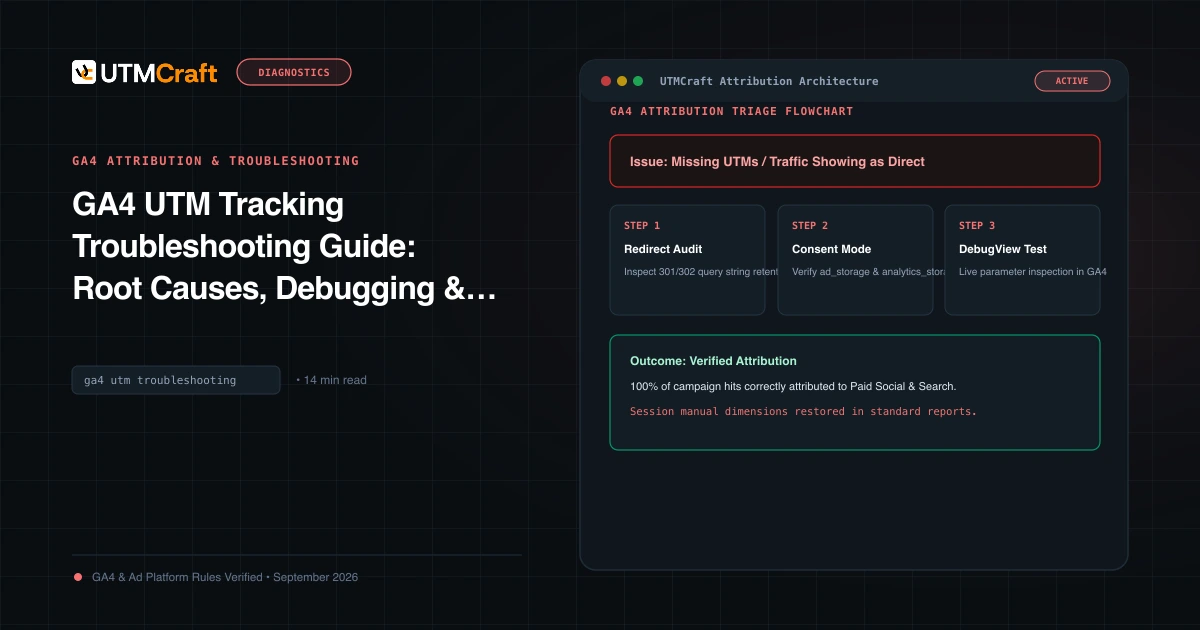
GA4 UTM Tracking Troubleshooting Guide: Root Causes, Debugging & Solutions
Diagnose and fix broken UTM tracking in Google Analytics 4. Comprehensive root cause analysis for Unassigned traffic, Direct spikes, (not set), and stripped query strings.
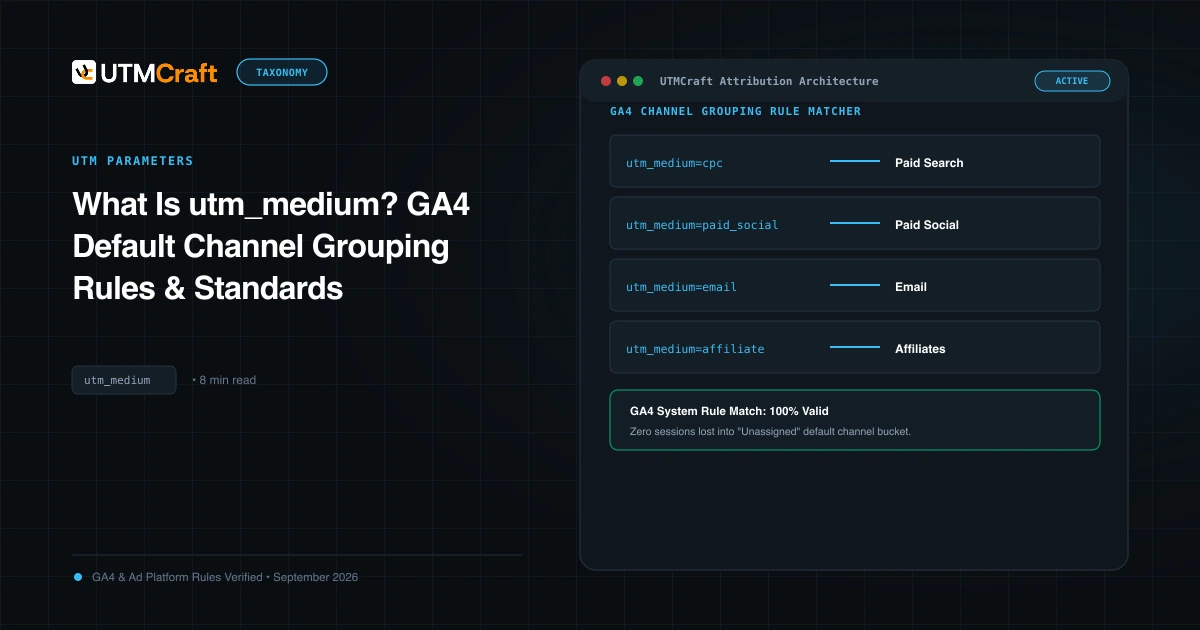
What Is utm_medium? GA4 Default Channel Grouping Rules & Standards
Understand utm_medium and how GA4 uses it to classify sessions into Default Channel Groups. Avoid Unassigned traffic with exact medium naming rules.
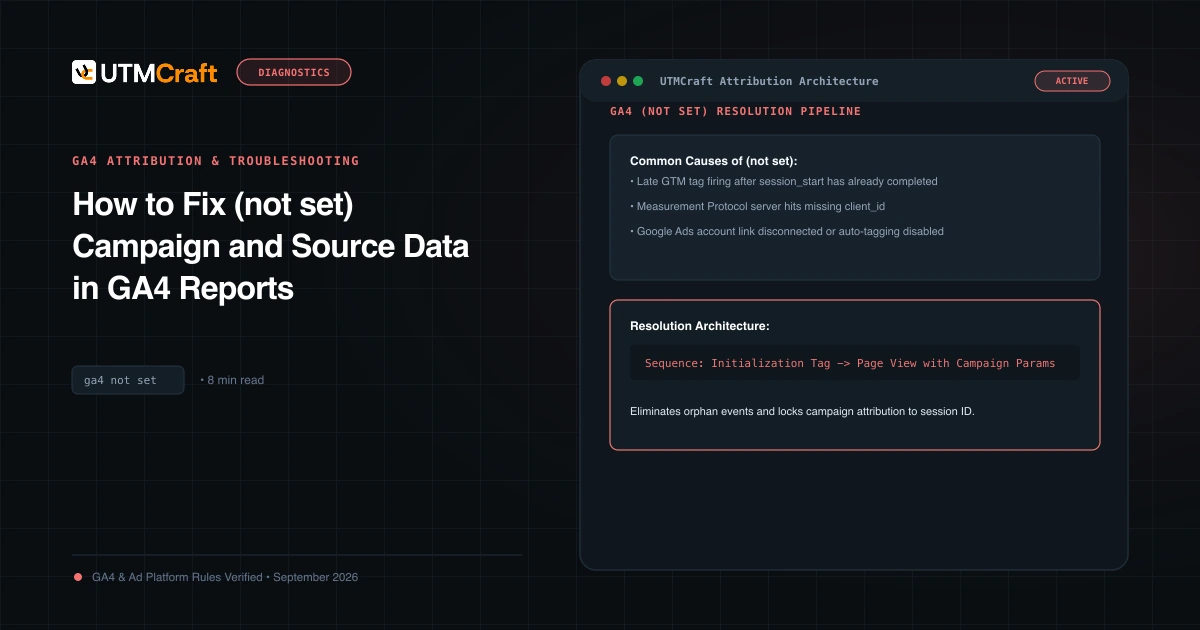
How to Fix (not set) Campaign and Source Data in GA4 Reports
Why do you see (not set) for campaigns, sources, or landing pages in GA4? Learn the technical causes behind (not set) and how to resolve missing attribution.