

Google Ads UTM Tracking Guide: ValueTrack, Tracking Templates & GA4 Attribution
The complete technical guide to Google Ads UTM tracking. Configure account-level tracking templates, ValueTrack parameters, and GA4 auto-tagging without conflicts.
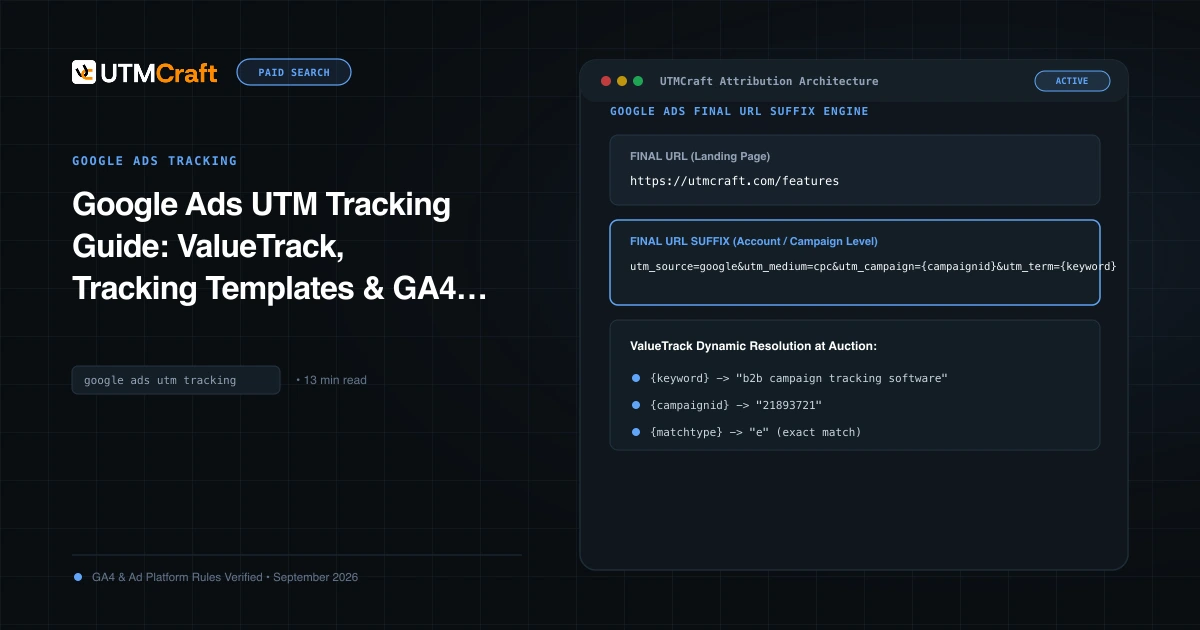
Table of Contents
- Why You Still Need UTMs With Google Ads in 2026
- The Standard Account-Level Final URL Suffix
- Essential ValueTrack Parameters Reference Table
- Tracking Templates vs Final URL Suffix: Which to Use?
- Reconciling Auto-Tagging and Manual UTMs in GA4
- Critical Google Ads Tracking Mistakes to Avoid
- Frequently Asked Questions
Relying solely on Google Ads auto-tagging (GCLID) works well if Google Analytics 4 is your only analytics destination. But if you pass lead data into Salesforce or HubSpot, evaluate multi-touch attribution in Snowplow or Mixpanel, or need human-readable campaign breakdowns in BigQuery, you must deploy a systematic UTM tracking architecture alongside auto-tagging.
Why You Still Need UTMs With Google Ads in 2026
Google Ads auto-tagging attaches an encrypted hash parameter (gclid=...) to the landing page. While GA4 decrypts this hash natively to extract impressions, keyword bids, and ad group names, third-party software cannot read GCLID data. UTM parameters bridge this gap by providing universal, plain-text attribution across your entire marketing tech stack.
The Standard Account-Level Final URL Suffix
The cleanest way to implement Google Ads tracking is by defining an account-level Final URL Suffix. This ensures that every existing and future campaign automatically inherits tracking without requiring manual parameter appending on individual ad links.
utm_source=google&utm_medium=cpc&utm_campaign={_campaign}&utm_term={keyword}&utm_content={creative}&utm_id={campaignid}&device={device}&placement={placement}&targetid={targetid}Note: If you use the campaign name custom parameter {_campaign}, define it at the campaign settings level. If you prefer automated numerical IDs, use utm_campaign={campaignid}.
Essential ValueTrack Parameters Reference Table
| ValueTrack Token | What Google Injects at Click Time | Recommended UTM Mapping |
|---|---|---|
{campaignid} |
Numerical ID of the Google Ads Campaign | utm_id={campaignid} |
{adgroupid} |
Numerical ID of the Ad Group | Custom parameter: adgroup_id={adgroupid} |
{keyword} |
Keyword matched for Search ads (blank for Display/PMax) | utm_term={keyword} |
{matchtype} |
e (exact), p (phrase), or b (broad) |
Custom parameter: matchtype={matchtype} |
{creative} |
Unique numerical ID of the ad creative | utm_content={creative} |
{device} |
m (mobile), t (tablet), or c (computer) |
Custom parameter: device={device} |
{placement} |
Domain of Display Network site where ad was clicked | Custom parameter: placement={placement} |
{network} |
g (Search), s (Search partner), d (Display), ytv (YouTube) |
Custom parameter: network={network} |
Tracking Templates vs Final URL Suffix: Which to Use?
Google Ads offers two primary tracking mechanisms:
- Tracking Template (
{lpurl}?utm_...): Historically used with third-party click redirect trackers (such as Kenshoo or Marin). The browser navigates to the tracker URL first, then redirects to the final landing page. This introduces latency and redirect vulnerability. - Final URL Suffix (utm_...): The modern standard. Parameters are appended directly to your landing page without any redirect hops, improving page speed, user experience, and tracking stability.
Campaign Specifics: Search, Display, YouTube & PMax
In Performance Max campaigns, there are no bidded keywords. If you pass utm_term={keyword}, Google will pass an empty string for Display/Video inventory. For PMax, prioritize utm_id={campaignid} and utm_content={creative}.
Reconciling Auto-Tagging and Manual UTMs in GA4
When you link Google Ads to GA4, GA4 auto-tagging takes precedence by default. GA4 populates reporting dimensions from the GCLID, ignoring your manual UTM parameters in Google Ads overview reports. However, manual parameters remain visible under Manual source, Manual medium, and in the BigQuery raw event export.
Critical Google Ads Tracking Mistakes to Avoid
- Hardcoding Keywords in Ad URLs: Never manually type keywords into ad URLs. Always use dynamic
{keyword}. - Enabling "Override Auto-Tagging" Without a Clear Need: In GA4 Property Settings, there is a checkbox labeled "Allow manual tagging (UTM values) to override auto-tagging (GCLID values)". Do not enable this unless you have a strict requirement, as it can strip rich Google Ads auction metrics from standard GA4 reports.
Frequently Asked Questions
Should I put UTM parameters in the Final URL or Final URL Suffix?
Always place UTM parameters in the Final URL Suffix field (at either Account, Campaign, or Ad Group level). The Final URL Suffix appends cleanly without triggering ad re-reviews, supports dynamic ValueTrack tokens like {keyword} and {campaignid}, and eliminates the risk of human typographical errors on individual ad URLs.
Do ValueTrack parameters work in Performance Max campaigns?
Yes, but with caveats. Parameters like {campaignid}, {adgroupid}, and {device} work reliably across PMax. However, keyword-specific parameters like {keyword} and {matchtype} return blank values for non-search inventory (such as YouTube, Gmail, and Google Display Network placements).
Does auto-tagging override manual UTM parameters in GA4?
By default, yes. When auto-tagging is enabled and linked to GA4, GA4 uses GCLID data for its standard Google Ads reporting and attribution snapshot. However, manual UTM values are preserved under the manual campaign dimensions and in the BigQuery raw event export, providing the best of both worlds.
Why do curly braces like {keyword} show up literally when I test my link?
ValueTrack parameters are dynamically replaced by Google's ad serving servers only at the actual moment an ad impression is clicked. If you copy/paste a tracking template into your browser address bar manually, the ad engine never processes the macro, leaving the literal braces unexpanded.
Sources & Authoritative References
- Set up tracking with ValueTrack parameters (Google Ads Help)
- About auto-tagging in Google Ads (Google Ads Help)
- Link Google Ads and Google Analytics (Google Analytics Help)
Related Measurement Guides
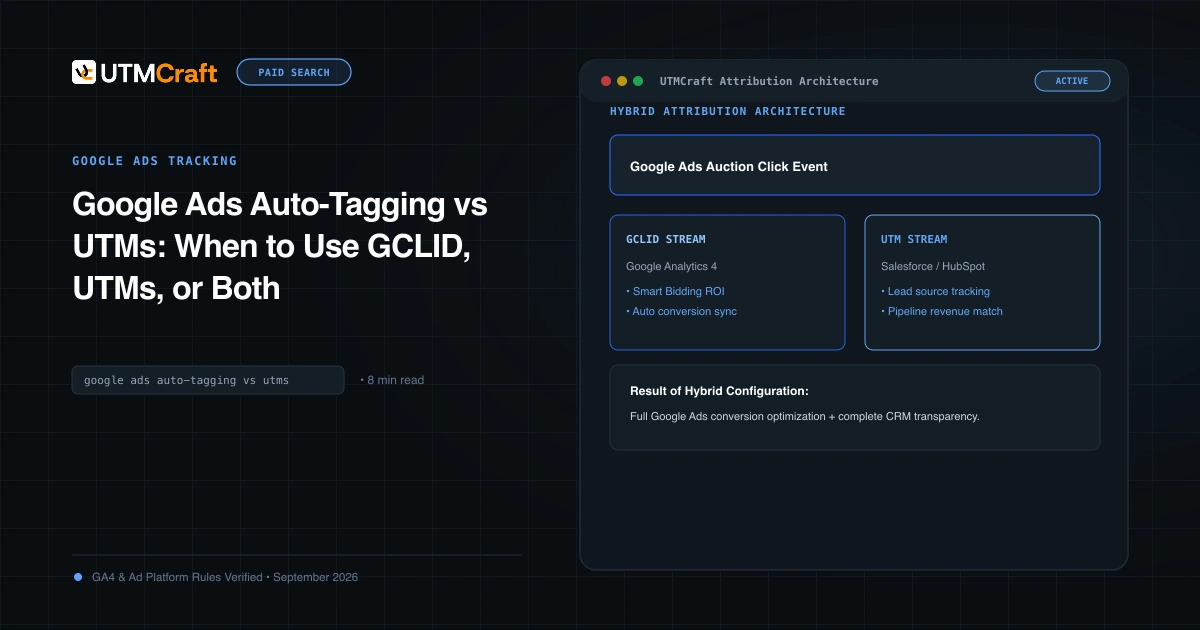
Google Ads Auto-Tagging vs UTMs: When to Use GCLID, UTMs, or Both
Compare Google Ads auto-tagging (GCLID) and manual UTM parameters. Discover why the hybrid tracking model provides maximum analytics accuracy and CRM visibility.
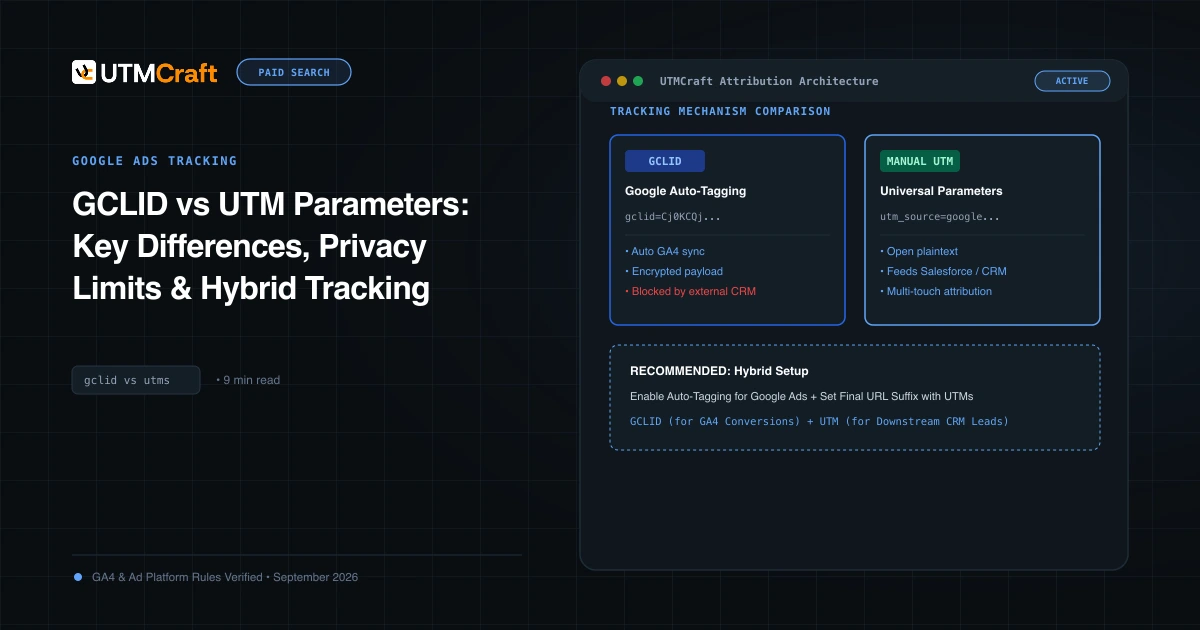
GCLID vs UTM Parameters: Key Differences, Privacy Limits & Hybrid Tracking
Understand the technical architecture of GCLID vs UTM parameters. Learn how Apple ITP impacts click IDs and how to build a privacy-durable attribution pipeline.
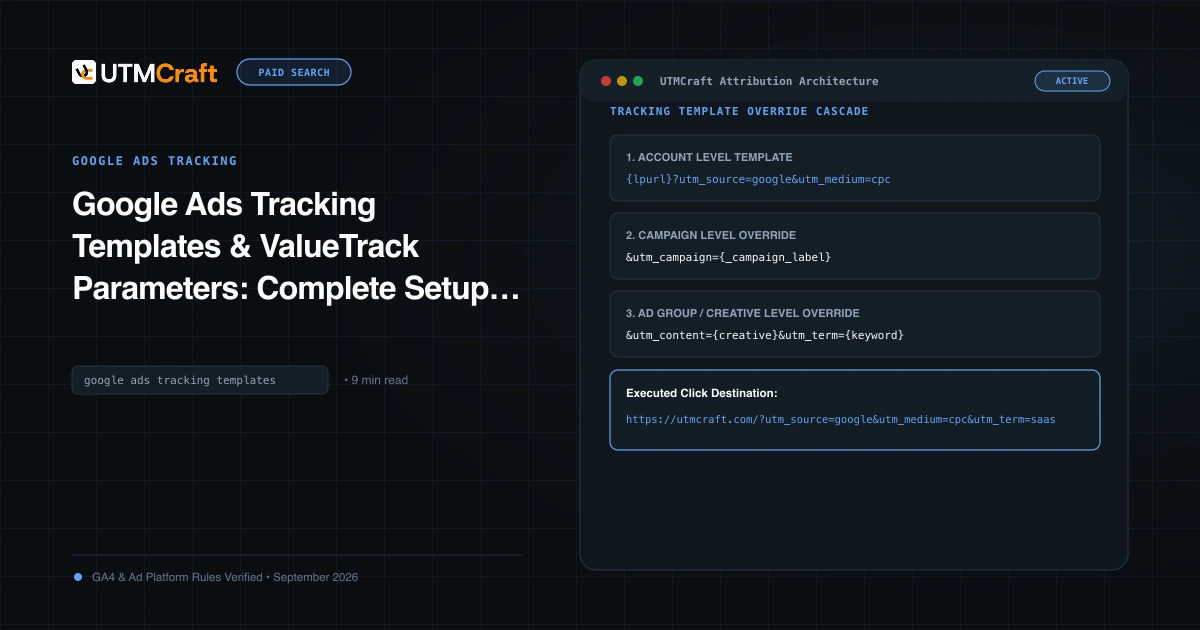
Google Ads Tracking Templates & ValueTrack Parameters: Complete Setup Guide
Step-by-step tutorial on setting up Google Ads tracking templates and ValueTrack parameters at account, campaign, and ad group levels. Free copyable templates.