Table of Contents
- Choose the setup that matches your account
- Start with an inventory and backup
- Option 1: Use a shared account-level suffix
- Option 2: Prepare different suffixes for different campaigns
- Test three layers before expanding the rollout
- Keep auto-tagging and manual campaign values separate in your review
- Roll back using the saved values
- Questions before you launch
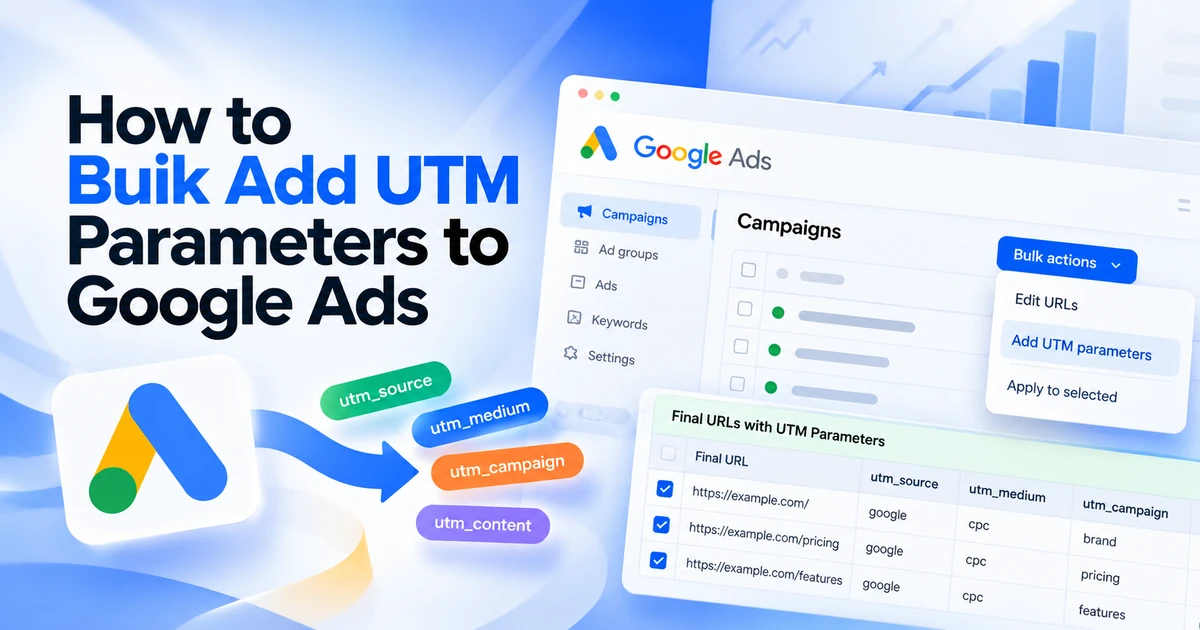
You do not need to open every ad to add campaign tracking parameters. For a shared tagging format, you can use a final URL suffix at account level. If campaigns need different values, prepare campaign-level changes in Google Ads Editor and review them before posting.
The important decision is where the tagging should live. Appending the same UTM string to every final URL may create duplicates if the account already adds those parameters elsewhere.
This guide covers website campaign tagging. It does not replace Google Ads conversion tracking, and adding UTMs does not automatically configure GA4 or a CRM.
If you only need the Google Ads UTM string itself, generate it with the Google Ads UTM builder first, then come back here to roll it out. For how Google Ads UTM parameters, ValueTrack and auto-tagging fit together, see the Google Ads UTM tracking guide.
Choose the setup that matches your account
| Situation | Suggested approach | Check first |
|---|---|---|
| Campaigns share one tagging format | Account-level final URL suffix with supported dynamic parameters | Existing URL options and campaign exceptions |
| Campaigns need readable, distinct names | Campaign-level suffixes, prepared in Editor | Names match the campaigns already in the account |
| A third-party click tracker is installed | Review its required template and suffix together | Who maintains the tracker and which parameters it needs |
| You need tagged URLs for newsletters or social posts | Build complete campaign URLs separately | Those links are not Google Ads suffixes |
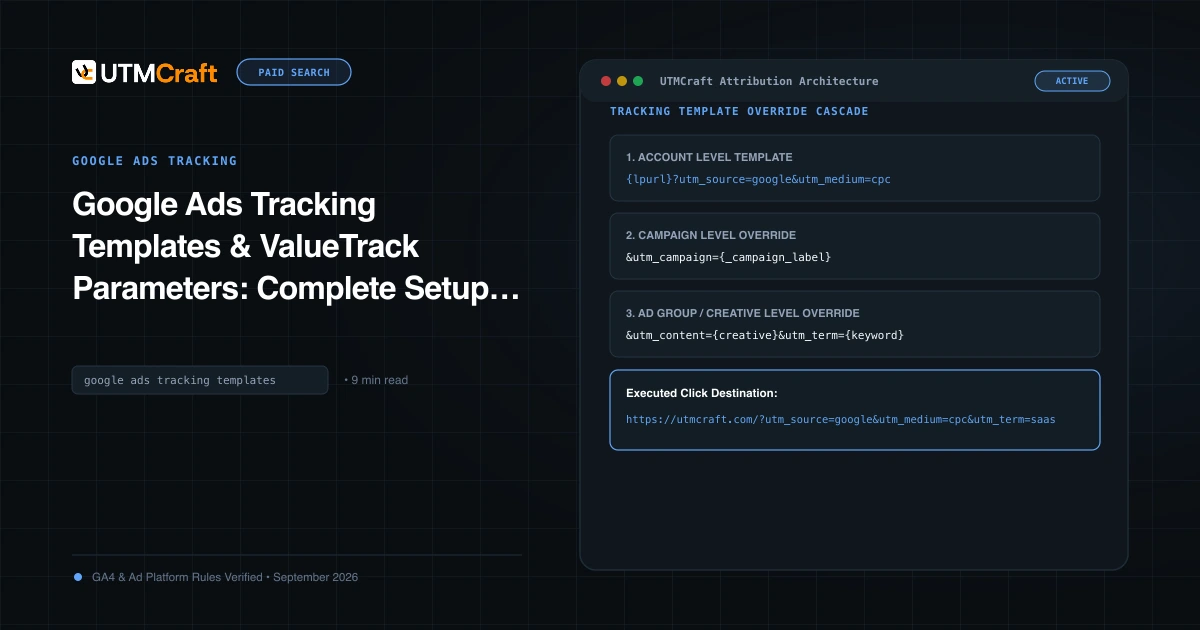
Google distinguishes the landing-page URL, tracking template and final URL suffix. A suffix adds parameters to the destination, while a template can involve a tracking service. Read the account's existing settings before choosing a replacement. About tracking in Google Ads
Start with an inventory and backup
Create a record of your current URL configuration before applying changes. Include the account, campaigns, ad groups, ads, keywords and sitelinks that use tracking settings. Look for UTMs already in final URLs, custom parameters, existing suffixes and third-party templates.
For each planned change, record the entity, previous value, proposed value and reason. This makes rollback possible without guessing what used to be there.
Do not assume a shared account setting will produce the same effective URL for every entity. Audit lower-level settings and test representative examples, including any exceptions.
Option 1: Use a shared account-level suffix
A useful starting example is:
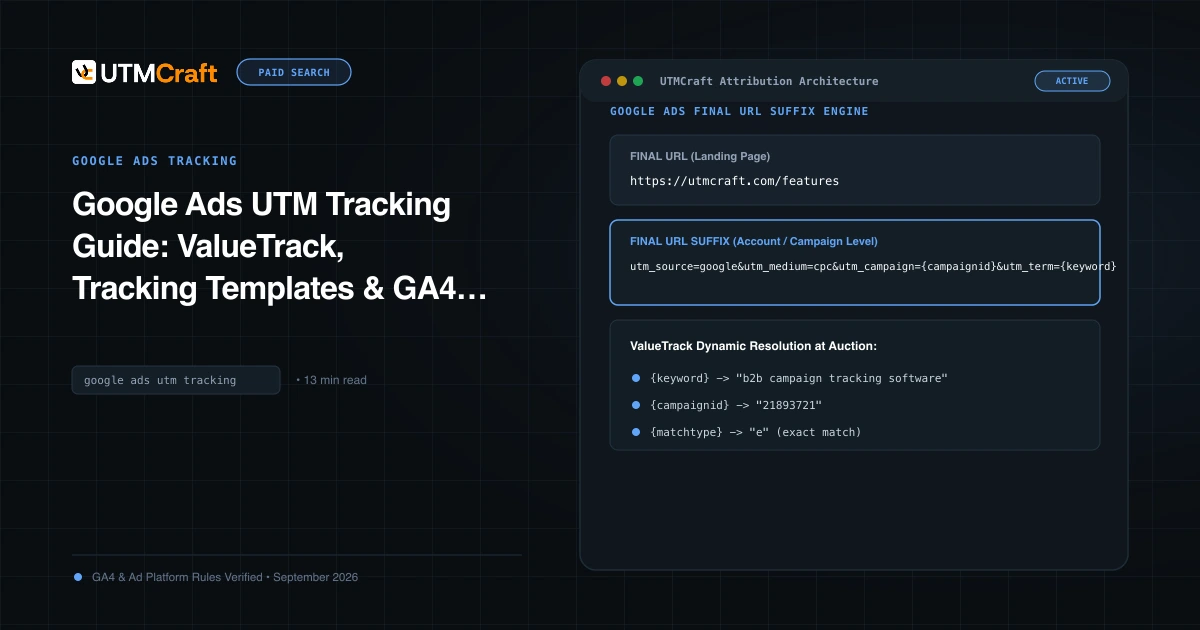
utm_source=google&utm_medium=cpc&utm_campaign={campaignid}&utm_id={campaignid}&utm_source_platform=google_ads
This is a suffix, not a complete URL. It contains no website address, leading question mark or {lpurl} placeholder.
{campaignid} is a supported Google Ads ValueTrack parameter. It produces an identifier rather than a readable campaign name. Keep a campaign-ID lookup if people consuming your CRM data need names. Dynamic parameters have different availability across campaign types; check any additional token against Google's reference. ValueTrack reference
In Google Ads, open Admin → Account settings, open the tracking settings, and place the parameter string in Final URL suffix. Check the existing value before saving. Google documents suffix setup at account and other entity levels. Add a final URL suffix
For an illustrative campaign ID of 123456789, a destination could resolve to:
https://example.com/demo?utm_source=google&utm_medium=cpc&utm_campaign=123456789&utm_id=123456789&utm_source_platform=google_ads
The ID is an example, not a real campaign or a measured result. An auto-tagged click can also include click identifiers; do not remove them as part of a UTM cleanup.
Option 2: Prepare different suffixes for different campaigns
If your reporting convention requires readable campaign names, use a planning table like this:
| Existing campaign | Intended campaign value | Proposed suffix |
|---|---|---|
| Search - Brand - UAE | brand-search-uae | utm_source=google&utm_medium=cpc&utm_campaign=brand-search-uae&utm_id={campaignid}&utm_source_platform=google_ads |
| Search - Demo - UAE | demo-search-uae | utm_source=google&utm_medium=cpc&utm_campaign=demo-search-uae&utm_id={campaignid}&utm_source_platform=google_ads |
These are fictional campaign names. Substitute names from your account, not new names you expect the import to create.
In Google Ads Editor:
- Download current account changes and select the intended campaigns.
- Export the relevant existing campaign data as your backup and working starting point.
- Prepare the Campaign and Final URL suffix columns for the existing campaign rows. Keep identity fields required by your export or import workflow.
- Import the file and check column mapping and the proposed changes.
- Confirm the preview edits the intended campaigns, with no unexpected additions or changes to other fields.
- Resolve errors, review the diff and post only after a small pilot passes.
Editor recognises a Final URL suffix column. A blank imported field normally means no change; [] instructs Editor to erase an existing value. Do not treat those as interchangeable when preparing a rollback. Editor CSV columns
For a shared value, Editor also supports editing multiple selected campaigns together. Review what is selected before changing a field. Edit campaign settings in Editor
Test three layers before expanding the rollout
Configuration: Check one ordinary campaign and one with custom URL options. Use Google Ads' available URL testing function, which checks the assembled destination. A successful destination test is not proof that GA4 received the visit. Google Ads tracking tests
Landing page: Inspect the resulting URL and its redirect chain. Confirm the intended UTMs survive, required non-UTM query parameters remain, and each tracking key appears once. Avoid repeatedly clicking your own live ads to perform QA.
Measurement: Separately confirm your website tag receives the intended page location. After processing, inspect the appropriate campaign dimensions in GA4 and any fields collected by your CRM. Manual URL testing confirms collection behaviour; it cannot simulate every part of a genuine auto-tagged ad click.
Keep auto-tagging and manual campaign values separate in your review
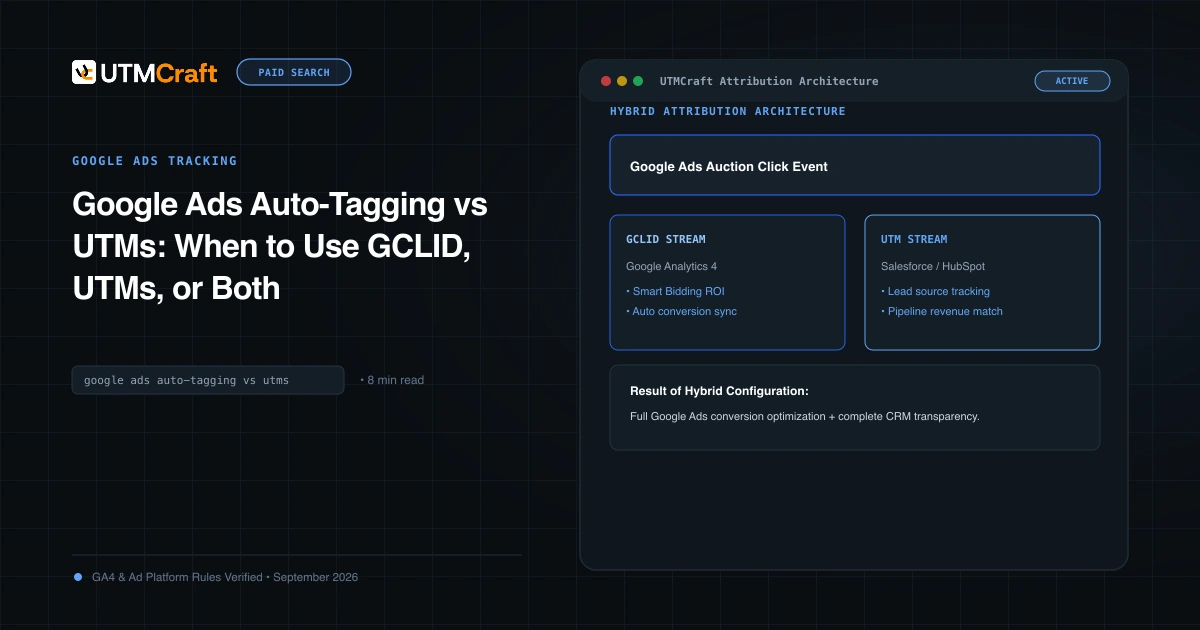
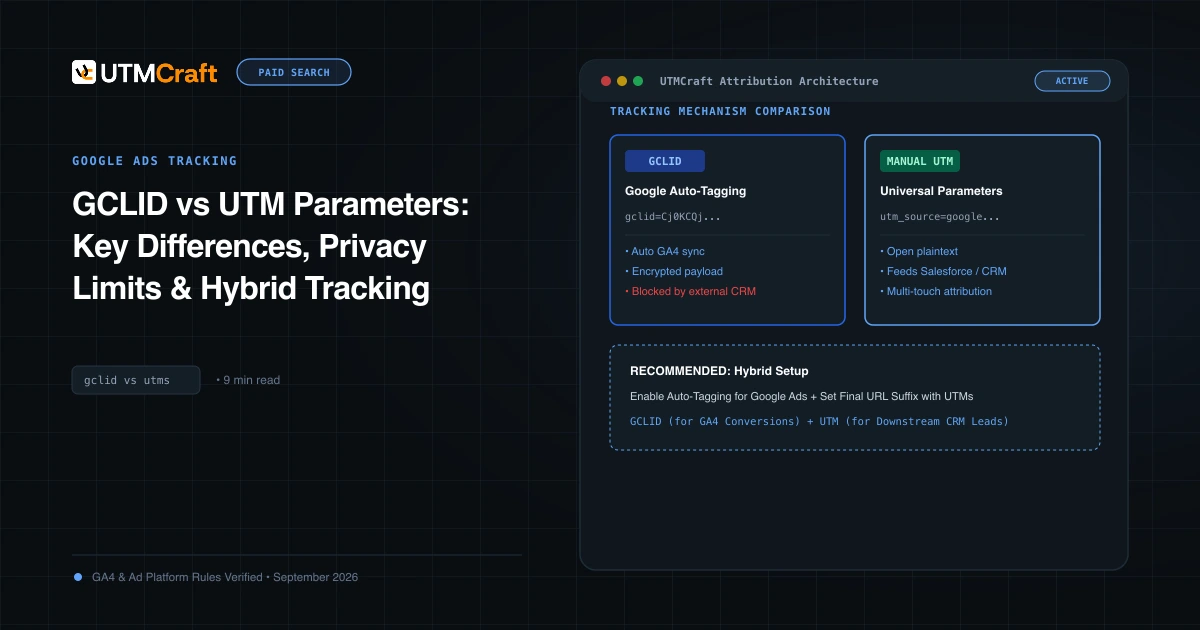
With Google Ads and GA4 integrated, auto-tagging supplies advertising dimensions. GA4 can use auto-tagged information for its cross-channel traffic classification while retaining supported manual fields. Do not assume a manually supplied campaign string must replace the Google Ads campaign name everywhere. GA4 manual and automatic tagging
Roll back using the saved values
If the pilot produces incorrect destinations or campaign values, restore the settings for the entities you changed. Re-test the destination and collection after restoration. A configuration rollback does not rewrite already collected analytics data.
Use the Google Ads UTM builder to prepare candidate parameters. For the broader setup, read the Google Ads UTM tracking guide. Always distinguish a full generated URL from the parameter string required by a suffix field.
Questions before you launch
Should I add {keyword} to every campaign?
Only when it serves a reporting purpose and is supported for your traffic. Keyword availability is not universal, and a ValueTrack keyword is not a promise of the user's exact search query.
Can I use the same UTMs in the final URL and suffix?
Avoid defining the same keys in multiple places. Inspect the assembled URL rather than relying on a presumed precedence rule.
Does adding a suffix activate conversion tracking?
No. Conversion measurement requires its own configuration and validation.
For the broader setup, read Google Ads UTM Tracking Guide: ValueTrack, Tracking Templates & GA4 Attribution. Browse the Google Ads Tracking guides to choose another troubleshooting task.
References
- Google Ads tracking tests (Google Help)
- ValueTrack reference (Google Help)
- Add a final URL suffix (Google Help)
- Editor CSV columns (Google Help)
- Edit campaign settings in Editor (Google Help)
- GA4 manual and automatic tagging (Google Help)