Listen to this article
Audio summary · 1 min 42 sec
Table of Contents
- UTM tracking and the native integration answer different questions
- Choose a consistent GBP UTM naming convention
- Build tagged website and action links
- Add the links to Google Business Profile
- Test the journey before relying on reports
- Find GBP visits and website outcomes in GA4
- Set up the native Google Business Profile integration
- Why website clicks and GA4 sessions do not match
- Google Business Profile tracking questions
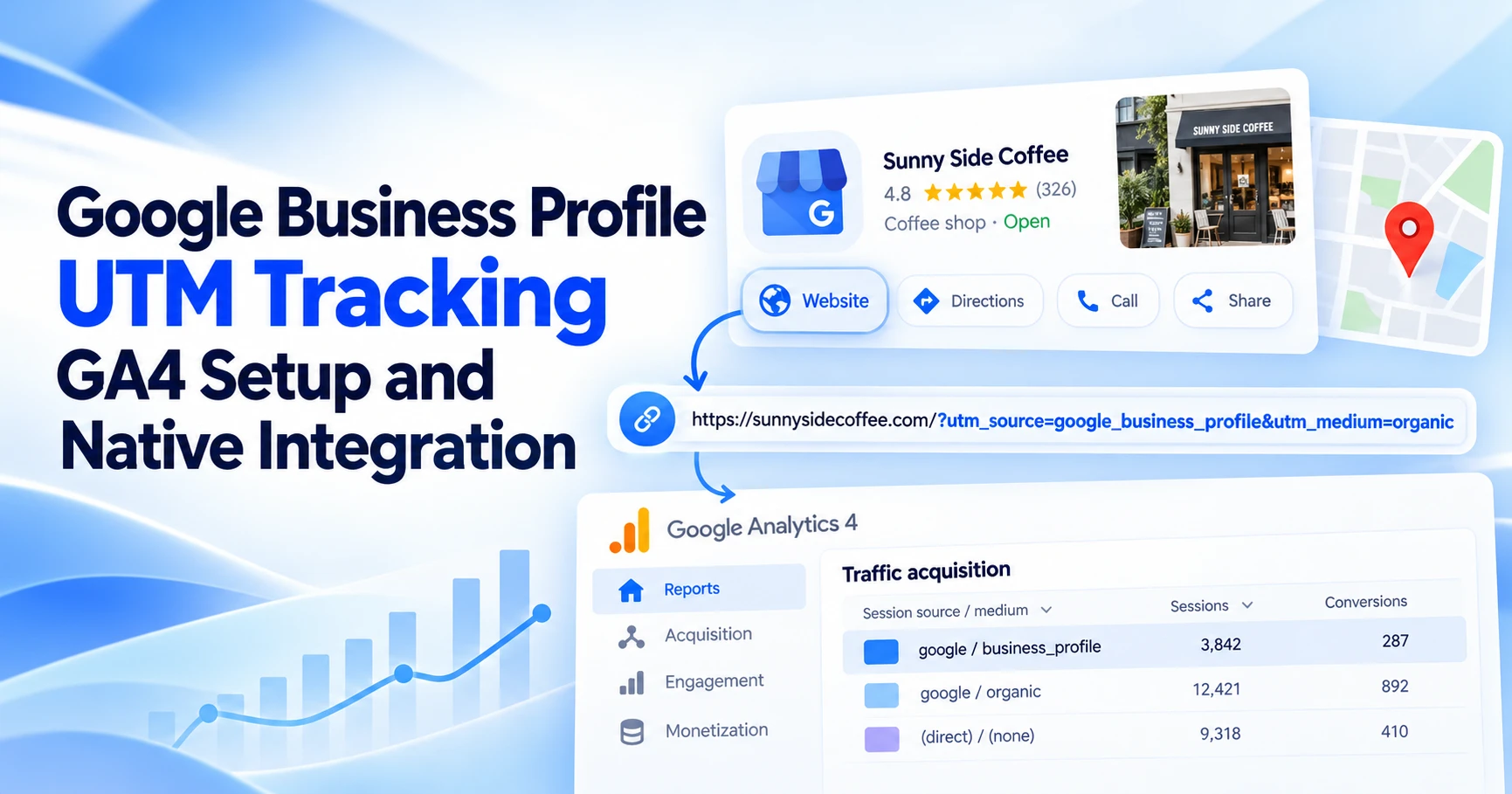
Add UTM parameters to the website links you control in Google Business Profile to identify those visits in GA4. Then use GA4’s native Business Profile integration for profile-level engagement reporting. Use both when you need to compare website activity with actions taken on the profile.
Google documented the native integration in its June 8, 2026 release notes. Advice that Business Profile cannot link to GA4 is now incomplete. The integration still has important reporting limits, especially for multiple locations. Analytics release notes This guide was checked against Google documentation on October 9, 2026; the URLs and business examples are fictional.
UTM tracking and the native integration answer different questions
| Method | Useful question | Important limit |
|---|---|---|
| UTMs on an owned website destination | Which labeled profile link brought a measured website visit or action? | Requires the website to collect analytics and preserve the parameters. |
| Native GBP link in GA4 | How much engagement did the linked profiles receive? | Reports aggregate all linked profiles and have limited customization. |
| Business Profile performance | How did a particular profile perform? | Its clicks and interactions do not equal GA4 website sessions. |
Think of the two data paths this way:
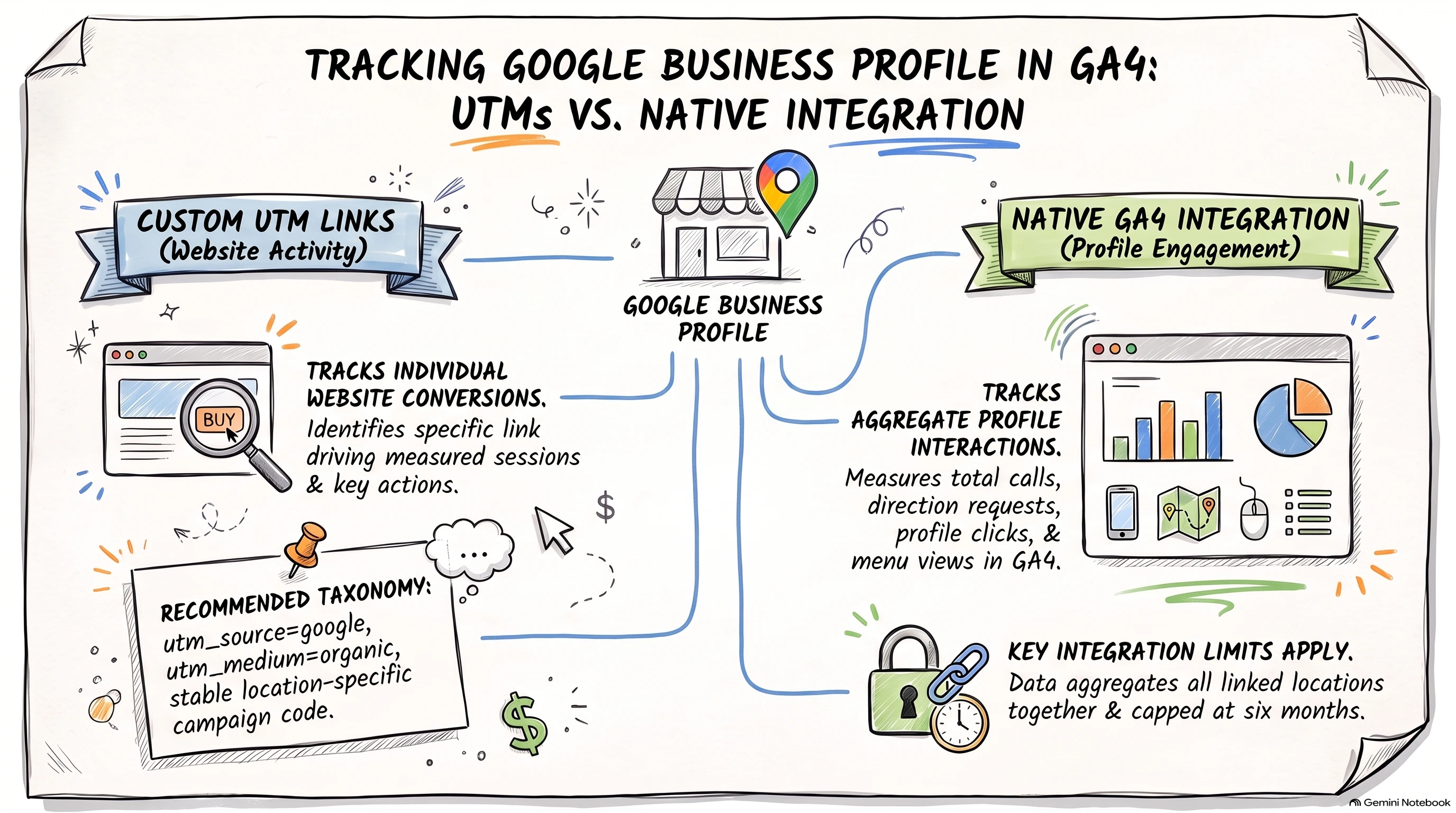
According to Google’s integration documentation, the native reports show interactions, website clicks, calls, directions, messages, bookings and menus. The existence of a metric does not establish that it is available or meaningful for every business category.
Choose a consistent GBP UTM naming convention
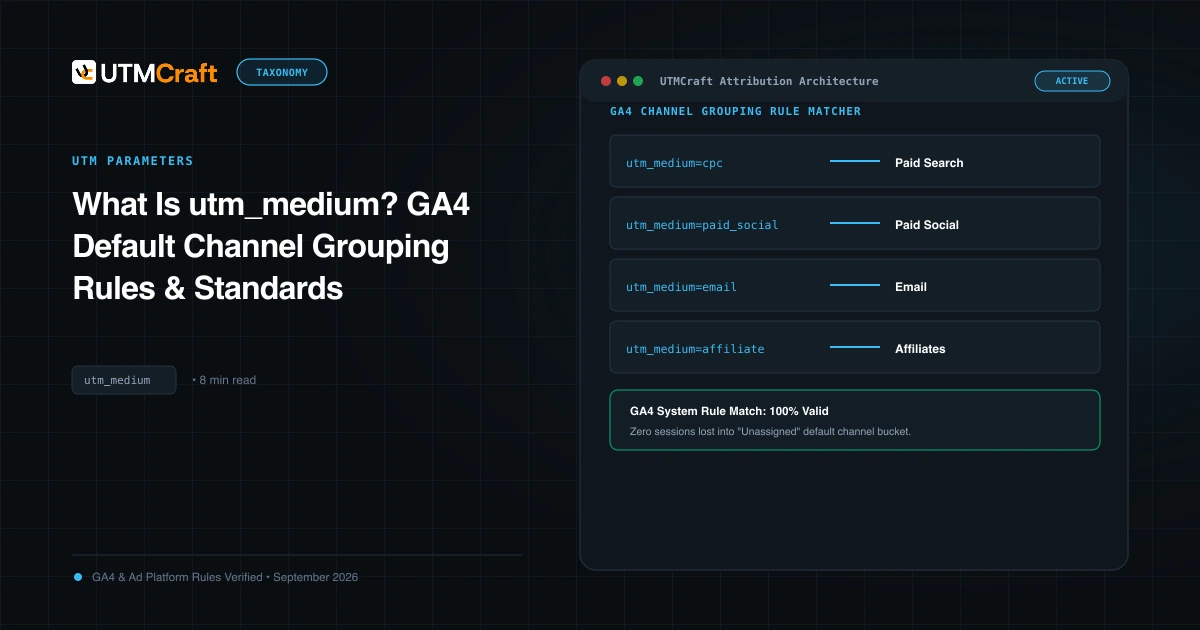
For an ordinary profile website link, a useful convention is utm_source=google, utm_medium=organic, a location-specific utm_campaign, and a link-specific utm_content. This is an editorial recommendation, not a mandatory Google format. GA4’s default channel rules explain how source and medium affect channel classification.
| Parameter | Suggested value | Purpose |
|---|---|---|
utm_source | google | Keep a consistent source for these Google profile destinations. |
utm_medium | organic | Use a recognized organic medium for this link convention. |
utm_campaign | gbp-marina | Distinguish one profile/location within Google organic traffic. |
utm_content | website or appointment | Distinguish the placement when you control its destination. |
Choose a stable location code, such as marina, rather than a changing promotional name for the main website button. Keep a simple lookup from code to business address. Use different campaign values for different profiles, even if all locations share one website.
A static URL used on both Search and Maps cannot tell you which surface generated a particular visit. Naming its source maps does not create that evidence. Also, Business Profile performance can include Google Ads activity; it should not be described as a purely unpaid dataset. Google’s performance definitions Paid advertising needs its own tagging and product-link configuration.
If you already use another coherent GBP convention, assess the reporting consequences before renaming it. Changing labels creates a break in the series. The UTM medium guide and non-paid marketing tracking guide cover the broader taxonomy; this article focuses on Business Profile implementation.
Build tagged website and action links
Here is a main website link for a fictional Marina location:
https://example.com/locations/marina?utm_source=google&utm_medium=organic&utm_campaign=gbp-marina&utm_content=websiteIf a destination already contains a query parameter, append UTMs with &, not a second ?:
https://example.com/book?location=marina&utm_source=google&utm_medium=organic&utm_campaign=gbp-marina&utm_content=appointment| Placement you control | Example campaign | Example content | Destination to review |
|---|---|---|---|
| Main website button | gbp-marina | website | The owned location landing page. |
| Appointment link, when supported | gbp-marina | appointment | Your booking destination and its analytics coverage. |
| Menu link, when supported | gbp-marina | menu | An owned menu page rather than an unmeasured file, when practical. |
| Another location’s website link | gbp-creek | website | That location’s own page and profile assignment. |
Build these with UTMCraft’s UTM builder. For several locations, use the bulk builder to prepare a link plan, then check each assignment. It does not automatically update Google’s profile fields.
Use the full HTTPS destination, avoid duplicate parameter names, and keep labels readable. Never put names, email addresses, phone numbers or other personal identifiers into tracking parameters. Google’s policy on personally identifiable information
Download the fictional two-location link plan · Download the printable GBP tracking checklist
Add the links to Google Business Profile
- Sign in with the account that manages the intended profile and select the correct business in Google Search or Maps.
- Choose Edit profile and find the website field. Replace the destination with the complete tagged website URL and save.
- Review the published profile after Google processes the change. Click the actual website button; inspecting the saved text alone does not prove the live link is correct.
- For eligible appointment, ordering or other action links, open the relevant link-management option for that profile. Add a tagged destination only where the supported field allows it and you control the link.
Google reviews profile edits, and the available fields can depend on the business category and interface. Use Google’s profile editing instructions for the website field and local business link instructions for action links.
Action-link limits: some providers supply links automatically, and supported action fields vary. Google says local business action links cannot be managed through its API or spreadsheet upload. A UTMCraft bulk export is a planning aid, not a supported action-link upload. Confirm the live profile instead of assuming every location has identical fields.
If an appointment link goes to a provider you do not control, UTMs alone cannot make your GA4 property collect that provider’s booking confirmation. Check its supported analytics integration and access before claiming completed-booking measurement. Keep an owned outbound-click event distinct from a completed booking.
Test the journey before relying on reports
- Inspect the URL. Use the UTM checker for missing fields, duplicate parameters and obvious formatting problems.
- Click the live profile link. Check desktop and a phone where practical. Record the final destination and whether redirects kept the UTMs.
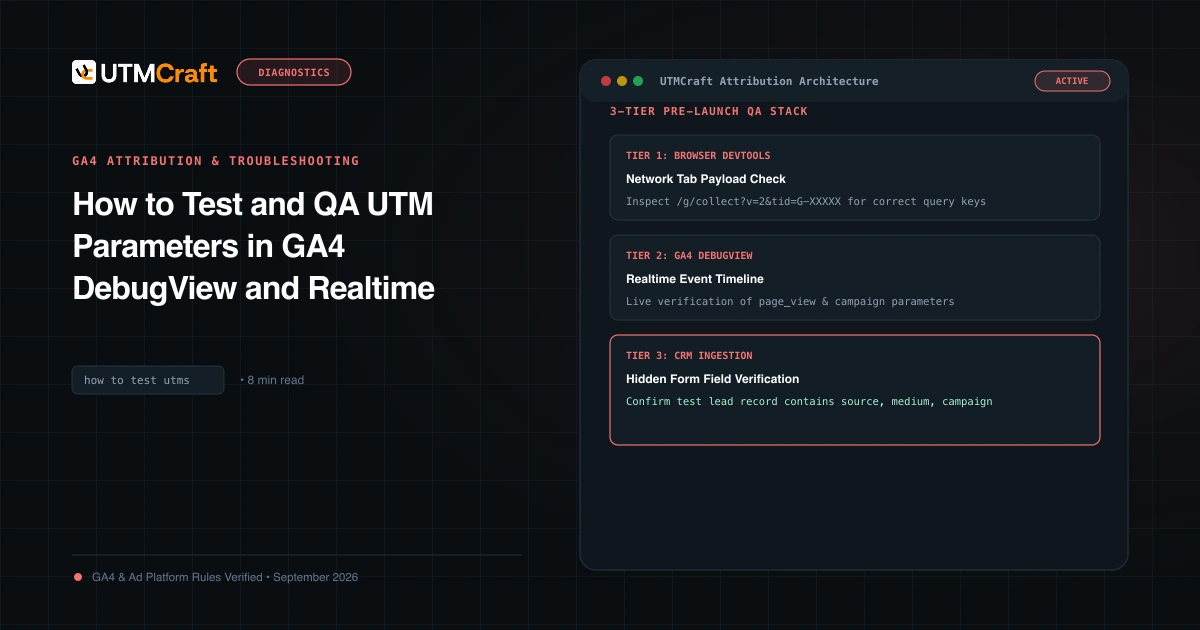
- Check collection in your property. With debug mode enabled, inspect the landing event and its page location in GA4 DebugView. Confirm the tagged URL is the one the website collected.
- Perform a meaningful website action. Submit a permitted test form or use another safe test action. Verify the event separately from the arrival.
- Check processed reports later. Review the expected session campaign and link label after processing. One immediate test is not a substitute for checking the eventual reporting view.
DebugView requires debug mode, and consent or privacy settings can affect what appears. Follow Google’s DebugView instructions; a missing test event is a collection investigation, not proof that the UTM format is wrong.
Preserve user consent choices. If parameters vanish during a redirect, use the redirect troubleshooting guide. The complete UTM test workflow helps separate URL structure, collection and processed reporting.
Find GBP visits and website outcomes in GA4
- Open Reports → Acquisition → Traffic acquisition. Navigation may differ with your report collection; use the report search or an Editor’s navigation configuration if necessary.
- Choose Session campaign and search for
gbp-marina, or your campaign prefix. Review the source/medium alongside the campaign where the report permits it. - Compare sessions and engagement with the website events or key events you have actually configured. A form link does not configure a form-completion event automatically.
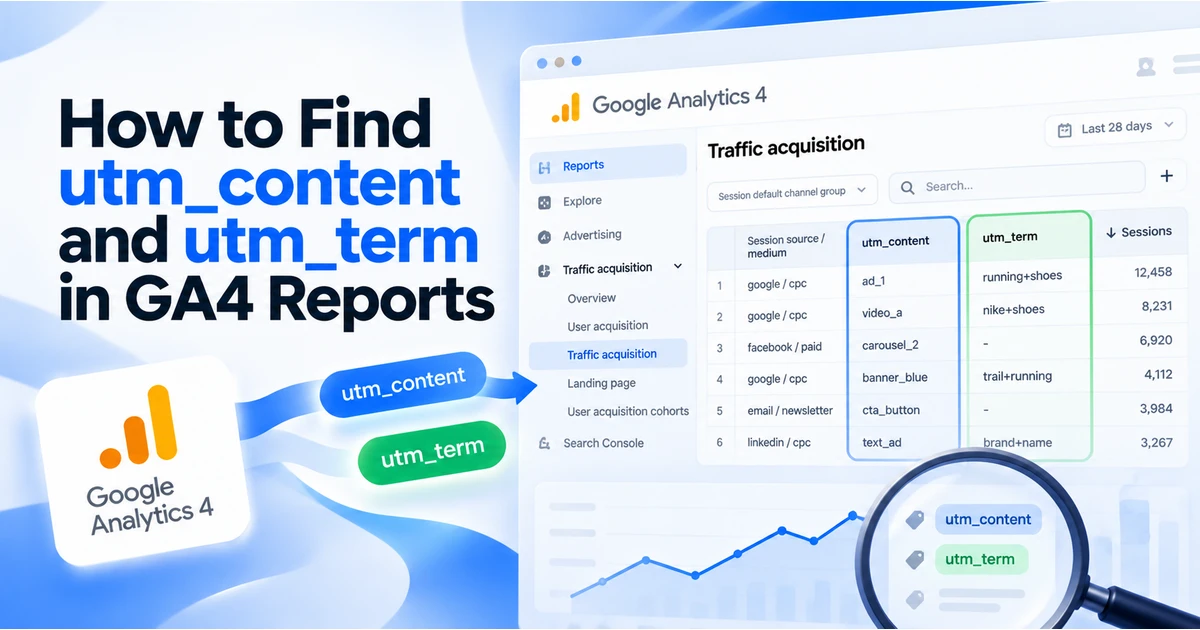
- For placement detail, use Session manual ad content in a compatible report or exploration to compare
websitewithappointment.
The Traffic acquisition report answers session acquisition questions. First-user dimensions answer how a person was first acquired, which can be different from a later GBP visit. Review Google’s dimension scope definitions when those rows disagree.
utm_content populates manual ad content dimensions despite the word “ad” in the label. It is useful here for a non-ad placement. Google’s manual tagging reference and our GA4 content and term reporting guide explain where those values appear.
A location campaign identifies the profile link used to arrive. It does not prove the visitor lives near that location or ultimately transacted there. If a visitor chooses another branch later, collect that business outcome through your website’s event design rather than inferring it from the campaign name.
Set up the native Google Business Profile integration
You need Editor or Administrator access to the GA4 property and Owner or Manager access to the profiles. In GA4, go to Admin → Product links → Google Business Profile links → Link. Select the profiles, review the data-sharing information and confirm. Google’s linking requirements
Link only profiles intended for that property’s reporting. Record the selected locations so future editors understand what the aggregate represents. Once a link exists, Google documents a dedicated Business Profile report collection in GA4.
| Documented limit | Reporting consequence |
|---|---|
| The last six months of GBP metrics are available | A longer GA4 date selection does not produce older GBP engagement data. |
| All linked profiles are summed | The native total cannot be treated as one branch’s performance. |
| No individual-profile filtering or segmentation | Use location UTMs for website acquisition; use GBP performance for profile-specific engagement. |
| GBP data is unavailable in custom explorations, comparisons and filters | Do not promise a custom native GBP-to-purchase funnel in Explore. |
| GA4 subproperties are unsupported | Check the property type before assuming the link is available. |
These restrictions come from Google’s current integration documentation. Feature availability has been verified in documentation, not inside your private GA4 account. If the menu is missing, confirm your roles, property type and current availability with Google; the UTM workflow remains independently usable.
For several locations, maintain two views: a session campaign view for tagged website visits and a location-specific Business Profile performance view for profile engagement. Google documents downloading performance reports for selected profiles through Business Profile Manager. Performance reporting and downloads
Why website clicks and GA4 sessions do not match
A profile click and a measured website session are different units. Someone can click more than once, leave before analytics runs, decline consent or encounter a failed page. The profile’s website-click count therefore is not a target that GA4 sessions must reproduce exactly.
Calls in Business Profile performance count call-button interactions, not verified answered calls. Direction requests are not confirmed store visits. Native integration makes those metrics easier to see alongside analytics; it does not change their meaning. Google’s metric definitions
| Problem | Check | Next action |
|---|---|---|
| Campaign missing in GA4 | Published link, final URL, correct property and tag collection | Test the live journey before changing the campaign convention. |
| Two profiles merged into one campaign | Campaign value used on each profile | Assign distinct stable location codes and record the change date. |
| GBP total differs from GA4 | Clicks versus sessions, dates, location scope and processing | Compare like-for-like periods and explain the measurement boundary. |
| Appointment clicks exist, but no completed bookings | Provider ownership and confirmation-event collection | Measure supported outcomes; do not equate link clicks with bookings. |
| Content label missing | The selected dimension and whether the landing URL contains utm_content | Use a session manual ad content view after processing. |
| Native totals cannot be filtered by location | Documented integration restrictions | Use profile performance exports for engagement and UTM campaigns for website visits. |
Reporting is not instantaneous. Check Google’s data freshness guidance before escalating a fresh test. If the problem persists, the GA4 UTM troubleshooting guide covers the collection and scope checks.
Google Business Profile tracking questions
Do I still need UTMs after linking GBP to GA4?
Use them when you need explicit website campaign and placement labels. The native integration’s aggregate engagement data does not replace that location-level website labeling.
Can I distinguish Search from Maps with one tagged link?
No. A shared static link carries the same labels whichever surface displays it. Do not manufacture a surface distinction through the source name.
Can I track phone calls by tagging the website URL?
The website URL labels website arrivals. A phone-button tap that never opens the website is a different interaction. Use supported profile metrics or a separately designed call-measurement system.
Do UTMs improve local rankings?
This setup measures traffic. We have no verified evidence here that adding UTMs improves Business Profile rankings, so that is not a benefit we claim.
Before rolling out the link plan, complete the GBP tracking checklist: correct profile, correct destination, preserved labels, collected events and a reporting view that matches the question.
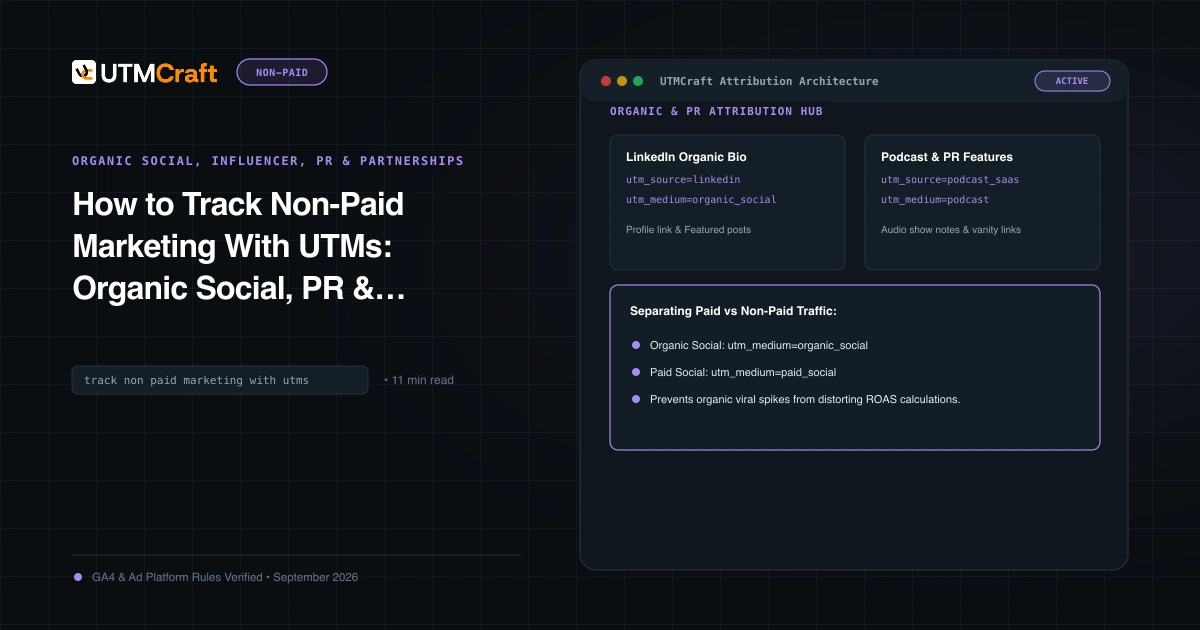
For the broader setup, read How to Track Non-Paid Marketing With UTMs: Organic Social, PR & Partnerships. Browse the Organic Social, Influencer, PR & Partnerships guides to choose another troubleshooting task.
References: Connect Google Business Profile to Google Analytics; Link Analytics from Business Profile; Edit your Business Profile; Manage local business links; Understand Business Profile performance; Traffic acquisition report; Traffic-source dimension scopes; Default channel group rules; Traffic-source dimensions and tagging; DebugView; Data freshness; Avoid sending personally identifiable information; Analytics release notes.