

LinkedIn Ads UTM Tracking: B2B Attribution & Hierarchy Setup Guide
Learn how to configure LinkedIn Ads UTM tracking across Campaign Groups, Campaigns, and Ads. Best practices for GA4 Paid Social channel mapping.
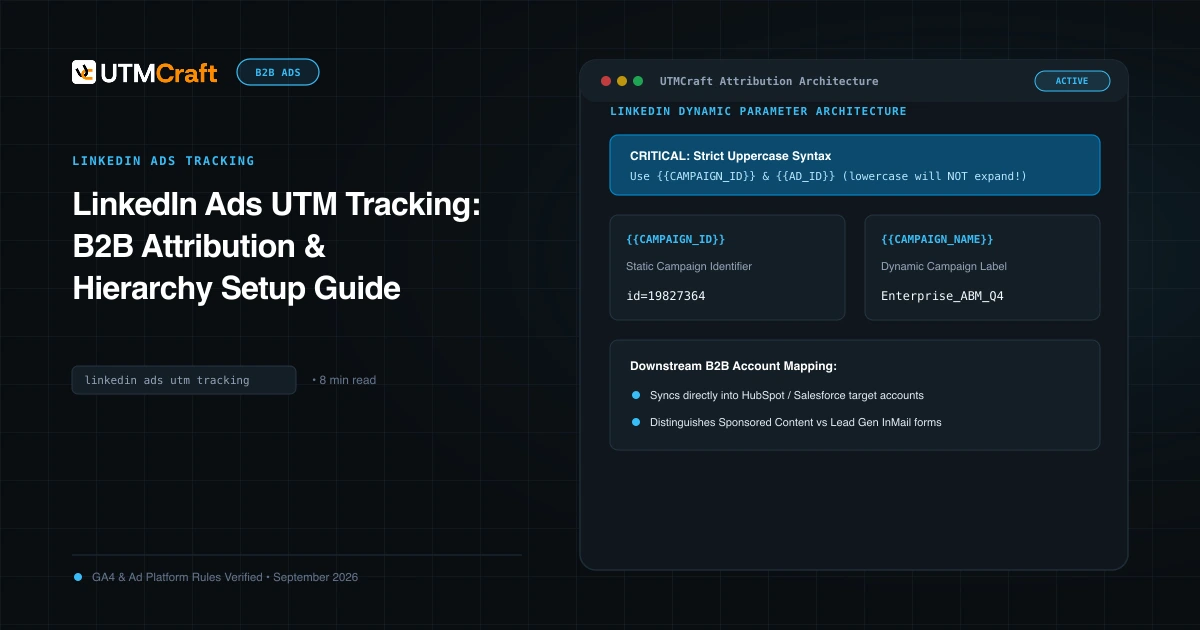
Table of Contents
Tracking LinkedIn Ads in Google Analytics 4 requires a clear understanding of LinkedIn's multi-tier account hierarchy and strict adherence to GA4 Paid Social channel rules. Here is how to configure your campaigns for seamless B2B attribution.
Understanding the LinkedIn Campaign Hierarchy
LinkedIn organizes ad buying across three primary tiers:
- Campaign Group: High-level strategic initiative or objective (e.g. 2026 Enterprise Pipeline).
- Campaign (Ad Set): Defines audience targeting (job titles, industries, company size), bidding, and budget.
- Ad: The creative asset (Single Image, Video, Carousel, Document Ad, Thought Leader Ad).
Source & Medium Standards for LinkedIn
To ensure GA4 properly groups your sessions under Paid Social, enforce:
utm_source=linkedin(all lowercase).utm_medium=paid_social. (Avoidcpcorsponsored).
Step-by-Step Setup in Campaign Manager
- Create or edit your Sponsored Content ad in Campaign Manager.
- In the Destination URL field, enter your clean landing page URL.
- Append your dynamic parameters:
?utm_source=linkedin&utm_medium=paid_social&utm_campaign={{CAMPAIGN_NAME}}&utm_content={{AD_NAME}}&utm_term={{AD_SET_NAME}}&utm_id={{CAMPAIGN_ID}} - Save and launch the ad.
Troubleshooting LinkedIn Traffic in GA4
If LinkedIn traffic appears under "Referral" (lnkd.in / referral), it means UTM parameters were missing or stripped by a redirect, causing GA4 to fall back to the LinkedIn link-wrapper referrer. Enforce direct landing URLs with exact trailing slashes to preserve query parameters.
Sources & Authoritative References
- Set up tracking in LinkedIn Campaign Manager (LinkedIn Help Center)
Related Measurement Guides
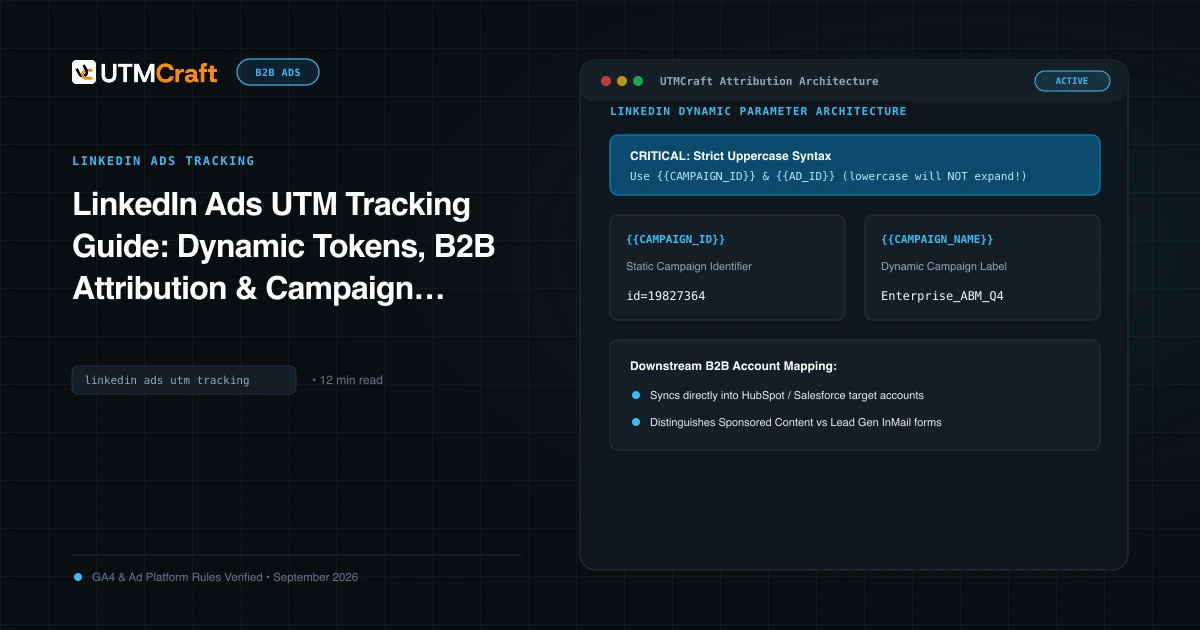
LinkedIn Ads UTM Tracking Guide: Dynamic Tokens, B2B Attribution & Campaign Setup
Complete guide to LinkedIn Ads UTM tracking. Configure dynamic URL parameters (CAMPAIGN_ID, AD_SET_ID, AD_ID), B2B hierarchy, and GA4 Paid Social reporting.
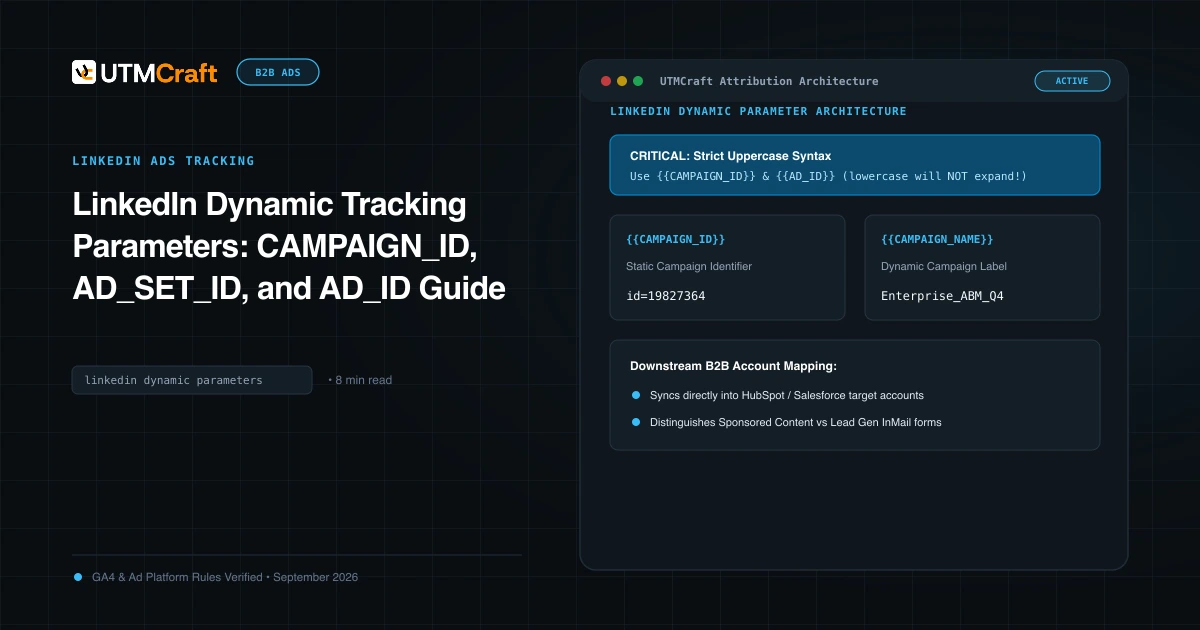
LinkedIn Dynamic Tracking Parameters: CAMPAIGN_ID, AD_SET_ID, and AD_ID Guide
Learn how to use LinkedIn dynamic URL parameters: CAMPAIGN_ID, CAMPAIGN_NAME, AD_SET_ID, and AD_ID. Complete syntax rules and CRM mapping.
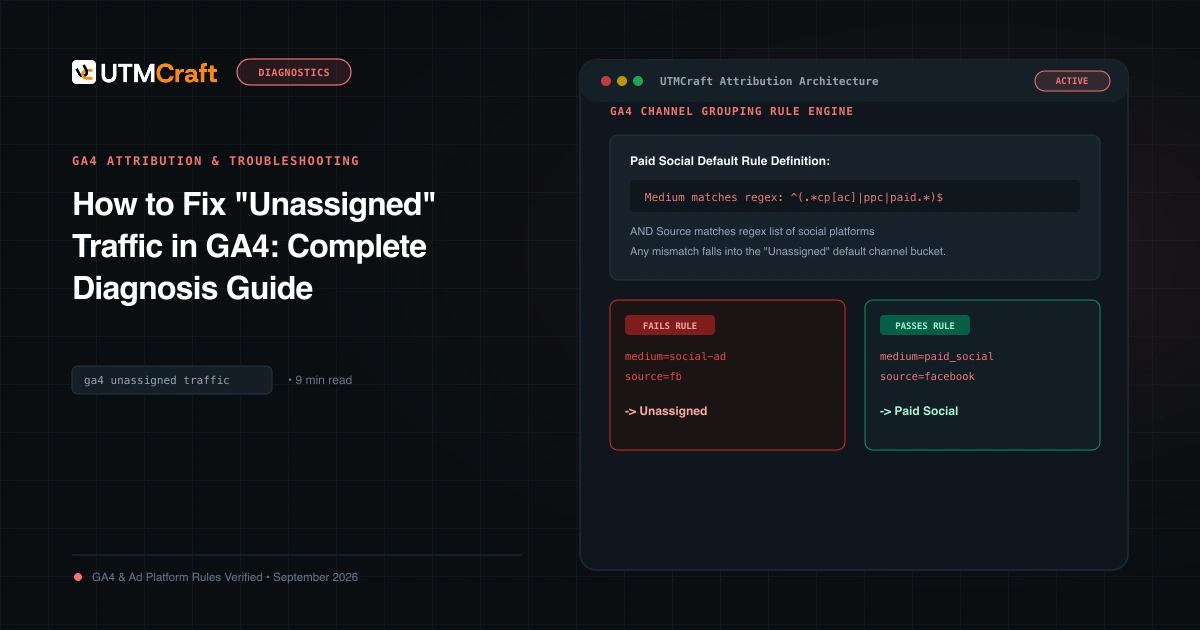
How to Fix "Unassigned" Traffic in GA4: Complete Diagnosis Guide
Why does GA4 show Unassigned traffic? Discover the exact channel grouping regex rules, common medium mistakes, and how to fix Unassigned traffic permanently.