Table of Contents
- What is changing and when
- 1. Expecting migrated traffic to stay in the Display channel
- 2. Keeping {placement} and {network} in your tracking template
- 3. Assuming URL options survive the migration
- 4. Letting the "#2" campaign name into your reports
- 5. Mixing channels in one ad group
- 6. Letting manual UTMs fight auto-tagging
- 7. Importing cost before the adjustments settle
- 8. Comparing Demand Gen conversions to GA4 key events one to one
- 9. Migrating in the middle of a test
- Pre-migration tracking checklist
- Quick answers
Google is folding standalone Display campaigns into Demand Gen, and most of the tracking that worked for Display will quietly stop working after the move. Migrated traffic changes GA4 channel, several ValueTrack parameters stop returning values, campaign names change, and costs can be adjusted for up to 60 days after the click. Here are nine mistakes we see in accounts preparing for the migration, with the fix for each.
Documentation checked: October 18, 2026. Google's own timeline is labelled as subject to change, so check the migration help page before you plan dates.
What is changing and when
Google announced in May 2026 that "Google Display Ads campaigns are moving to Demand Gen as the Google Display Network (GDN)" (Google Ads Help). The rollout has three phases:
| Phase | What happens | Timing |
|---|---|---|
| Self-serve migration | Eligible advertisers can move existing Display campaigns with an in-account tool. Settings, learning and 42 days of performance history carry over. | Phased rollout from June 2026 |
| Creation cut-off | New Display campaigns can only be created inside Demand Gen. Existing ones stay editable until migrated. | Trade press reports January 2027; Google has not published a date |
| Automatic migration | Remaining eligible Display campaigns move to Demand Gen without advertiser action. | Later in 2027, date not announced |
Two details from Google's FAQ drive most of the tracking problems below. Migrated campaigns are renamed "[Original campaign name] #2", and the originals are set to Removed but stay in the account for reporting. Migrated campaigns also keep the Google Display Network opted in, and you cannot deselect it during migration (Google Ads Help).
1. Expecting migrated traffic to stay in the Display channel
GA4 assigns auto-tagged Google Ads sessions to a channel by ad network type or, failing that, by campaign type. Display campaigns land in Display. Demand Gen campaigns land in Cross-network, together with Performance Max, App, Smart and Local campaigns (Google Analytics Help). The ad network type for Demand Gen traffic shows as Cross-network or Google owned channels, not Google Display Network, even when the ad group only serves on GDN.
The day you migrate, your Display channel drops to zero and Cross-network jumps. Year-over-year channel comparisons break, and any dashboard that reports "Display spend vs Display revenue" from GA4 silently reports nothing.
Fix: Build the migrated view before you need it. In a free-form Exploration, use Session Google Ads campaign as the row and filter to your Display and Demand Gen campaign names, so the report follows the campaign rather than the channel. Add a GA4 annotation on the migration date. If leadership needs a "Display" line to survive, create a custom channel group where the condition is the campaign names you control, not the default channel.
2. Keeping {placement} and {network} in your tracking template
Display tracking templates commonly use {placement} in utm_content and {network} to separate Display from Search. Google's ValueTrack documentation lists the parameters that are not supported for Demand Gen: {placement}, {target}, {keyword}, {ifsearch:[value]}, {ifcontent:[value]}, {network} and {targetid} (Google Ads Help). After migration those parameters return nothing, so utm_content arrives empty and GA4 shows (not set).
Fix: Rebuild the suffix with parameters Demand Gen does fill: {campaignid}, {adgroupid}, {creative} and {device}. Set the medium as a fixed value per campaign type instead of deriving it from {network}:
utm_source=google&utm_medium=paid_display&utm_campaign={campaignid}&utm_content={adgroupid}_{creative}&utm_term={device}Use paid_display for GDN-only ad groups and a different fixed medium for ad groups that also serve YouTube, Discover and Gmail. Keep the ID-to-name mapping in your UTM sheet so {campaignid} is readable later.
3. Assuming URL options survive the migration
Google's migration FAQ says settings and learning transfer to the new campaign. It does not mention tracking templates, final URL suffixes or custom parameters, and the new campaign is a different campaign object with a new ID. Accounts that set URL options at campaign level, or that rely on a campaign-level suffix overriding the account-level one, are the most exposed.
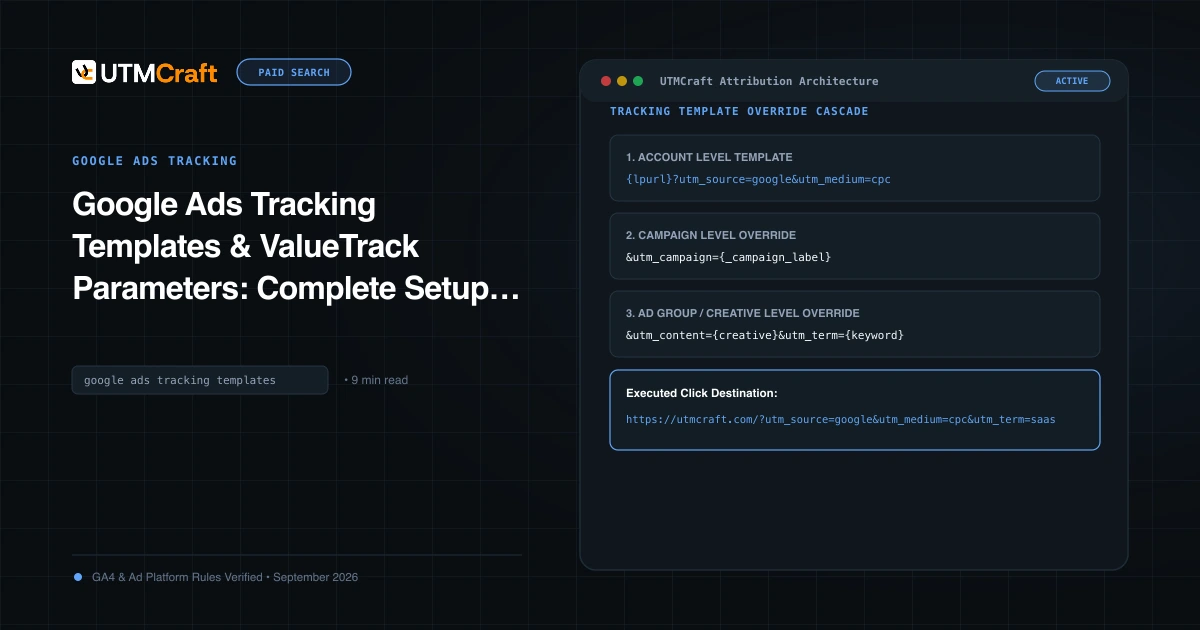
Fix: Treat the migrated campaign as new. Open its URL options and the URL options of every ad group and ad, and compare them with the original. Then click a live ad and confirm the full landing URL in the browser and the session in GA4 DebugView. Our tracking template guide covers the override order between account, campaign, ad group and ad.
4. Letting the "#2" campaign name into your reports
Migrated campaigns are named "[Original campaign name] #2". GA4's Session Google Ads campaign dimension and any report keyed on campaign name will now show two rows for one campaign: the original up to the migration date, and the "#2" version after it. The hash also causes trouble if anyone pastes the campaign name into a URL, because # starts a fragment and everything after it is dropped.
Fix: Rename the migrated campaign as soon as the migration completes, following your existing naming convention. Record the old and new campaign IDs in your tracking sheet. If you put campaign names in UTMs, use {campaignid} instead and map it to a name downstream, as described in our campaign naming mistakes guide.
5. Mixing channels in one ad group
In Demand Gen, the Google Display Network opt-in lives at ad group level, and channel controls decide whether an ad group serves on YouTube, Discover, Gmail or GDN (Google Ads Help). Because {network} is unsupported, an ad group that serves on all four surfaces produces one undifferentiated traffic stream in GA4. You will not be able to tell a YouTube Shorts click from a GDN banner click.
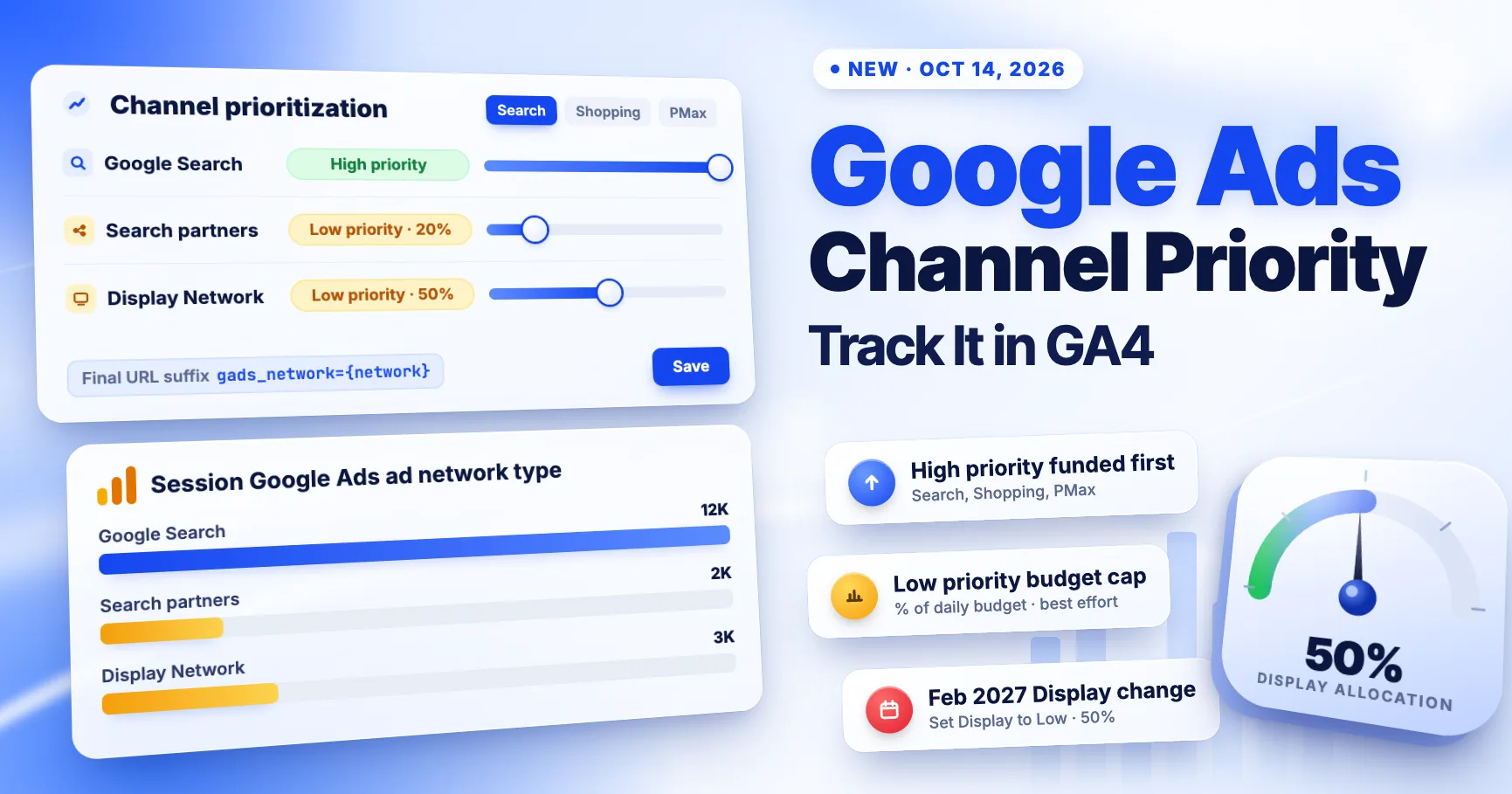
Fix: Make the ad group the unit of channel separation. Create one ad group per channel mix you want to measure, for example GDN-only, YouTube-only and Discover-plus-Gmail, and encode that in the ad group name. With {adgroupid} in utm_content, GA4 and your CRM can then split traffic by channel. Google's new channel prioritization controls, which apply to Demand Gen as well as Search, make this split more useful, not less; see how to track channel priority changes in GA4.
6. Letting manual UTMs fight auto-tagging
When a click carries both a GCLID and manual UTMs, GA4 uses the Google Ads data for source, medium and campaign by default. Your UTMs are kept for other tools but ignored in GA4 reports unless the property's advanced setting to let manual tagging override auto-tagging is switched on. Teams sometimes flip that setting to force "display" as the medium after migration, and then lose Google Ads cost, campaign and ad network dimensions in GA4.
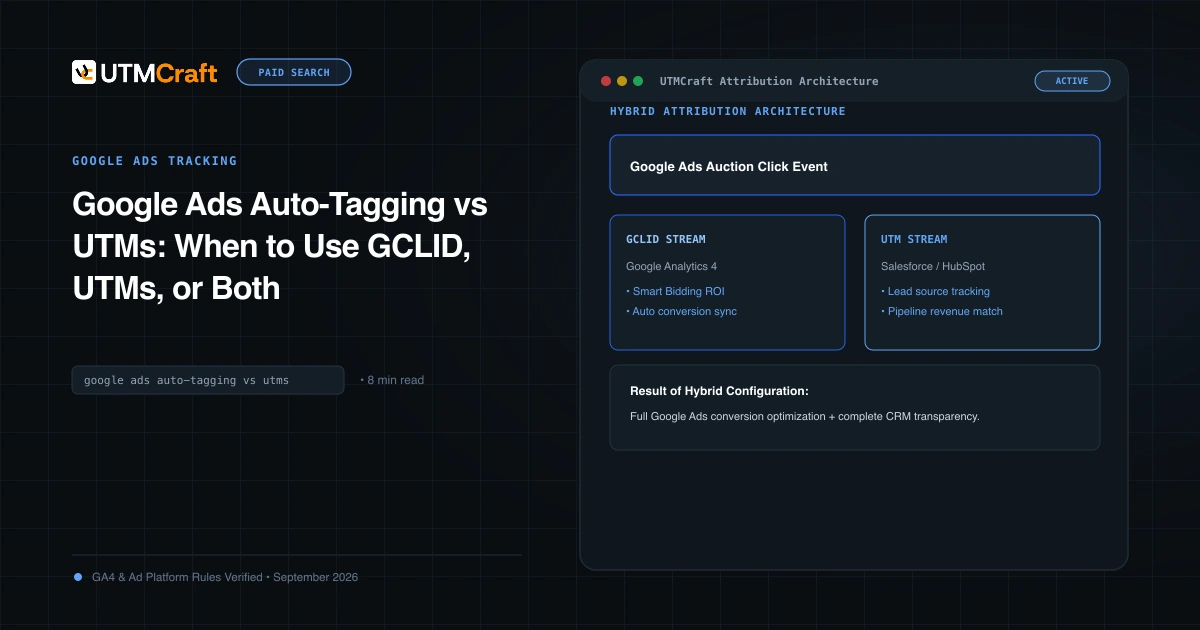
Fix: Leave the override off. Let GA4 classify the traffic from auto-tagging, and let your UTMs serve the CRM, BI and form-capture use cases where GA4 data is not available. The split is explained in auto-tagging vs UTMs.
7. Importing cost before the adjustments settle
Demand Gen campaigns on Target CPA and Target ROAS can receive performance-based cost adjustments: Google retroactively reduces costs when conversion performance falls short of prediction (Google Ads Help). On October 16, 2026, Search Engine Land reported that the maximum adjustment window has grown from three weeks to 60 days (Search Engine Land).
If you export Google Ads cost into a warehouse, a BI tool or a GA4 cost import once and never refresh it, your Demand Gen CPA will be overstated for up to two months. Display campaigns never behaved this way, so existing pipelines rarely re-pull old dates.
Fix: Re-sync Demand Gen cost at least 60 days back on every run, and label any report that uses cost younger than 60 days as provisional. The GA4 Google Ads link handles this for GA4's own reports, but a manual cost data import does not.
8. Comparing Demand Gen conversions to GA4 key events one to one
Demand Gen reports include view-through conversions, engaged-view conversions on video and data-driven attribution inside Google Ads. GA4 key events are click-based and last-non-direct by default. Display campaigns already differed from GA4, but Demand Gen adds video and Gmail surfaces where view-through is a larger share, so the gap widens after migration and someone will read it as a tracking failure.
Fix: Decide the role of each number before migration. Google Ads conversions steer bidding. GA4 key events and your CRM measure outcomes you can audit. Report them side by side with the attribution rule in the column header, and never "fix" one to match the other.
9. Migrating in the middle of a test
Google advises against using the migration tool during an active lift study, because the converted campaign will not be linked to the study. Brand Lift and Search Lift are not supported for GDN inside Demand Gen at all, although Conversion Lift and third-party verification are (Google Ads Help). The same logic applies to your own tests: a geo holdout or a landing page experiment that spans the migration date will have the channel change baked into its result.
Fix: Finish or pause tests before you migrate, record the migration date as a hard boundary in every analysis, and start new baselines from the first full week after the move.
Pre-migration tracking checklist
- Export the current URL options for every Display campaign, ad group and ad.
- Remove
{placement},{network},{keyword},{target},{targetid}and the if-functions from templates that will apply to Demand Gen. - Write the new suffix with
{campaignid},{adgroupid},{creative}and{device}, plus a fixed medium per channel mix. - Plan one ad group per channel mix you need to measure separately.
- Rename "#2" campaigns immediately after migration and record old and new IDs.
- Rebuild GA4 reports on campaign name or ID rather than the Display channel, and add an annotation on migration day.
- Set cost pipelines to re-pull at least 60 days of Demand Gen cost.
- Click a live ad after migration and confirm the URL, the GA4 session and the CRM record.
Quick answers
When do Google Display campaigns stop working?
They do not stop working. Google will migrate remaining eligible campaigns to Demand Gen automatically at a later date. Trade press reports that new standalone Display campaigns cannot be created from January 2027, but Google's help page gives no date and labels its timeline subject to change.
Will Demand Gen traffic show as Display in GA4?
No. Auto-tagged Demand Gen sessions fall into the Cross-network channel, even when the ad group only serves on the Google Display Network.
Which ValueTrack parameters work in Demand Gen?
Use {campaignid}, {adgroupid}, {creative}, {device} and {lpurl}. Google lists {placement}, {target}, {keyword}, {ifsearch}, {ifcontent}, {network} and {targetid} as unsupported.
Should I migrate now or wait for automatic migration?
Migrating with the tool lets you choose the date, keep 42 days of learning and run the checks above. Waiting means the change happens on Google's schedule, possibly during your peak season.
For the broader setup, read 15 UTM Tracking Mistakes That Ruin Your GA4 Data (and How to Fix Them). Browse the UTM Mistakes & Tracking Audits guides to choose another troubleshooting task.
References
- Google Display Ads campaigns have a new home in Demand Gen (Google Ads Help)
- Google Display Network integration with Demand Gen (Google Ads Help)
- About Demand Gen campaigns (Google Ads Help)
- Set up tracking with ValueTrack parameters (Google Ads Help)
- Demand Gen Frequently Asked Questions (Google Ads Help)
- Default channel group (Google Analytics Help)
- Google Ads extends Demand Gen cost adjustments from 3 weeks to 60 days (Search Engine Land)
- New Google Ads channel prioritization and budget controls (Google Ads & Commerce Blog)