Table of Contents
- Quick start: find AI traffic
- What the AI Assistant channel measures
- AI assistants vs Google AI search
- Build a useful AI traffic report
- When a custom channel group helps
- Use UTMs only where you control links
- Test the click and attribution
- Troubleshoot missing AI traffic
- Measure leads and revenue responsibly
- Frequently asked questions
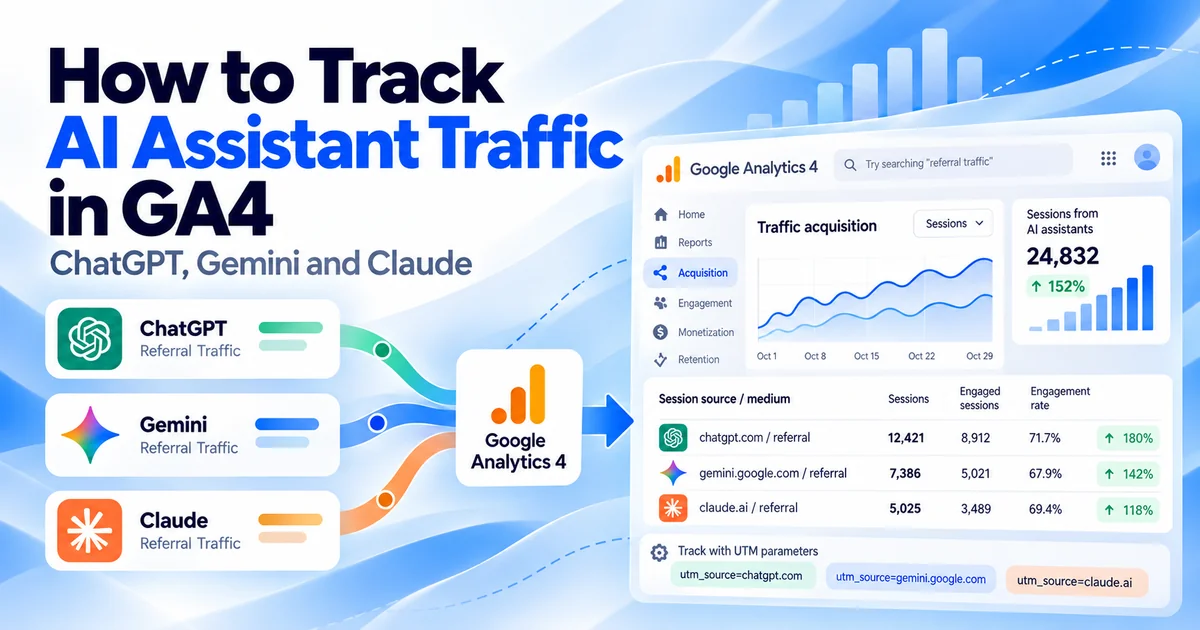
To track AI assistant traffic in GA4, start with the AI Assistant row in your Traffic acquisition report, then break it down by session source and landing page. This gives you a practical view of visits attributed to assistants such as ChatGPT, Gemini and Claude. Then check whether those visitors sign up, submit a lead or buy. An AI mention does not necessarily lead to a visit.
Documentation checked: October 1, 2026. This guide separates Google’s documented reporting behavior from our suggested audit workflow. Regex patterns, tagging examples and sample results below are illustrative; they are not measurements from a live GA4 property.
Quick start: find AI assistant traffic in GA4
- Open the correct GA4 property and go to Reports → Acquisition → Traffic acquisition. If the report is missing from your navigation, an Editor can add it back.
- Choose Session default channel group as the table’s primary dimension.
- Search the table for AI Assistant, or apply an Include filter where Session default channel group exactly matches that value.
- Add Session source / medium as a secondary dimension to see the sources behind the channel.
- Use a completed reporting period, such as the last full month. Compare sessions, engagement and the key event that represents your business goal.
Google’s Traffic acquisition documentation explains the report and filters. A missing row is a reason to investigate source data; it does not prove that nobody discovered you through AI.
What the AI Assistant channel actually measures
Google announced native AI assistant measurement on May 13, 2026. When a referrer matches a recognized assistant, Google documents an automatically assigned medium of ai-assistant, an AI Assistant channel, and a campaign name of (ai-assistant).
The current default channel rules specify an exact medium match of ai-assistant. Native recognition means a custom regex is not the starting requirement for supported traffic.
- Visibility: did an assistant show or mention your page?
- Acquisition: did someone arrive with a source signal GA4 could use?
- Outcome: did the visit lead to a signup, qualified lead or purchase?
A traffic report answers the second question and helps analyze the third. It is not a complete inventory of AI citations, prompts or brand mentions.
Use session dimensions for a visit-based baseline. User acquisition and Traffic acquisition have different scopes: a customer originally acquired through email can later arrive from an AI assistant without changing the source that first acquired them.
ChatGPT, Gemini and Claude vs Google AI Overviews and AI Mode
Google explicitly excludes AI Overviews and AI Mode from the AI Assistant channel. Their non-ad search visits belong to Organic Search. A visit from the standalone Gemini assistant should therefore be evaluated separately from a Google Search visit involving an AI feature.
| Journey or question | Where to look | What to avoid concluding |
|---|---|---|
| Visit attributed to ChatGPT, Gemini or Claude | GA4 AI Assistant channel, then Session source / medium | The channel captures every visit influenced by that assistant. |
| Organic visit from Google AI Overviews or AI Mode | GA4 Organic Search for on-site behavior | Every google / organic session came from an AI feature. |
| Your pages’ visibility within Google’s generative AI features | Search Console Generative AI performance reports | Impressions equal visits, or include ChatGPT and Claude visibility. |
| A visitor copies a URL or returns later without a source signal | Check collected data and supplementary attribution evidence | A Direct session proves an AI origin. |
For Google AI visibility, use the dedicated Search Console Generative AI performance reports. Google’s June announcement, updated August 31, says the insights rolled out worldwide and describes impressions, pages, countries, devices and dates. That is different from identifying a GA4 session’s source. Avoid promising a session-level connection between an impression in Search Console and a conversion in Analytics.
Build a report by source and landing page
Start with two views: which assistants send attributable visits and which entry pages help those visitors complete a goal. Keep the same date range and key event selection in both.
View 1: source and outcomes
In Traffic acquisition, keep the AI Assistant filter and use Session source / medium. Include Sessions, Engaged sessions, Engagement rate, Key events, and Session key event rate where available. Select the relevant key event, such as generate_lead or purchase, rather than pooling every action into one success measure.
View 2: entry pages
For a flexible breakdown, create a Free-form exploration. Import Session default channel group, Session source / medium, and Landing page + query string. Import your session and outcome metrics, add the AI Assistant filter, and place source and landing page in the rows. Keep the channel filter while changing the row dimensions.
If query strings create many versions of the same entry page, summarize them by the base page when reviewing content performance. Keep the query-string version for debugging. Landing pages answer where sessions began; a general page-view report also includes pages visited later.
- Many visits, few qualified leads: review the page’s promise, next step and visitor intent.
- Few visits, useful leads: inspect the content and lead quality before deciding whether to expand the topic.
- An abrupt change: check measurement and channel rules before crediting a content edit.
When to use a custom AI channel group
Use the native channel as your baseline. Add a custom audit group if you want to compare older source records, inspect known assistant domains outside the native channel, or apply an explicitly documented source list. Google supports custom groups retroactively and requires Editor access or higher to create them.
This rule matches specific hostnames. Broad expressions containing just ai, google or openai can include unrelated referrals. Even a matching hostname is evidence of a source, not proof that a particular answer cited you.
^(chatgpt\.com|chat\.openai\.com|gemini\.google\.com|claude\.ai|perplexity\.ai|copilot\.microsoft\.com)$Apply this pattern to Source, or Session source in an exploration. The combined source / medium field needs a different pattern. It is a conservative starter list, not Google’s complete recognized-assistant list. Review source values in your own data and add verified hosts or subdomains as needed.
- Go to Admin → Data display → Channel groups and create a group by copying an existing one.
- Name the audit channel AI assistants: audit.
- Add one condition group where Default channel group exactly matches AI Assistant.
- Add an OR condition group where Source matches regex using the pattern above and Medium exactly matches referral. The medium restriction keeps this fallback focused on referrals.
- Move the audit channel above Referral and the copied AI Assistant channel. Save and use the session version of your custom group in reporting.
You can use this setup to audit your source data. Test both branches before adopting it. Keep the native report alongside it; avoid changing your property’s primary channel group merely to investigate AI sources.
A custom group can reclassify available records. It cannot recreate a referrer that was never collected, identify an unknown Direct visit, or make historical native-channel totals comparable automatically. Document the rule and the date you changed it.
Use UTMs only where you control the distributed link
You do not control the URL every public assistant chooses to cite. Leave your normal website links clean. For links you distribute through your own assistant experience or a controlled placement, manual campaign tagging can identify a specific initiative.
For example, suppose you manage a branded assistant and can configure its outbound website link. An illustrative URL is:
https://example.com/demo/?utm_source=brand_assistant&utm_medium=ai-assistant&utm_campaign=product_help&utm_content=demo_linkutm_source=brand_assistantidentifies the experience you actually control.utm_medium=ai-assistantuses the documented AI Assistant medium.utm_campaign=product_helpdistinguishes the initiative.utm_content=demo_linkdistinguishes the placement within that initiative.
Build controlled URLs with the campaign URL builder and follow a stable UTM naming convention. Validate the processed result: manually tagged campaigns and other classification rules can affect what appears in reports.
Tag the actual distribution channel. A newsletter about ChatGPT still uses your email source and medium. Do not label it AI traffic just because the topic is AI. Likewise, putting an AI UTM on every internal link would manufacture source labels rather than measure discovery. Do not assume every assistant adds UTMs, and do not put personal data or private conversation text into a tracking URL.
Test the real click path before trusting the report
Use this repeatable QA procedure for each assistant and device experience that matters to you. A tagged test validates your controlled URL; an untagged click from a real assistant tests whether a referrer survives that particular journey. These are different tests.
- Prepare a clean visit. Use a fresh browser profile with tracking allowed under your normal consent settings. Record the assistant, browser, device, test time and destination. An existing session can complicate interpretation.
- Click the actual link. For a referral test, follow a real link from the assistant. Pasting a destination into the address bar does not reproduce the referral journey.
- Check the final URL. Record any parameters before and after redirects. A shortcut, consent flow or redirect may change the destination. Use our redirect troubleshooting guide if tags disappear.
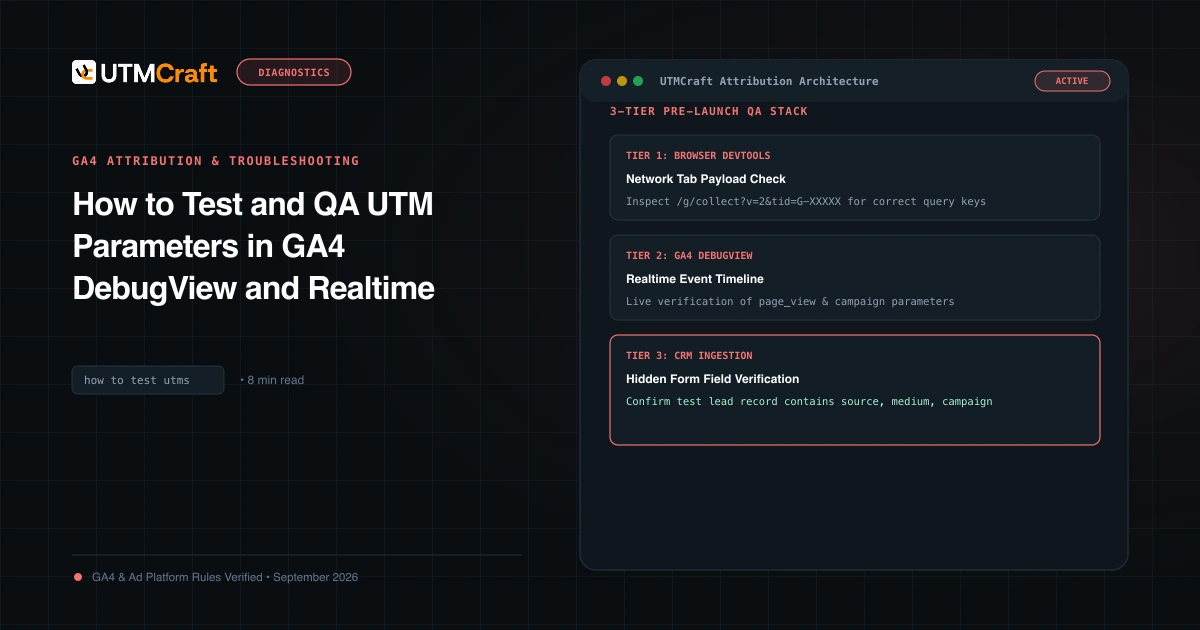
- Check collection. In browser developer tools or your tag-debugging workflow, inspect the initial analytics event. Check
page_locationfor the landing URL andpage_referrerfor the referring URL, where present. Google documents these in its event parameter reference. - Confirm the intended action. Enable debug mode for a controlled test and use DebugView to check page and goal events. A missing debug event can reflect debug-mode or consent configuration, so check collection as well.
- Recheck processed attribution. Compare the recorded visit with session reporting once processing has completed. Google says processing can take 24–48 hours and report values can change during that period.
Use DebugView to inspect events, then check channel attribution in processed reports. Our UTM testing guide covers the broader QA workflow. Avoid logging sensitive referring URLs into a shared test sheet.
Why AI traffic is missing, Direct or Referral
| Symptom | What to check | Useful response |
|---|---|---|
| No AI Assistant row | Date range, session dimension, assistant source rows and recent processing | Audit Session source / medium before assuming zero AI discovery. |
| A known assistant source appears under Referral | The exact source, medium, custom-group rules and collected referrer | Preserve the native view; compare a narrowly defined audit group. |
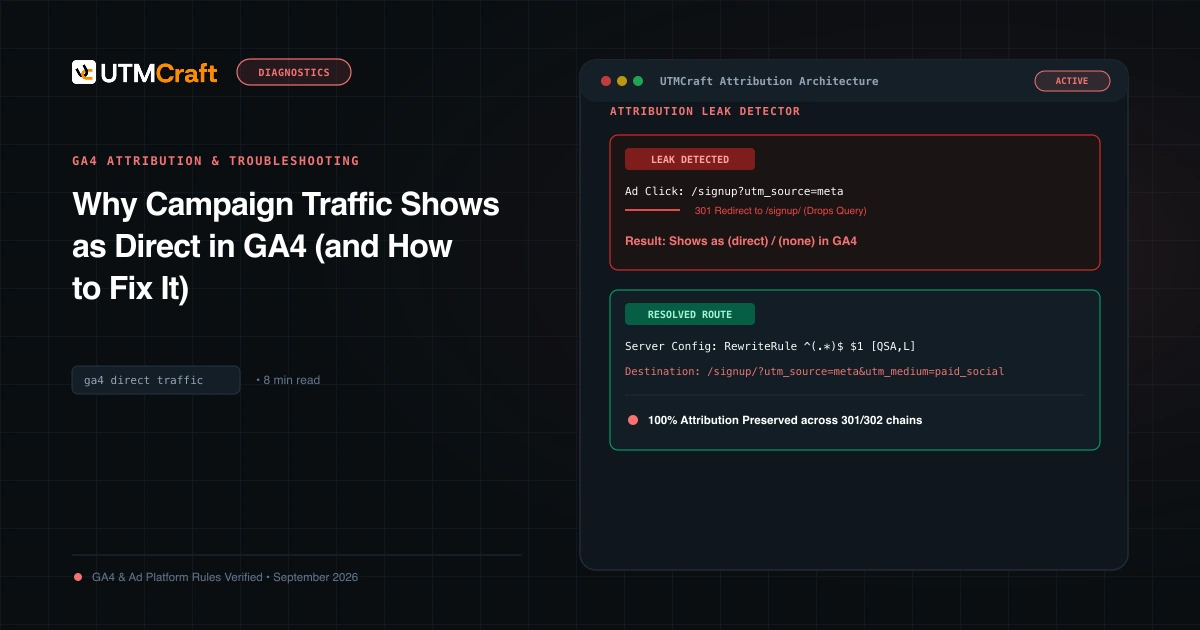
| A test appears as Direct | Missing referrer, lost UTMs, existing session and the real click path | Repeat a clean test. A regex cannot identify an empty source signal. |
| Tagged traffic appears as Unassigned | Exact medium value, spelling, casing and competing rules | Compare against documented definitions; inspect the final URL. |
| No events from the test | Correct property and stream, tag loading, consent, blocking and active filters | Resolve collection before diagnosing the channel. |
| A custom report finds more AI sessions | Added hosts, overlapping rules, historical range and non-referral matches | Investigate the difference; do not treat the larger number as inherently more accurate. |
Use the table to decide what to test next. Test desktop and mobile separately rather than assuming identical behavior. For wider issues, use the Direct traffic diagnosis guide or the Unassigned traffic checklist.
A rise in Direct traffic after an AI mention can support a hypothesis, but it cannot identify individual sessions as AI-sourced. Keep self-reported discovery, such as an optional “How did you hear about us?” answer, alongside analytics attribution rather than overwriting it.
Measure leads and revenue without overstating AI’s impact
Use Session key event rate for the percentage of sessions that contained the selected key event. Google defines the metric in the Traffic acquisition report reference. Repeated events matter: dividing the number of event occurrences by sessions is not always the same calculation.
Illustrative example: 200 AI-attributed sessions produce 12 lead-event occurrences, but only 8 distinct sessions contain that event. The session key event rate is 8 ÷ 200 = 4%, not 6%. If only 3 leads qualify in your CRM, report those 3 qualified leads separately. Eight sessions with a lead event do not necessarily represent eight unique qualified people.
Review source and landing page alongside the following measures:
- Sessions and engaged sessions: acquisition volume and on-site engagement.
- Selected key event rate: how often a visit includes the intended action.
- Qualified leads or completed sales: whether the outcome has business value.
- Revenue: where ecommerce measurement is valid, with the attribution scope stated.
- Sample size: show the counts behind percentages before drawing comparisons.
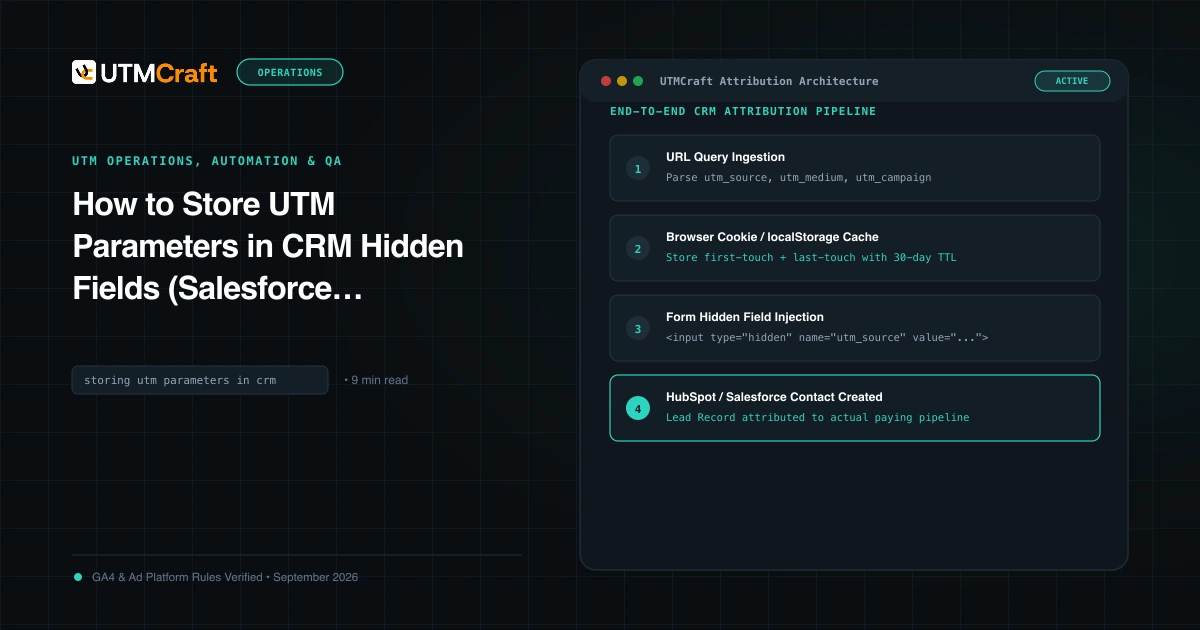
For lead generation, preserve first-touch and latest-touch campaign evidence where appropriate and use our CRM UTM capture guide. Keep self-reported AI discovery in a separate field. Someone can first hear about you in Claude, search Google later, and submit a form during an organic-search visit; those records describe different parts of the journey.
For a monthly review, record the date range, native channel totals, custom-rule version, top sources, entry pages, selected goal and qualified outcomes. Compare like periods and note measurement changes. Treat a shift around the May rollout or a custom-rule change as a possible reporting discontinuity before declaring traffic growth.
Frequently asked questions
Do I need a custom regex to track ChatGPT traffic?
Start with the native AI Assistant channel. Use a custom audit rule only to investigate additional recorded sources or historical data. Neither method recovers a source signal that was never collected.
Can GA4 show the exact prompt that sent a visitor?
The AI Assistant channel does not provide a prompt report. A source or referring URL should not be interpreted as a transcript of someone’s conversation.
Should I tag every website link with utm_source=chatgpt?
No. Tag only controlled distributed links whose source you can truthfully identify. Adding an AI label to normal website or newsletter links would make the report misleading.
Does the channel measure AI crawler activity?
Do not use the channel as an AI crawler inventory. It classifies analytics traffic using source signals. Inspect server or CDN logs for requests from crawlers, and keep that analysis separate from visitor acquisition.
Can I count Direct sessions as hidden AI traffic?
Not reliably from the Direct label alone. Use click-path tests and supplementary discovery evidence to investigate. Avoid applying a guessed percentage to Direct traffic and presenting it as measured AI sessions.
Can I compare the native channel with last year?
First inspect the available history and definitions. Do not assume native recognition is backfilled consistently. A documented custom group can help review historical source records, but it cannot recover missing attribution evidence.
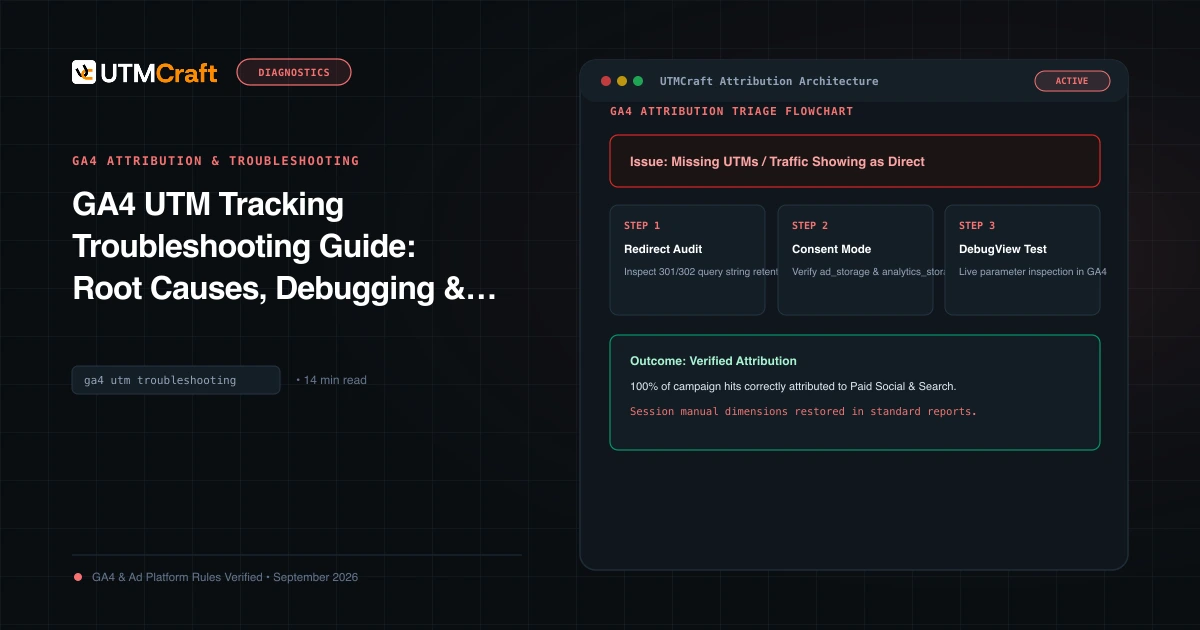
For the broader setup, read GA4 UTM Tracking Troubleshooting Guide: Root Causes, Debugging & Solutions. Browse the GA4 Attribution & Troubleshooting guides to choose another troubleshooting task.
References
- What’s new in Google Analytics: May 13, 2026 (Google Analytics Help)
- Default channel group: AI Assistant definitions and rules (Google Analytics Help)
- Traffic acquisition report (Google Analytics Help)
- User acquisition vs Traffic acquisition (Google Analytics Help)
- Custom channel groups (Google Analytics Help)
- Collect campaign data with custom URLs (Google Analytics Help)
- Analytics event parameters: page_location and page_referrer (Google Analytics Help)
- Monitor events in DebugView (Google Analytics Help)
- Data freshness (Google Analytics Help)
- Search Generative AI performance reports: worldwide rollout update (Google Search Central)